
TABLE OF CONTENTS
Tabs allow for customization of different ordering methods based on the type of service environment being used. The EZ Dine App will have predefined ordering workflows based on the tab type. For details on using different tab types please reference the EZ Dine App article here: Ordering Tab Types
Step 1: Creating Tabs
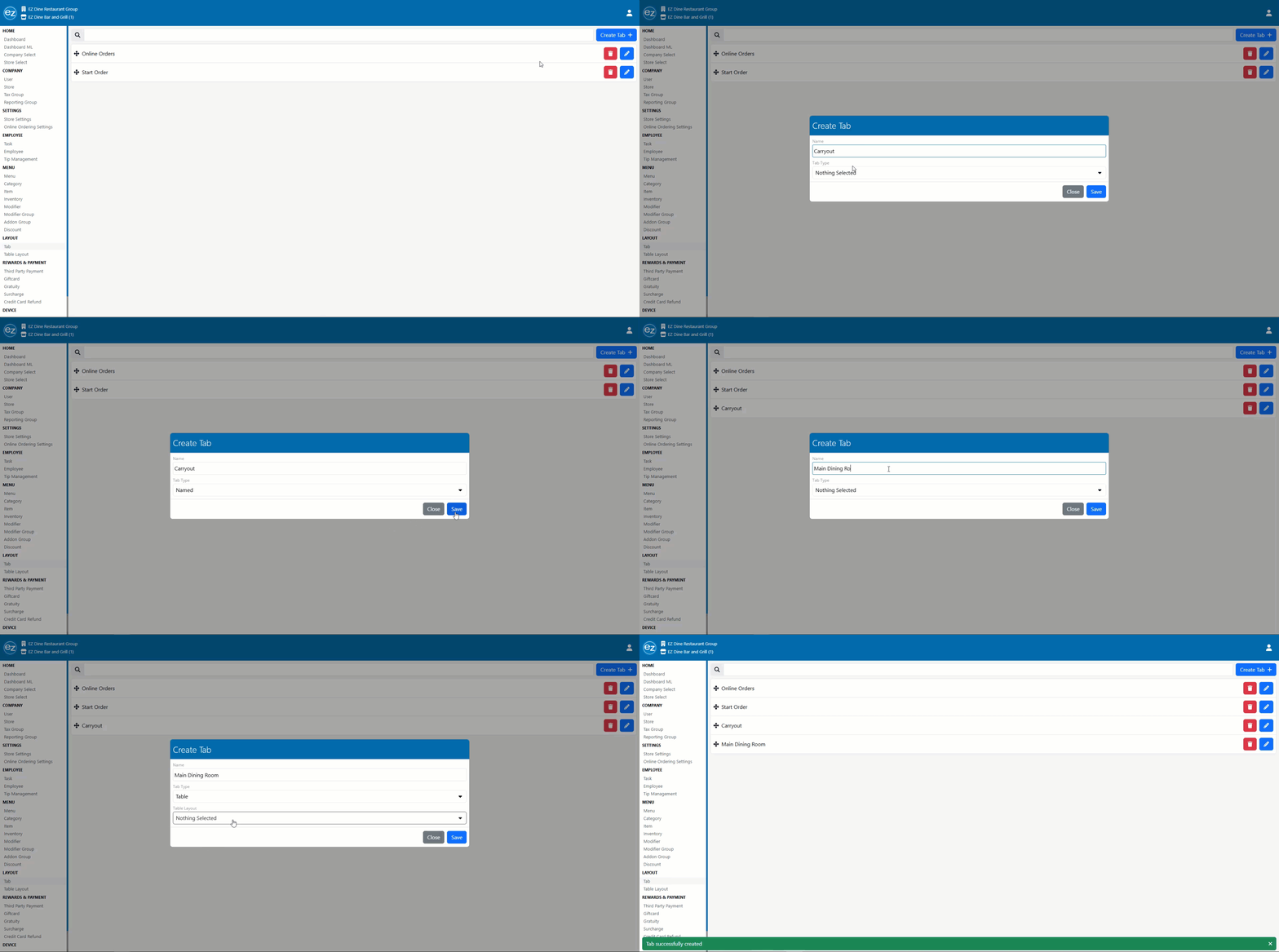
- From the layout section select tab to open the tab creation page. Press the blue create + tab icon located in the top right hand corner
- The create tab window will be displayed
- Enter a name for the tab and press the tab type dropdown. There will be a default list of tabs to choose from
- Credit Card: Allows for pre-authorizing and storing customer credit cards that can be processed at a later time. The customer's credit card is not needed after the tab has been created. Credit card tabs are typically used for bar environments
- Named: Keyboard prompt that allows for a custom name or order number entry. Named tabs are generally used for carryout orders
- Start Order: Creates a quick order starting with order number 0001. The quick order number will increment by one sequentially and reset daily. Quick orders are commonly used for over the counter and drive through
- Table: Table service restaurant floorplans created from the tablet layout section that can be assigned. For details on building table layouts please reference the Studio table layout article here: Table Layouts
- Online orders tab section will be created automatically once online ordering is configured for your company
Step 2: Editing Tabs
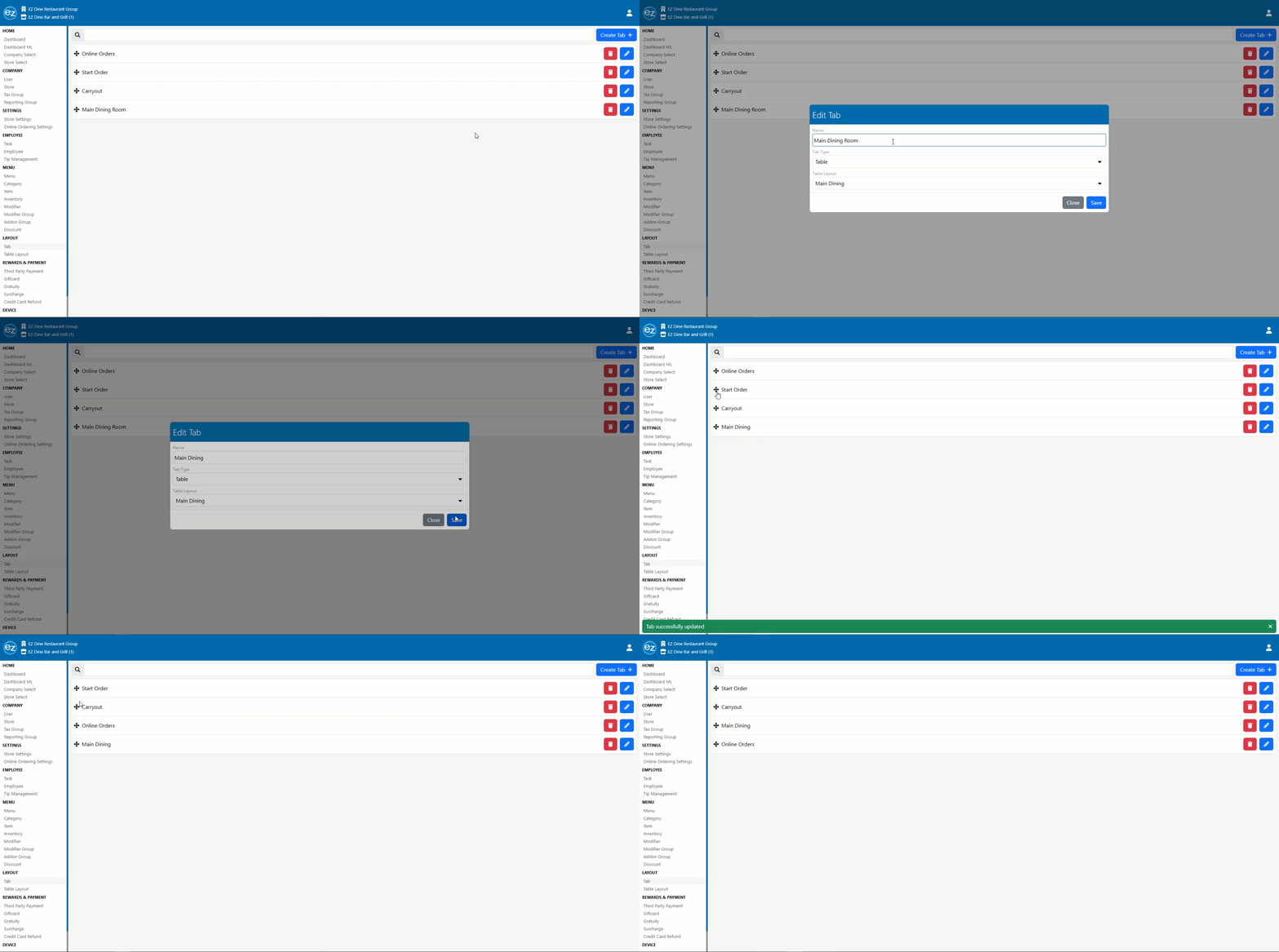
- Select the blue edit pencil and the edit tab window will be shown. You will be able to change the name and existing tab type being used
- Moving the current position of tabs into a specific order can be done by selecting the tab navigation icon. Drag and drop the tab into the desired position to be displayed on the EZ Dine App
- The red trash icon will remove the tab order section from being listed
- Any changes made to the tab ordering sections will only be synced and updated on the EZ Dine App when there are no open orders
Additional Resources and Help!
Still have questions? Please contact us any time at support@ezsoftpos.com.
NOTE: If emailing, please include your business name in the subject line of the email
and provide your preferred contact information for the best response time.
Visit our help center Help Center for more guides and tutorials