
TABLE OF CONTENTS
Step 1: Table Layouts
Allows the ability to create customized floorplans for table service restaurants
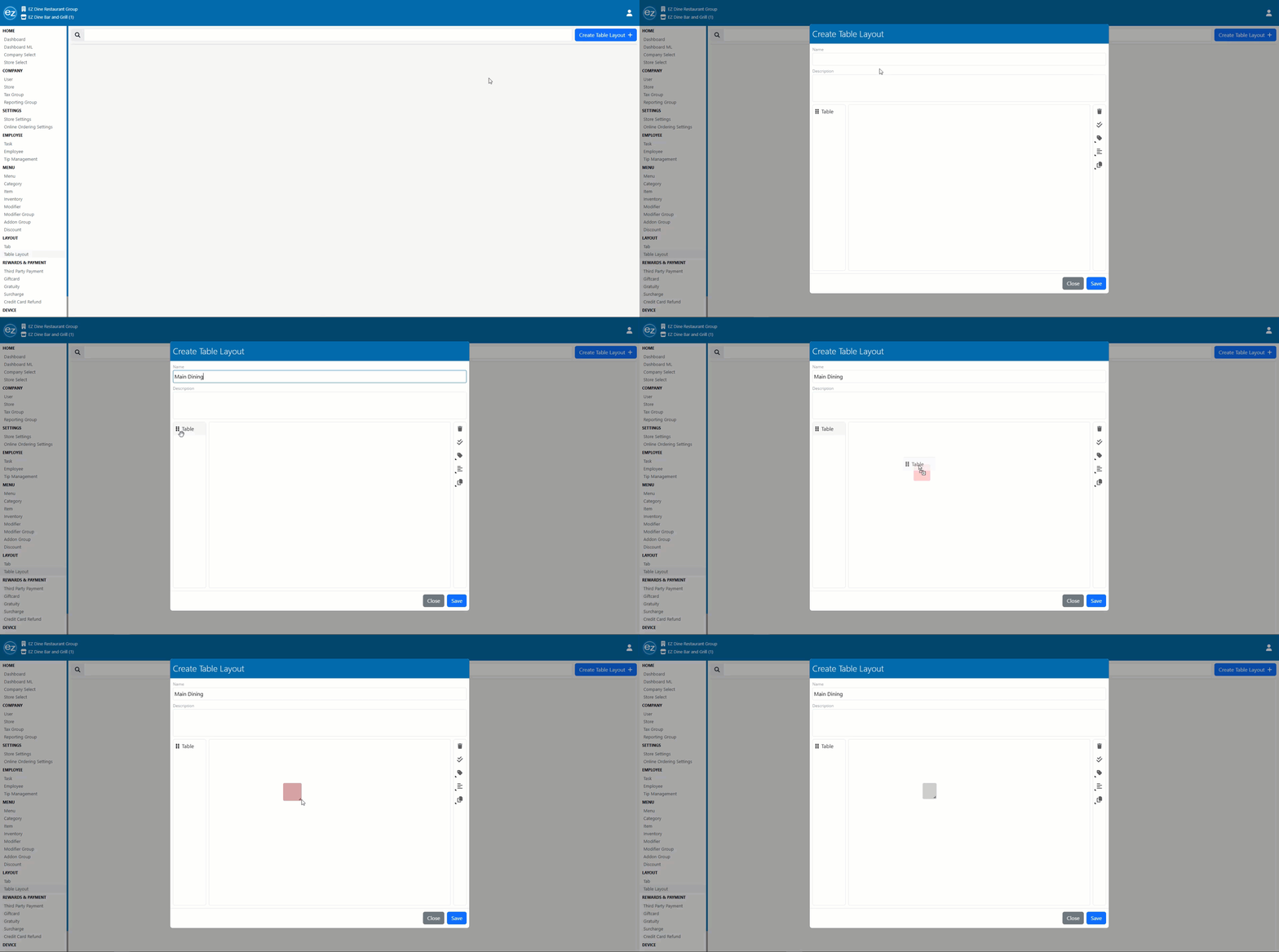
- Select the table layout tab from the layout section. Press the blue create table layout +tab located in the top right hand corner. The create table layout window will be shown
- Enter a name for the table layout and description as needed
- Select and drag the table icon anywhere inside the white table layout window. A square table image will be displayed
- You will be able to resize the image by moving your cursor over the bottom right corner of the table image
- The right toolbar will list multiple table editing options that can be used
Step 2: Editing the Table Layout
- Once the table image is highlighted you will have two default editing options that will be enabled. Adding a table name, seat count, and table copy
- Select the blue edit tag icon and the name and seat count options will be listed. Enter the table number for the name
- The seat count will trigger a seats prompt on the EZ Dine App when the table is selected. There will be a confirmation prompt to confirm how many seats should be created for the table. If there is no seat count prompt needed similar to bar seating. Then you should leave the seat count as zero
- Creating multiple tables at once can be done with the blue seat copy tool. Enter the seat copy count, orientation, and press duplicate
- When copying with a table number entered the same number will be duplicated. You can use the edit tag option to update each table number
- Aligning multiple tables in row can be done by using the multi selection and alignment tool
- Select the table and the two checkmark multi-selection icon will become enabled. Highlight as many tables needed for alignment
- Press the alignment icon and the desired position. Tables will now be rearranged according to the alignment selected. When finished deselect the alignment icon to release the multi table selection
- Removing any tables from the layout can be done by using the red trash can icon
- Hit save and the table layout will be created. The tablet layout will now be listed as an available option to assign to table tab types
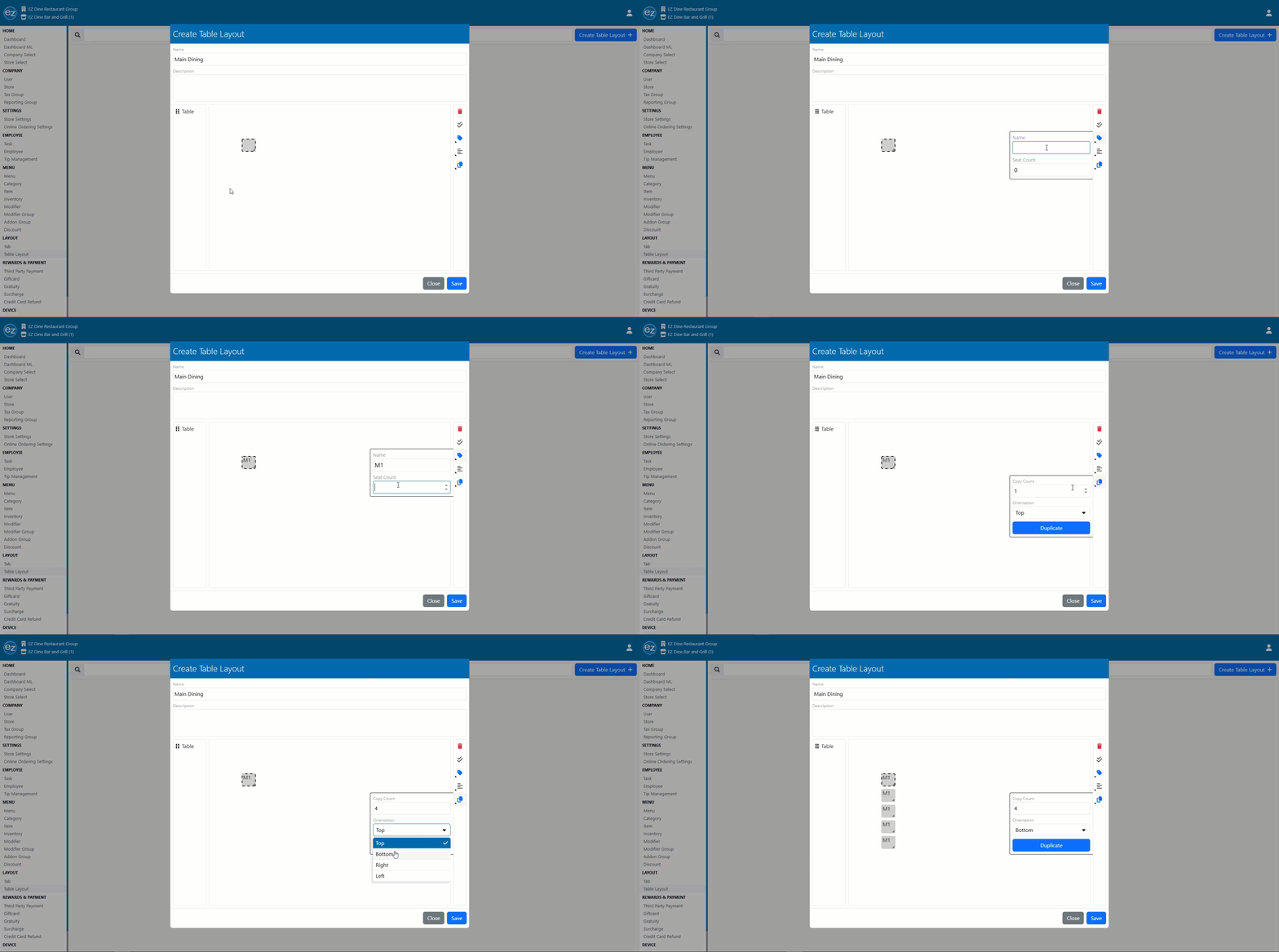
Table Number & Copy
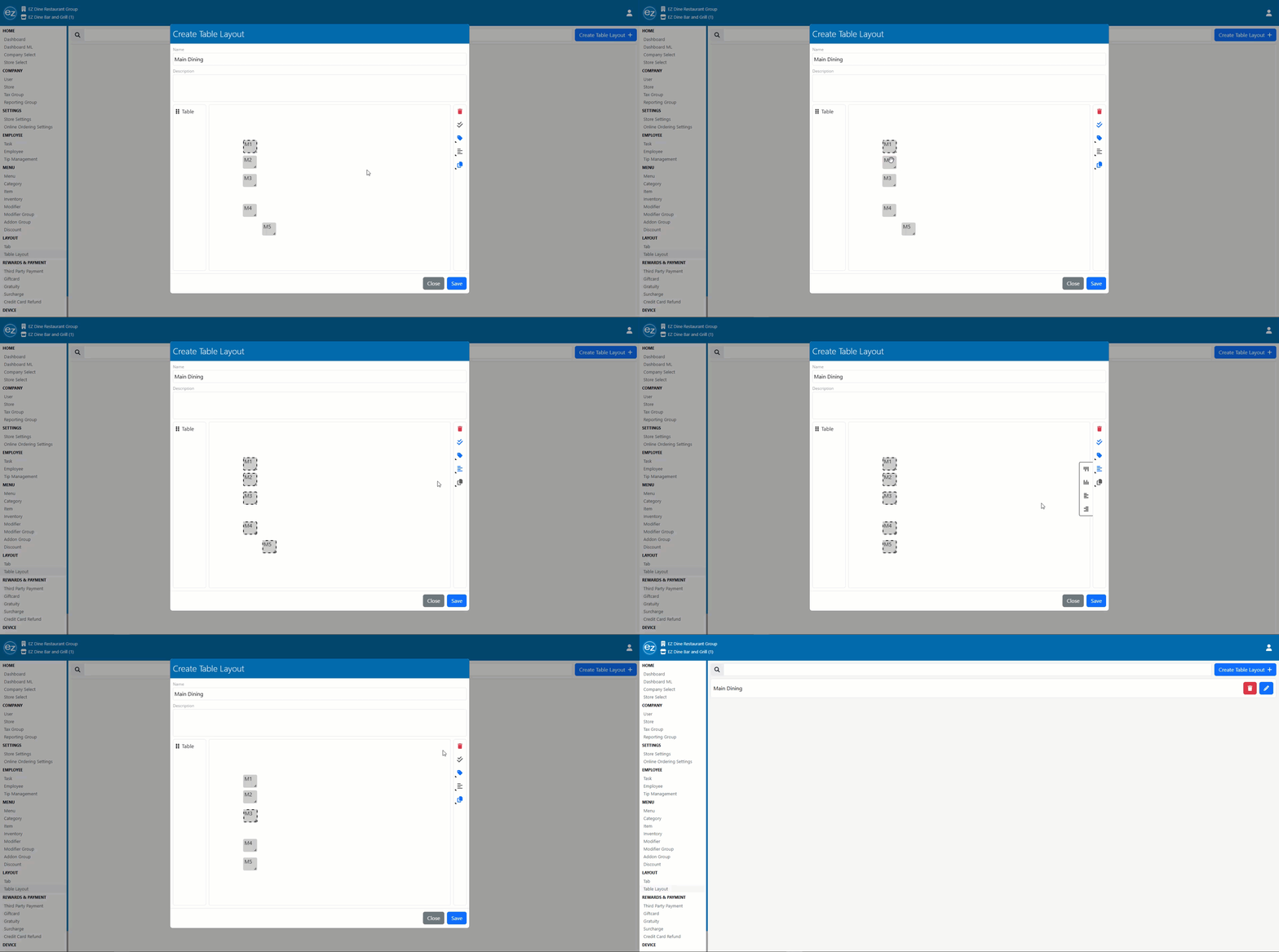
Table Alignment
Additional Resources and Help!
Still have questions? Please contact us any time at support@ezsoftpos.com.
NOTE: If emailing, please include your business name in the subject line of the email
and provide your preferred contact information for the best response time.
Visit our help center Help Center for more guides and tutorials