
TABLE OF CONTENTS
- Step 1: Selling & Loading Gift Cards
- Step 2: Redeeming Gift Cards
- Step 3: Checking Gift Card Balances
- Additional Resources and Help!
Gift cards must be created in EZ Dine Studio before value can be added on the EZ Dine app. Refer to the Managing Gift Cards guide for setup details
Step 1: Selling & Loading Gift Cards
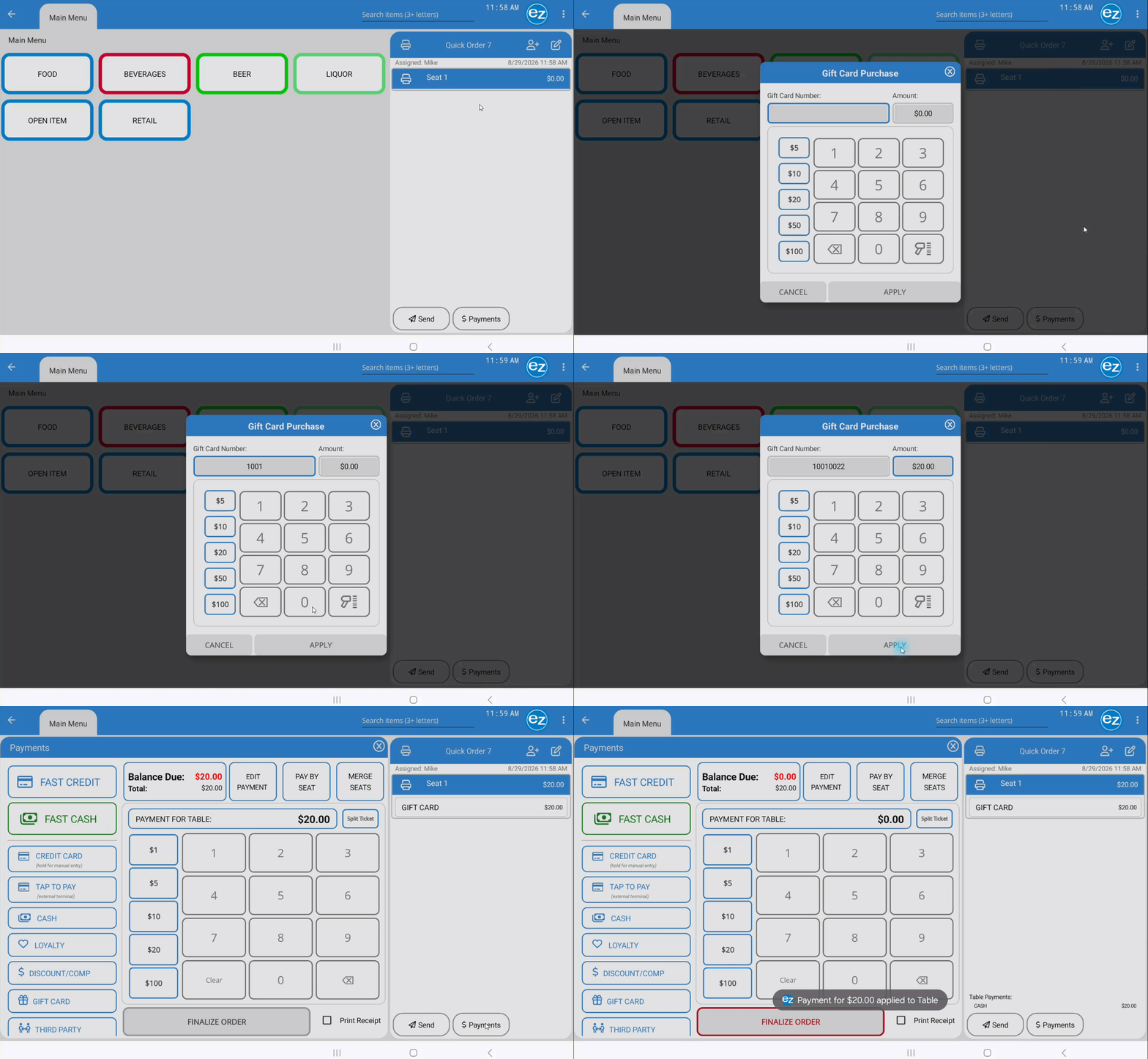
- Select the Order Options Menu located in the top right of the menu/order screen. Tap the Gift Card Add Value option
- In the Gift Card Purchase window, enter or scan the card number created in Studio. (If the number is not recognized, the system displays a "Gift card number not found" warning). For scanning you need a connected barcode scanner that can read the magstripe or qr code embedded to the physical card. Select the scan icon on the numbery keypad. Message will display that the scanner is enabled
- Enter the dollar amount to add to the card, then tap Apply
- The gift card item and custom load amount appear on the active order ticket
- Gift cards load amounts automatically calculate as non-taxed items on the order ticket
- Complete and finalize the transaction as normal. Upon finalization, the EZ Dine app automatically prints a Gift Card Transaction Receipt detailing the card number, load amount, updated remaining balance, and transaction ID
- Gift card sales are excluded from the Net Revenue totals (as unearned revenue) but factored into overall Net Collected totals for the the business period
Step 2: Redeeming Gift Cards
Enable the Gift Card feature under Studio Store Settings before the EZ Dine app can process gift card payments. Refer to the Gift Card store setting guide for setup details
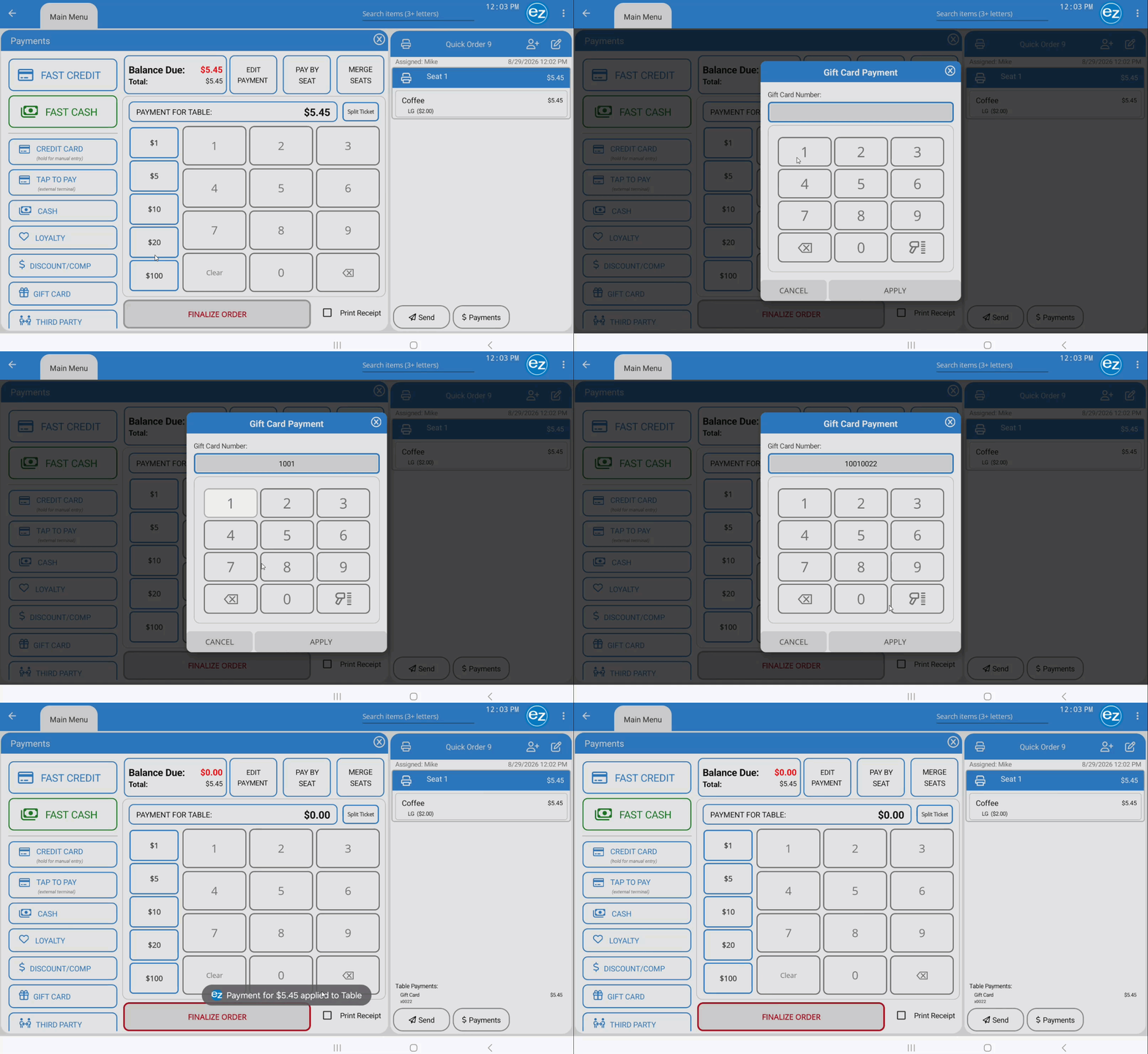
- Tap the Gift Card payment method tab to display the card entry prompt
- The payment amount defaults to the remaining order balance. Adjust to a custom or seat-specific amount if performing split payments
- Enter or scan the gift card number tap Apply to initiate system validation
- Once verified, notification is displayed the gift card payment was been applied and will be listed inside the Edit Payment window
- Tip amounts applied via gift card automatically deduct from the card's available balance
- If a tip exceeds the remaining balance on the card, the system blocks the entry and displays a warning message
- Finalizing the transaction automatically prints a gift card receipt detailing the card number, tender amount, tip, updated remaining balance, and transaction ID
- Gift card redemptions log under the Misc Payment Type category within Total Collected on the reports
Step 3: Checking Gift Card Balances
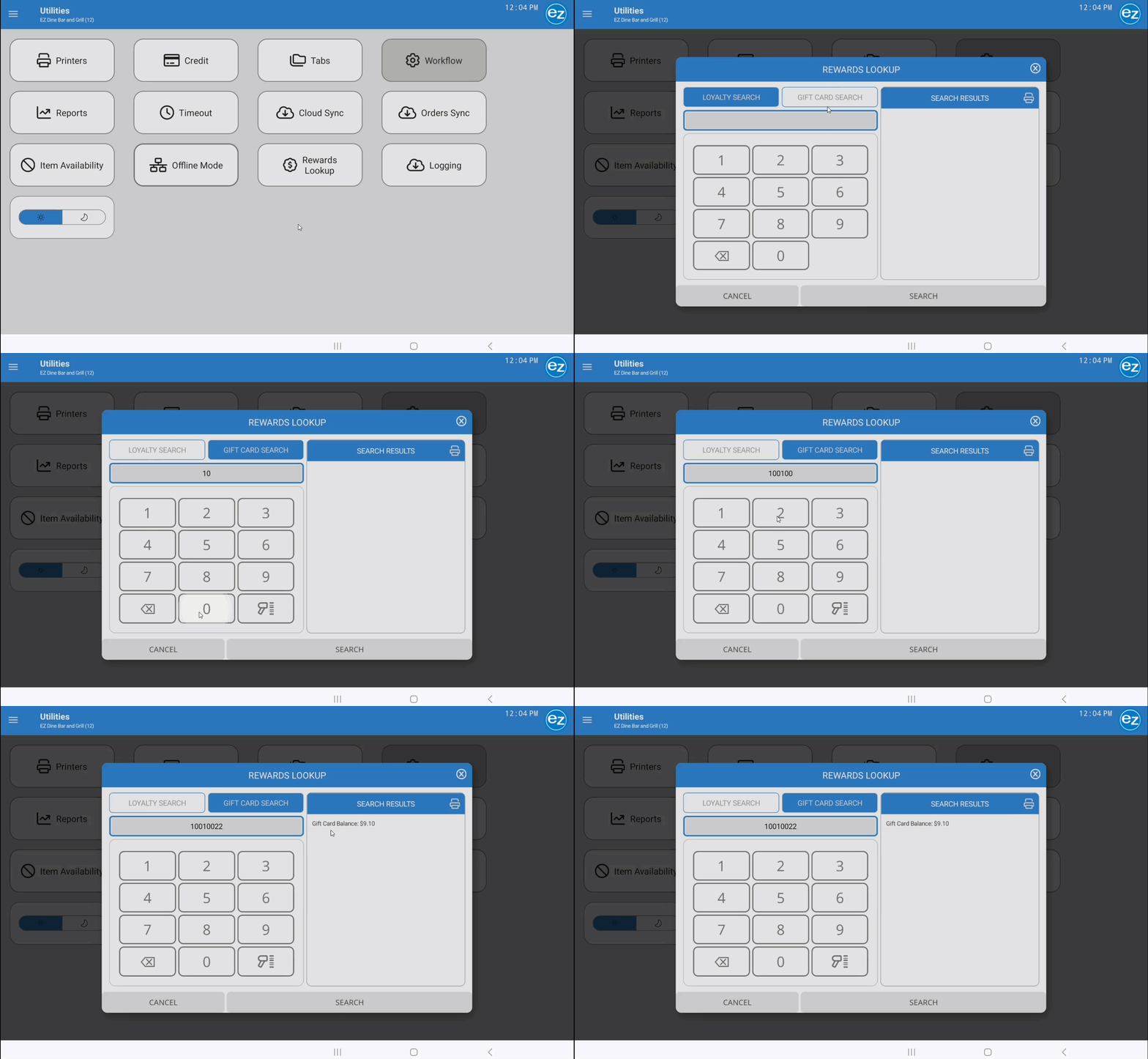
- Check a gift card's remaining balance from the manager utilities page
- From manager utilities select the Rewards Lookup tab
- Toggle Gift Card Search and enter or scan the gift card number, the tap Search
- The EZ Dine app displays the card's available balance on the screen
- (Optional) Tap the Print icon on the search results header to print a balance receipt detailing the gift card number and remaining balance
Additional Resources and Help!
Still have questions? Please contact us any time at support@ezsoftpos.com.
NOTE: If emailing, please include your business name in the subject line of the email
and provide your preferred contact information for the best response time.
Visit our help center Help Center for more guides and tutorials