
TABLE OF CONTENTS
- Step 1: EZ Dine Stream Online Ordering Setup
- Step 2: Connect to Stream
- Step 3: Stream Menu Management
- Step 4: Stream Store Management
- Step 5: Stream Order Management
- Step 6: Stream DSP Reporting
- Additional Resources and Help!
Stream connects and aggregates orders for all major third party food delivery services (Doordash, Grub hub, and Uber eats). Through Stream you will be able to manage all menus and orders for each third party DSP from a central location. The EZ Dine Stream integration will automatically process the DSP order to the EZ Dine App. This includes syncing the DSP order information, payments, kitchen printing, and displaying on the KDS screen. The integration eliminates the need for manual order entry or additional tablets and printers used for order fulfillment. An active third party DSP account will be required in order to use the Stream integration
Step 1: EZ Dine Stream Online Ordering Setup
- Stream and online ordering will need to be enabled on your company by an EZ Software administrator
- Studio online ordering settings and menu will be synced over to the Stream website. For details on online ordering configuration please reference the Studio online ordering article here: Online Ordering
- Multiple category levels will not be supported on Stream. Items should be attached directly to the primary category level
- Enable Stream online ordering settings for the store. You will now be able to connect the EZ Dine Studio store over to Stream
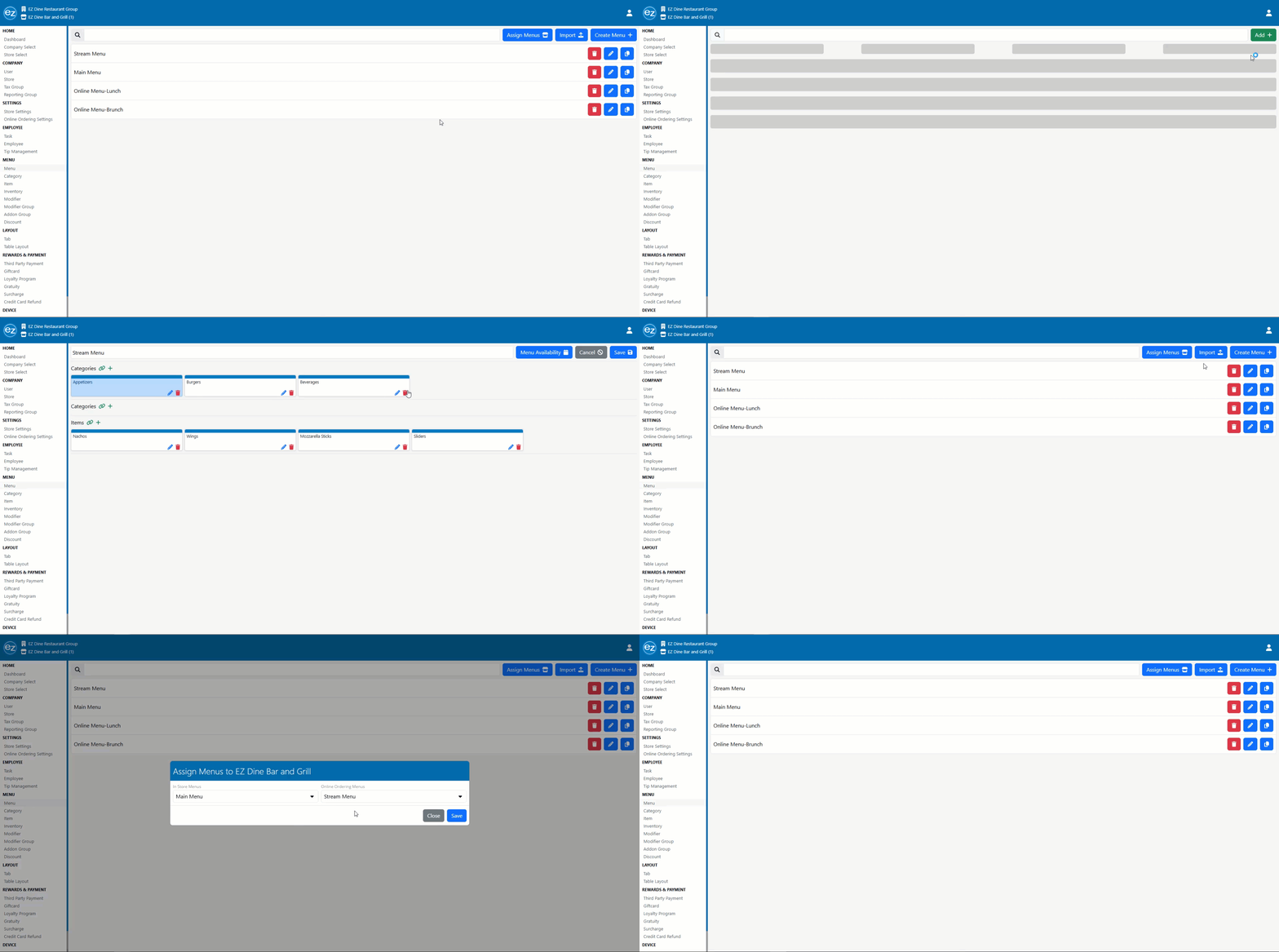
Online Menu
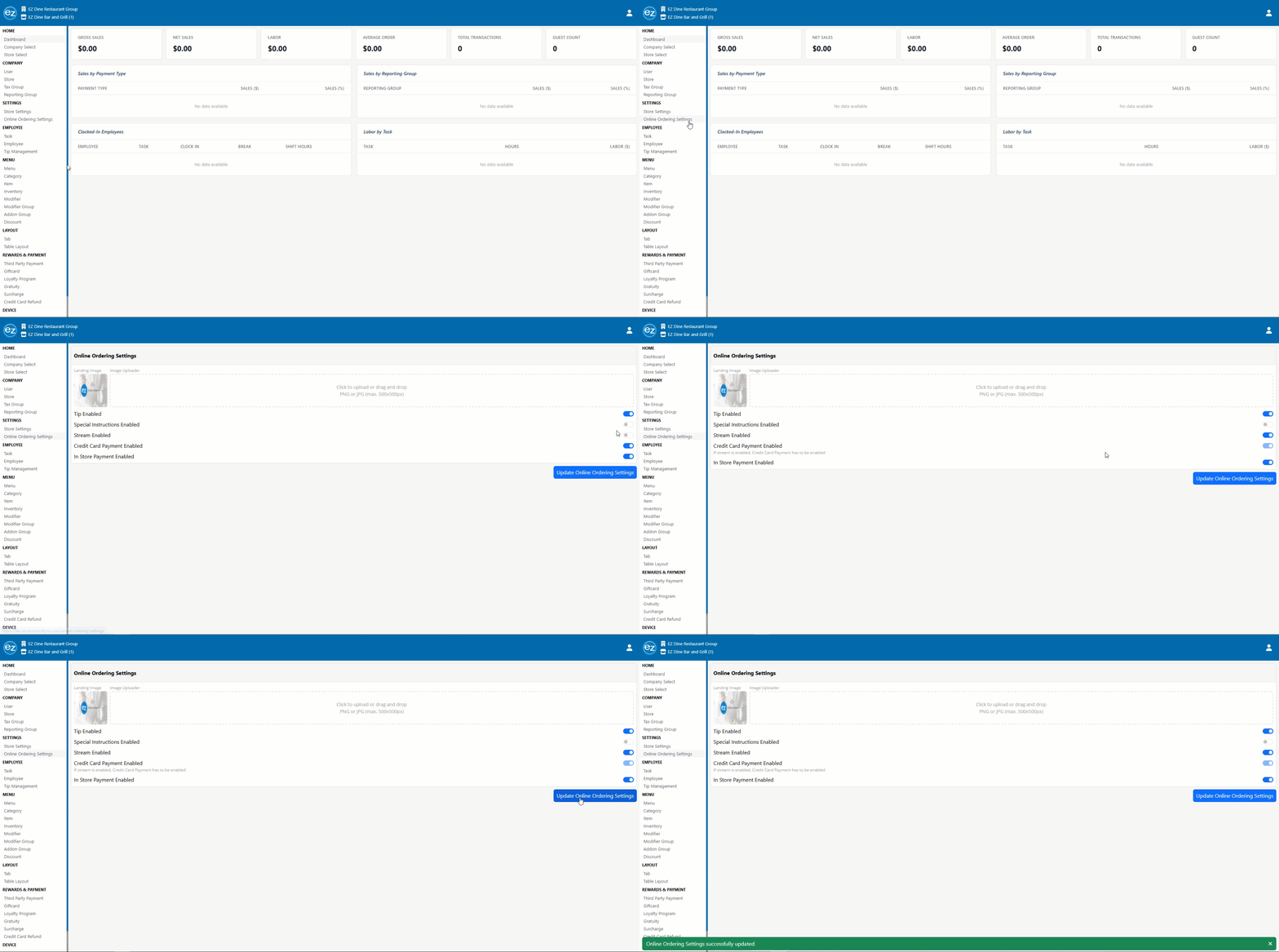
Stream Online Ordering Setting
Step 2: Connect to Stream
- Navigate to the EZ Soft Stream website and create a new user account: User Account Sign In
- Continue through the business type signup prompts and press submit. You will be redirected to the EZ Dine connection window
- Select connect POS and tap the EZ Dine platform option. Connect the POS a second time and you will be redirected to the EZ Dine Stream login page
- Enter your EZ Dine Studio username and password information and log in. Your company will begin the sync process over to Stream
- Choose the POS store locations to transfer over and continue. If the connection takes a few minutes to complete refresh the page to finish
- The EZ Dine Studio company and store information will now be copied over to Stream for managing
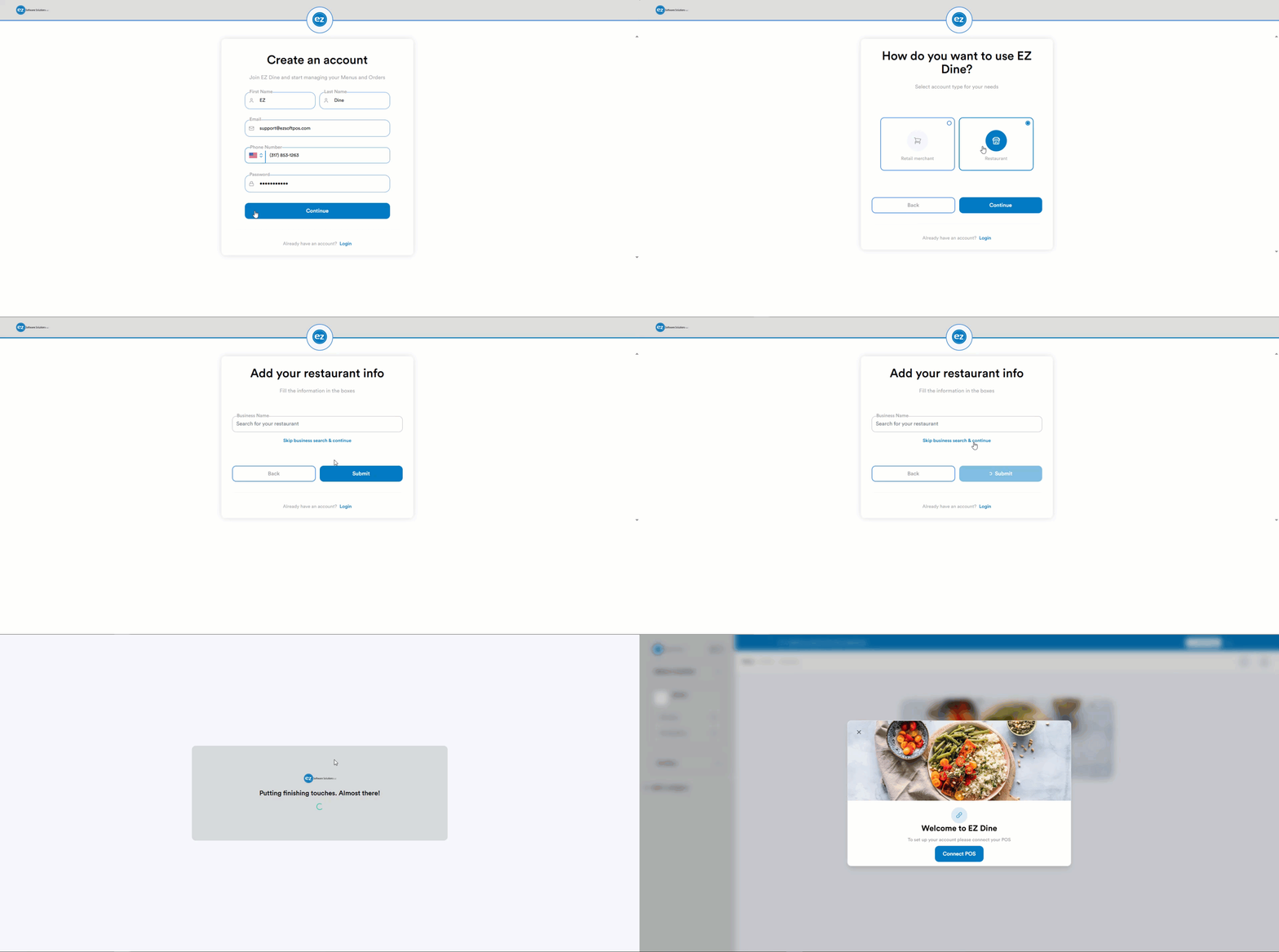
Stream User Account
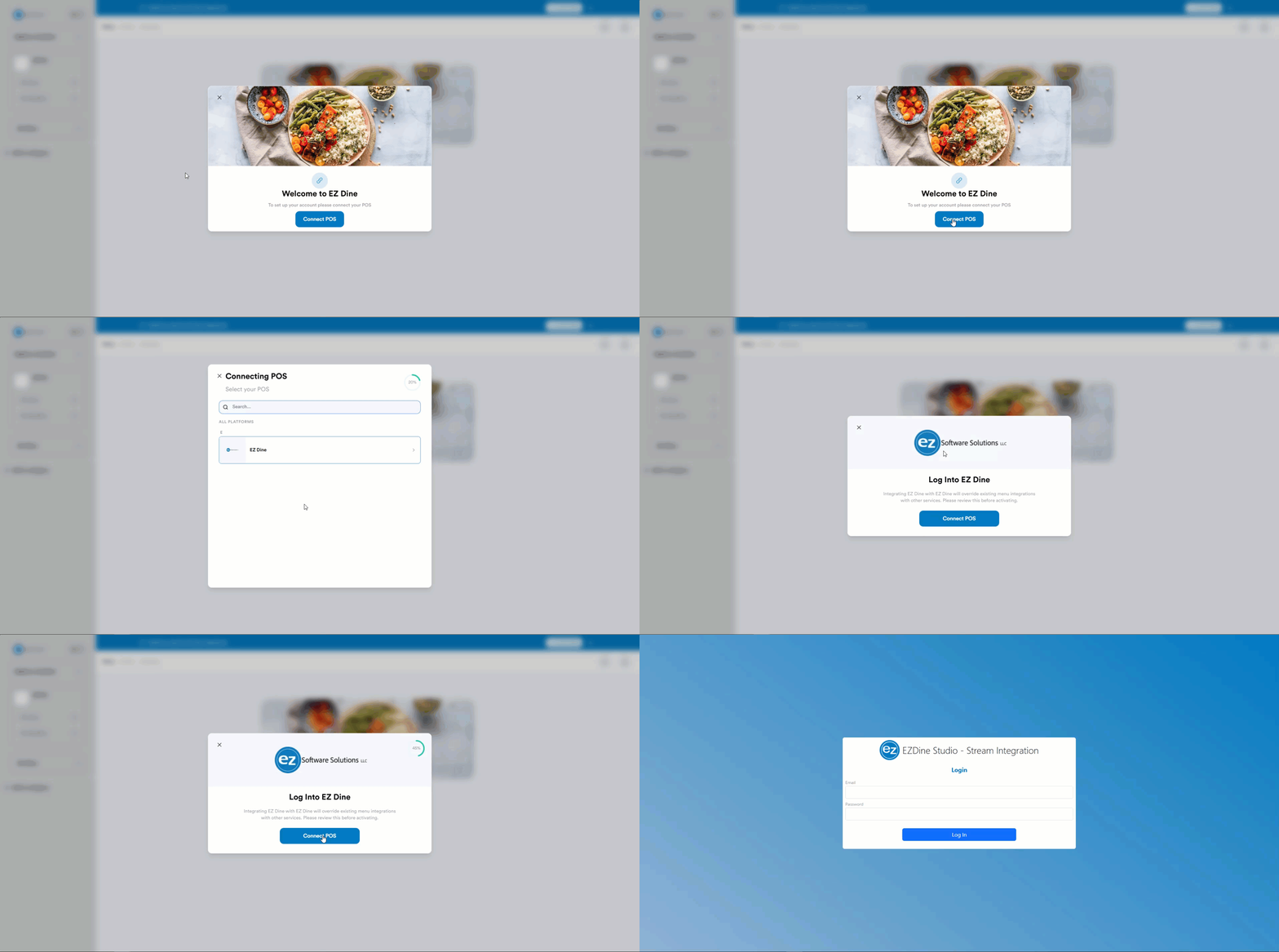
Connecting EZ Dine
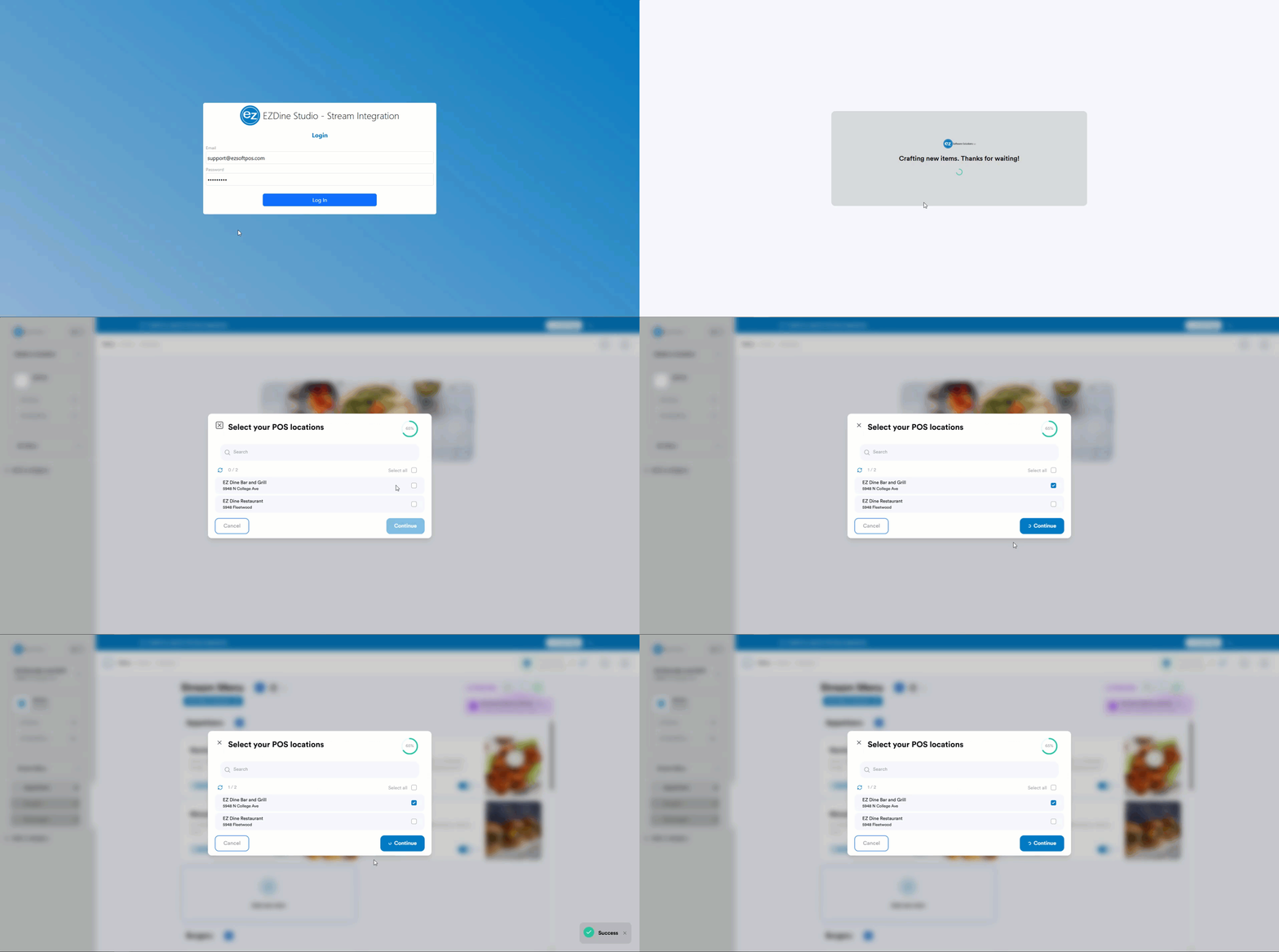
Syncing Store
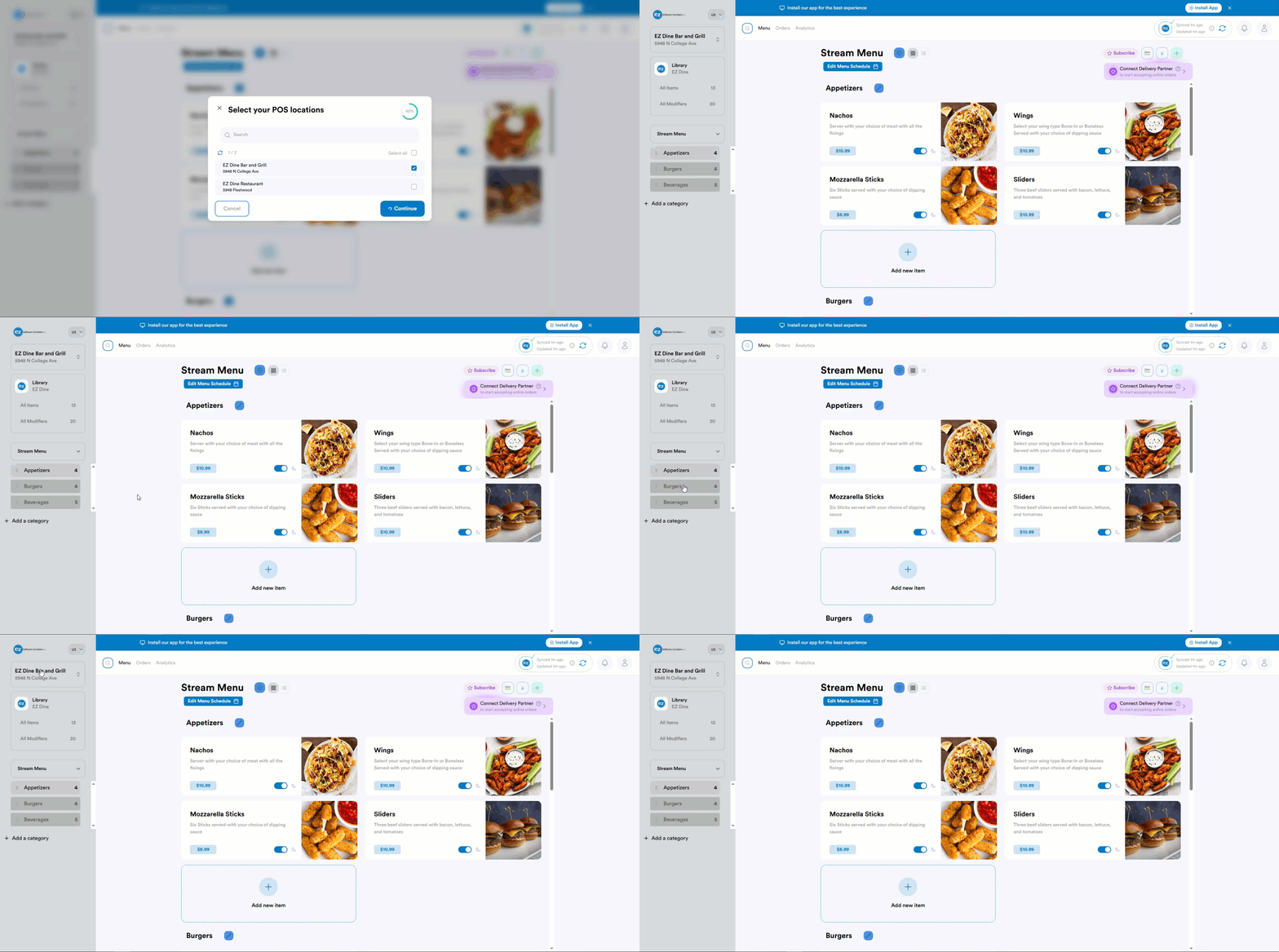
Company/Store Connected to Stream
Step 3: Stream Menu Management
The current DSP menu will not be transferred over to Stream. When the Stream menu becomes published; The existing DSP menu will be overridden and updated to use the new Stream menu configuration
- The left side navigation will detail the store and menu information. You can toggle to view multiple menus or stores tied to the company
- Menu item images, descriptions, modifier and addon groups will be synced over along with any related settings. Add/Remove modifiers attached directly to the item will not be used as an available feature
- Select an item to access the item details window, where you can modify the image, description, or availability
- Most menu edits should be performed on Studio and resynced to Stream. You will be unable to create new items or modifiers directly on Stream
- Any item changes from Studio will automatically sync and update to Stream. You will also have the ability to manually sync any changes
- For managing store availability select the edit menu schedule tab located below the menu name. The edit menu schedules window will be shown. Enter the store hours and utilize the copy tool to apply the same schedule to multiple days at once
- Any days were the store is closed use the day toggle on/off switch
- Once an active DSP account is linked you will have an option to automatically increase prices. Adjusting prices can be used to offset the DSP cost
- Select the blue adjust price tab located on the top right hand side. The price adjuster window will be shown
- You will have an option set global or individual price adjustment. Global will apply to all linked DSP accounts. Whereas individual you can choose the specific DSP
- Set the percentage or dollar amount price adjustment increase. Additional rounding options will also be available
- Press save and you will prompted to confirm the price change for items only or include modifiers
- When finished all pending menu changes will need to be published to the DSP. On the top right hand corner a yellow caution icon will be displayed
- Select publish and the pending menu changes will begin pushing. When completed you will see a green checkmark indicating all changes have been successfully updated to the DSP
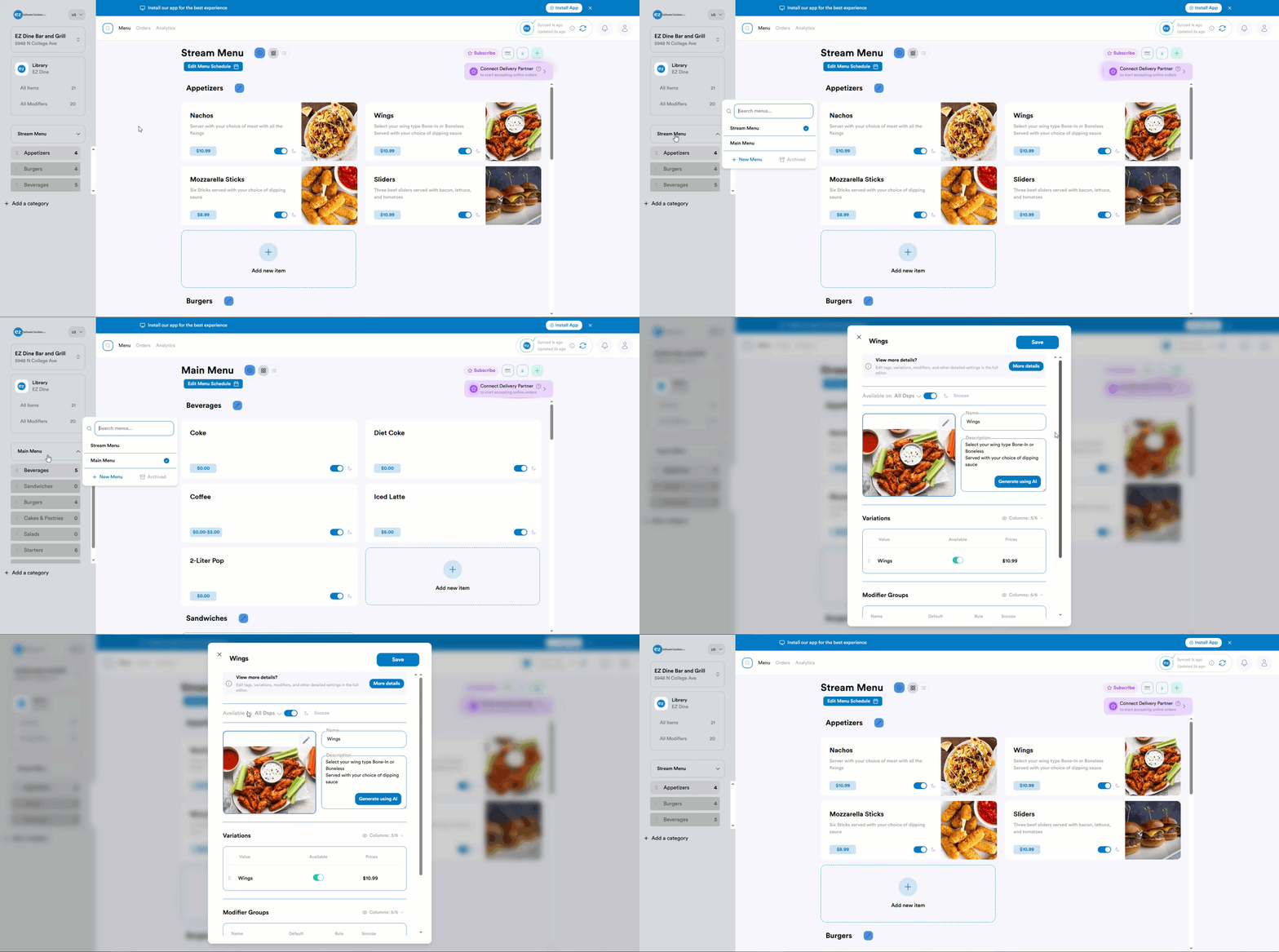
Menu Settings
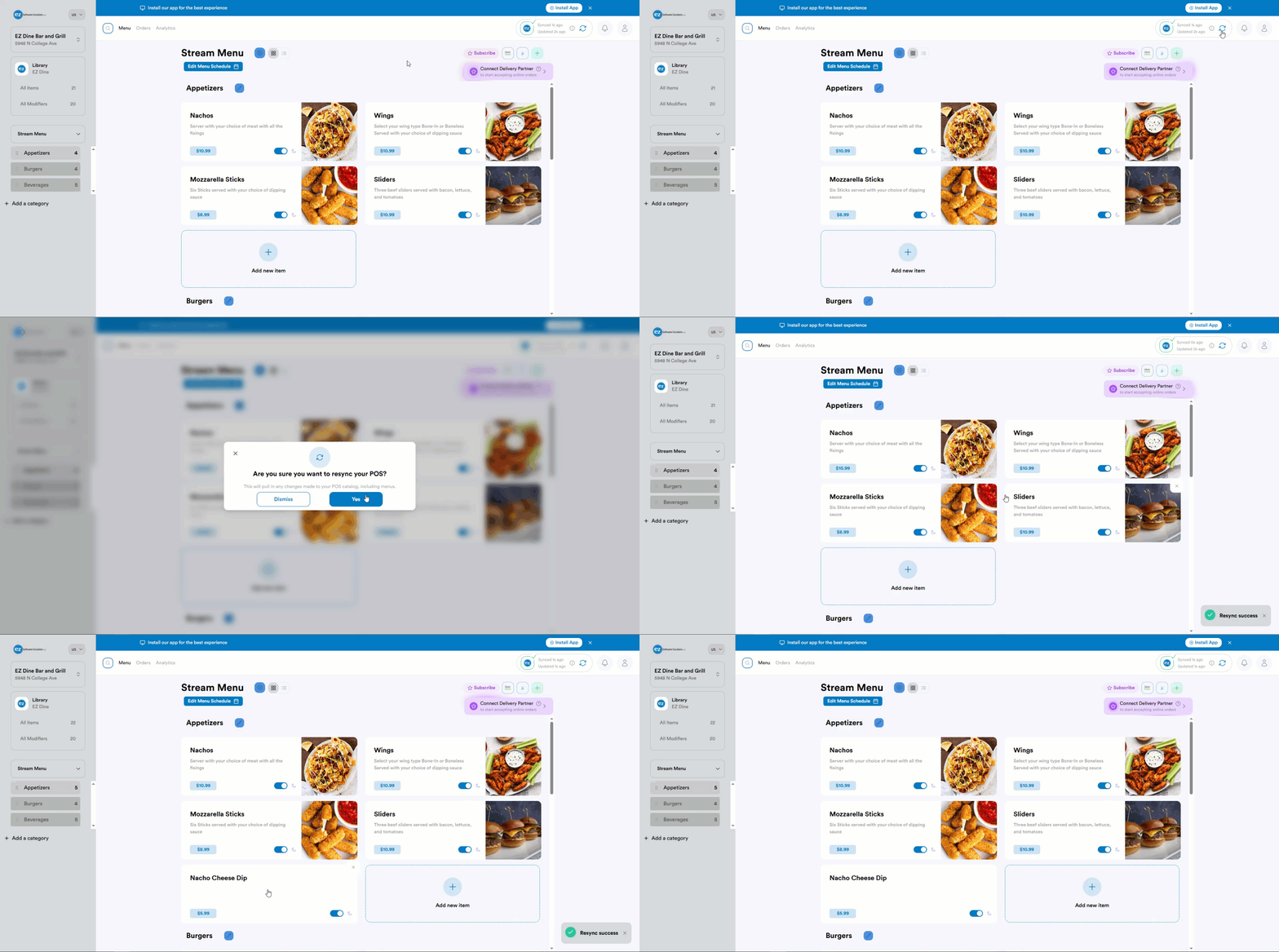
Resync
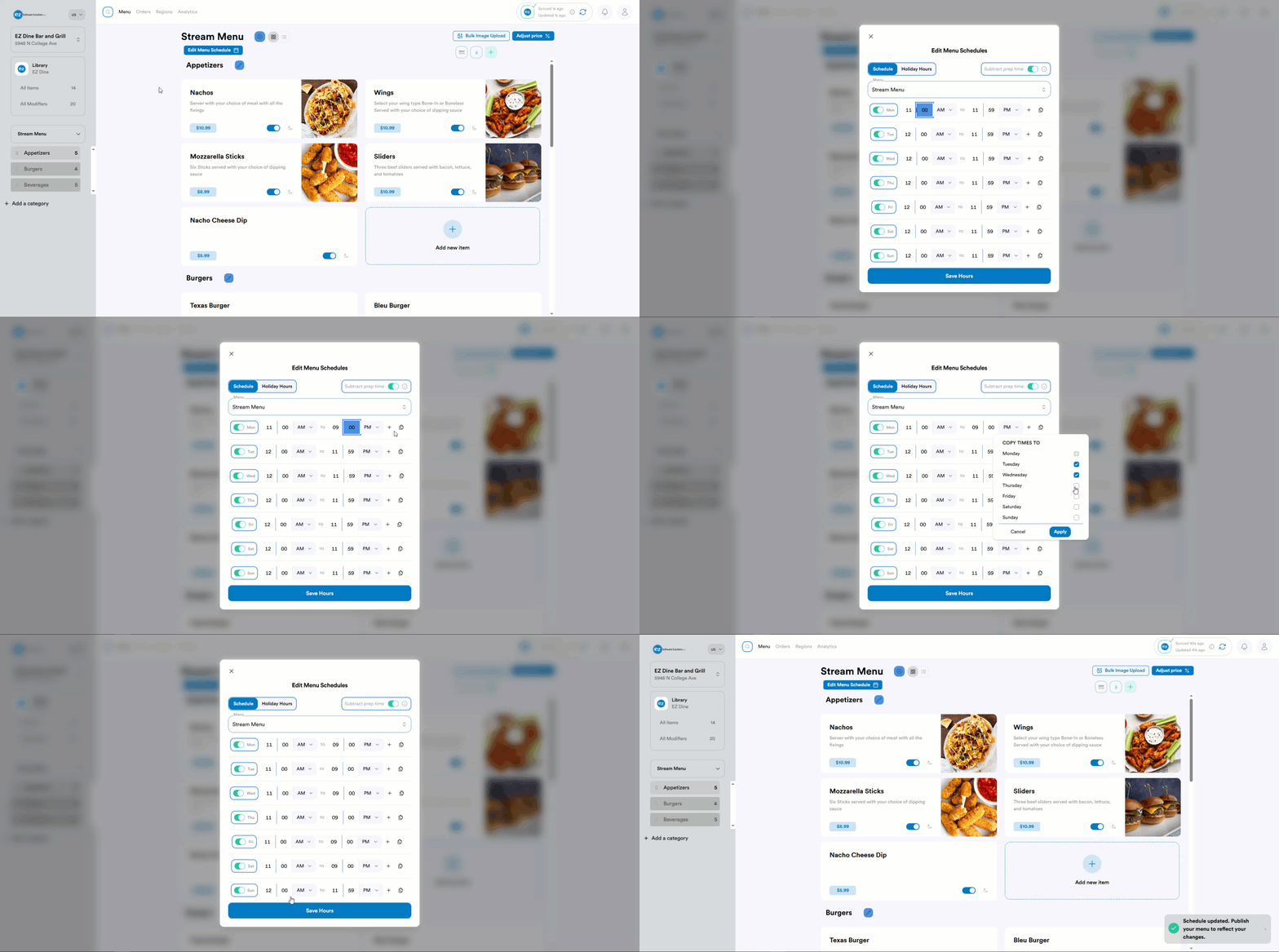
Store Hours
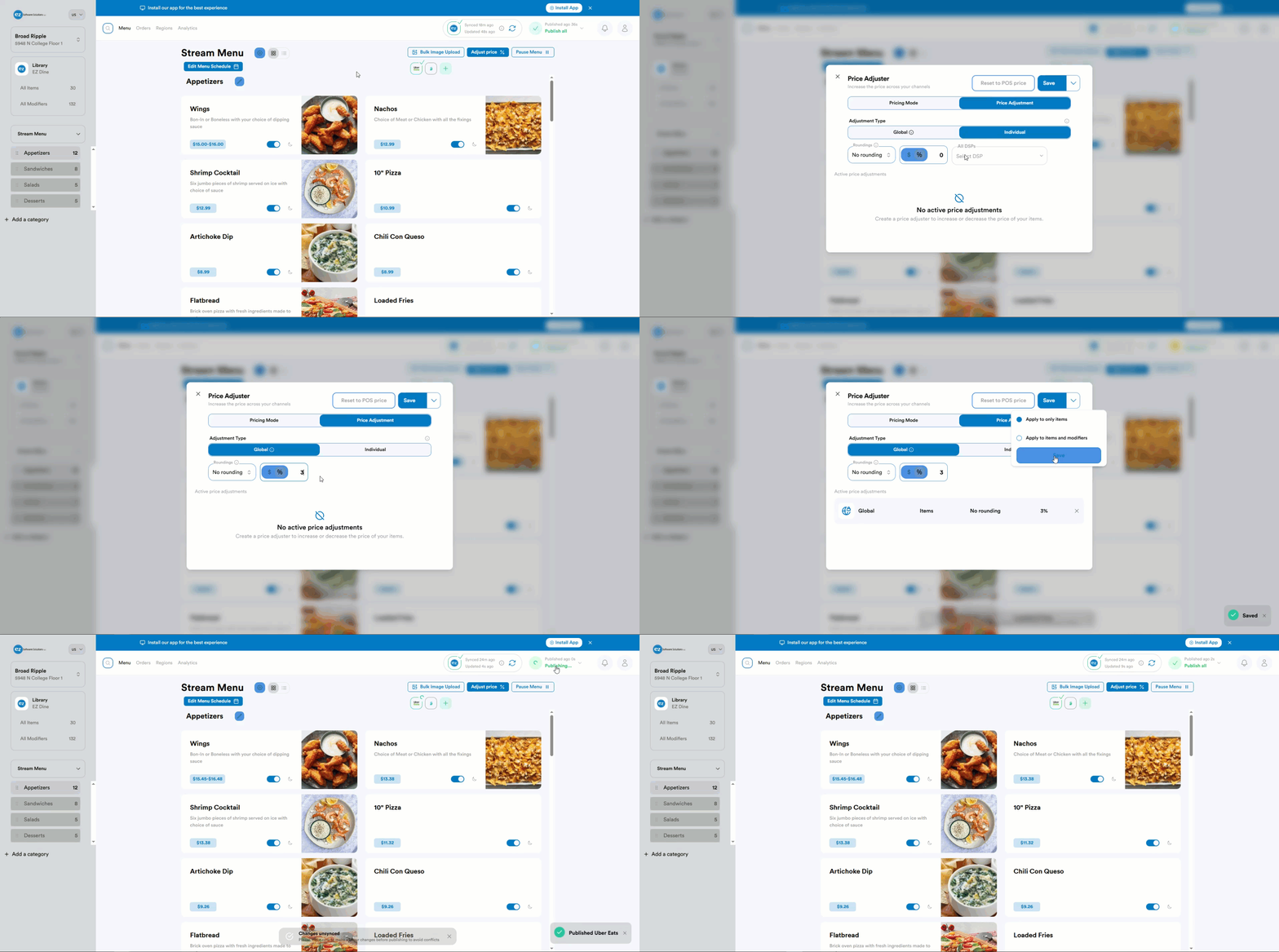
Price Adjustment
Step 4: Stream Store Management
- Select the user profile in the top right corner. Your merchant account settings will be displayed
- Press settings and your store location information will be listed. The location name, prep time, POS, and DSP provider linked will be shown. The kitchen prep time will use the Studio store prep time setup for Monday
- Tap the location name and you will be able to view and edit the store details. There will be an option to enter the store phone number and time zone. Sales tax should be set at 0% as each item will have the tax rate percentages already configured
- Identifiers, POS, and DSP will be the related integration and connection details
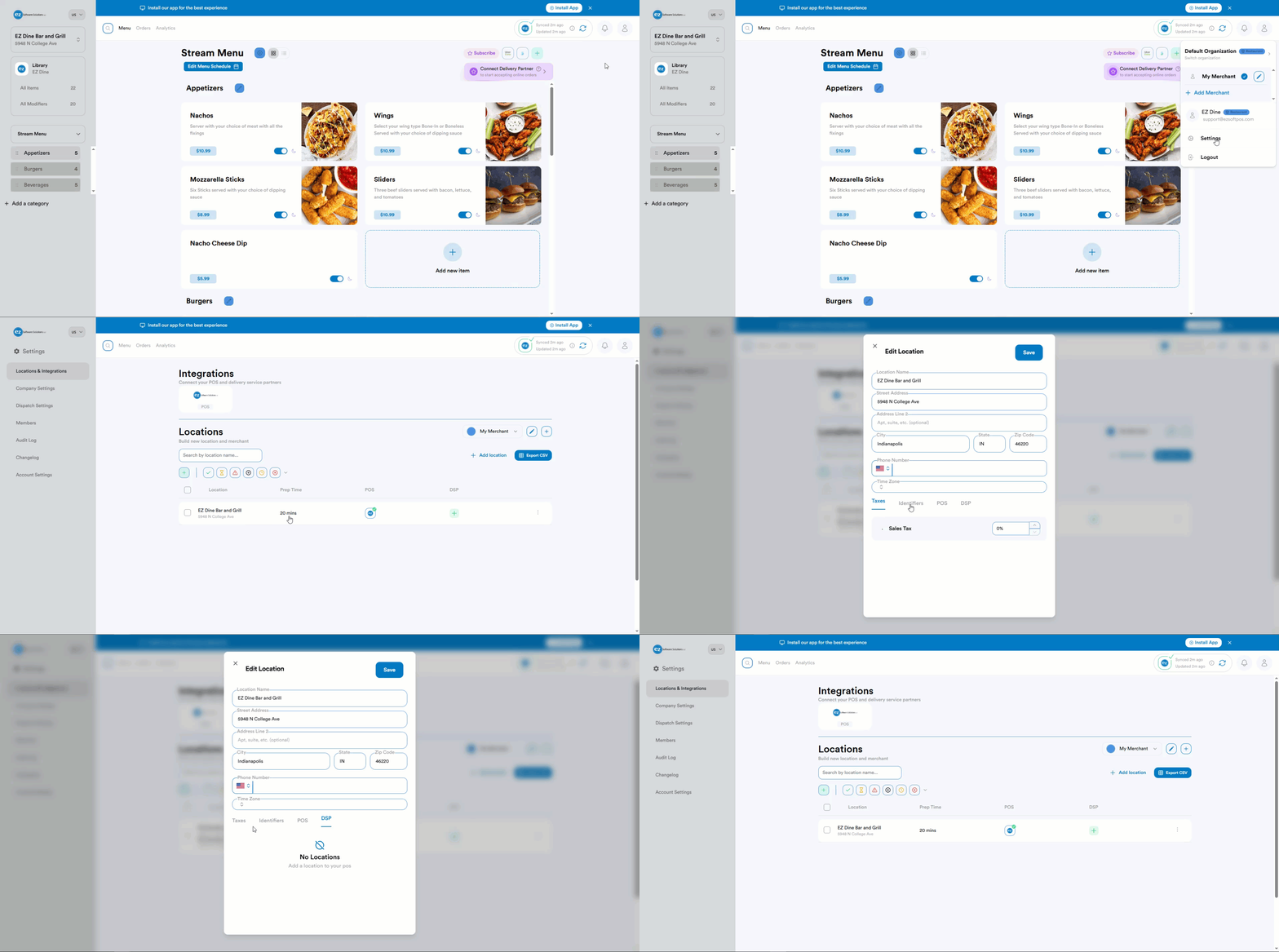
Step 5: Stream Order Management
For details on Stream online orders syncing to the EZ Dine App. Please reference the Stream online orders article here: Stream Online Orders
- When ready to start processing orders you will have to link your current DSP account on Stream
- For connecting the DSP select the green add icon. This can be done from the menu page or store location settings
- Search for your active DSP account and you will be prompted to login and connect the DSP
- Once your DSP account is connected you will see the DSP logo and checkmark indicating the activate account status
- When new orders are placed you will be able to view and manage all orders
- Select the orders tab on the top left and the all orders page will be shown. You will be able to view all active orders and manually update the order status as needed. Note: All DSP status are updated automatically. Manually updating the order status is not required
- Any instances were the kitchen prep time needs to be adjusted. Select the edit tab in the top right next to the prep time. The prep time window will be displayed were you can manually increase or decrease the time and save
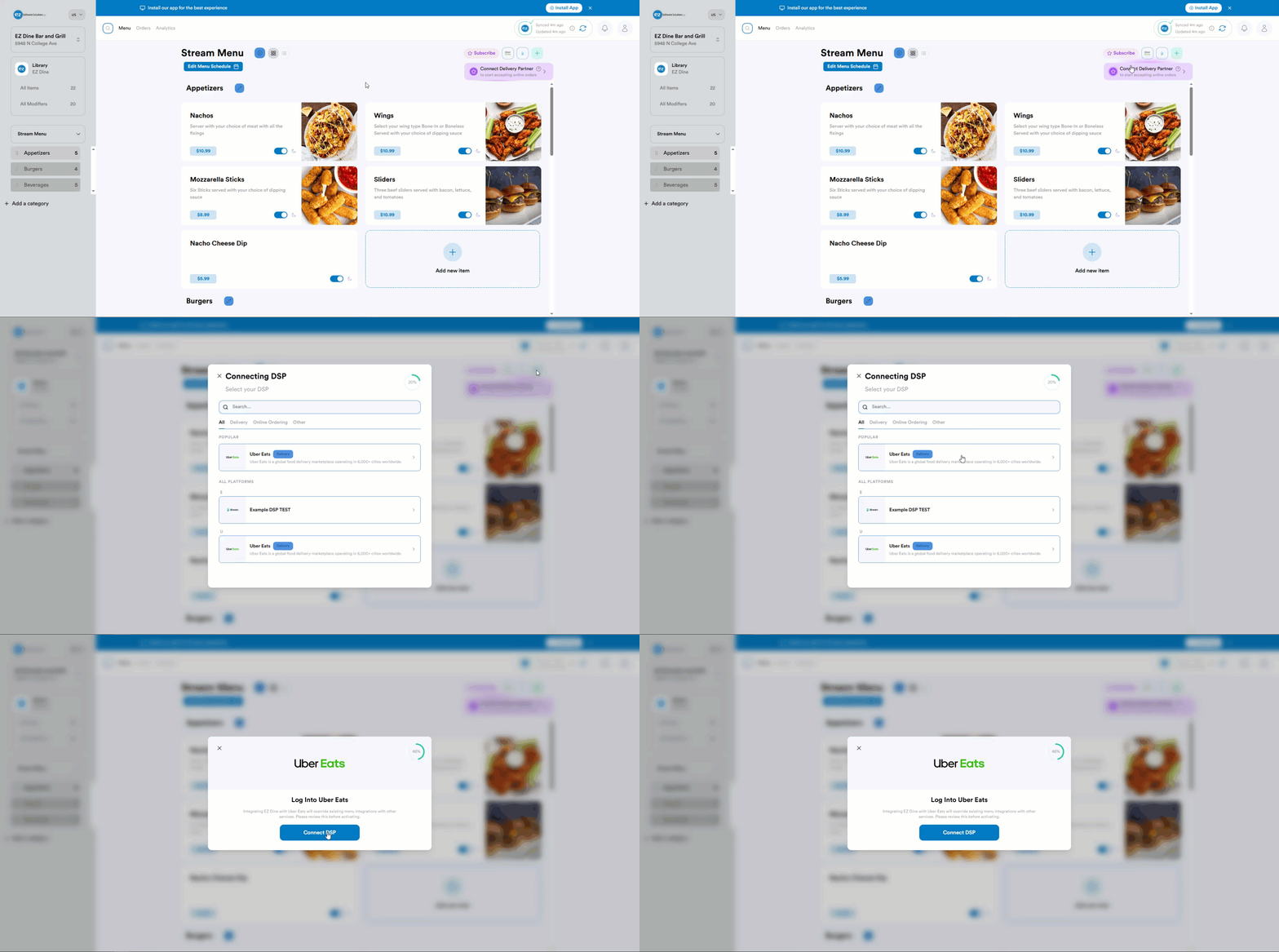
Connect DSP
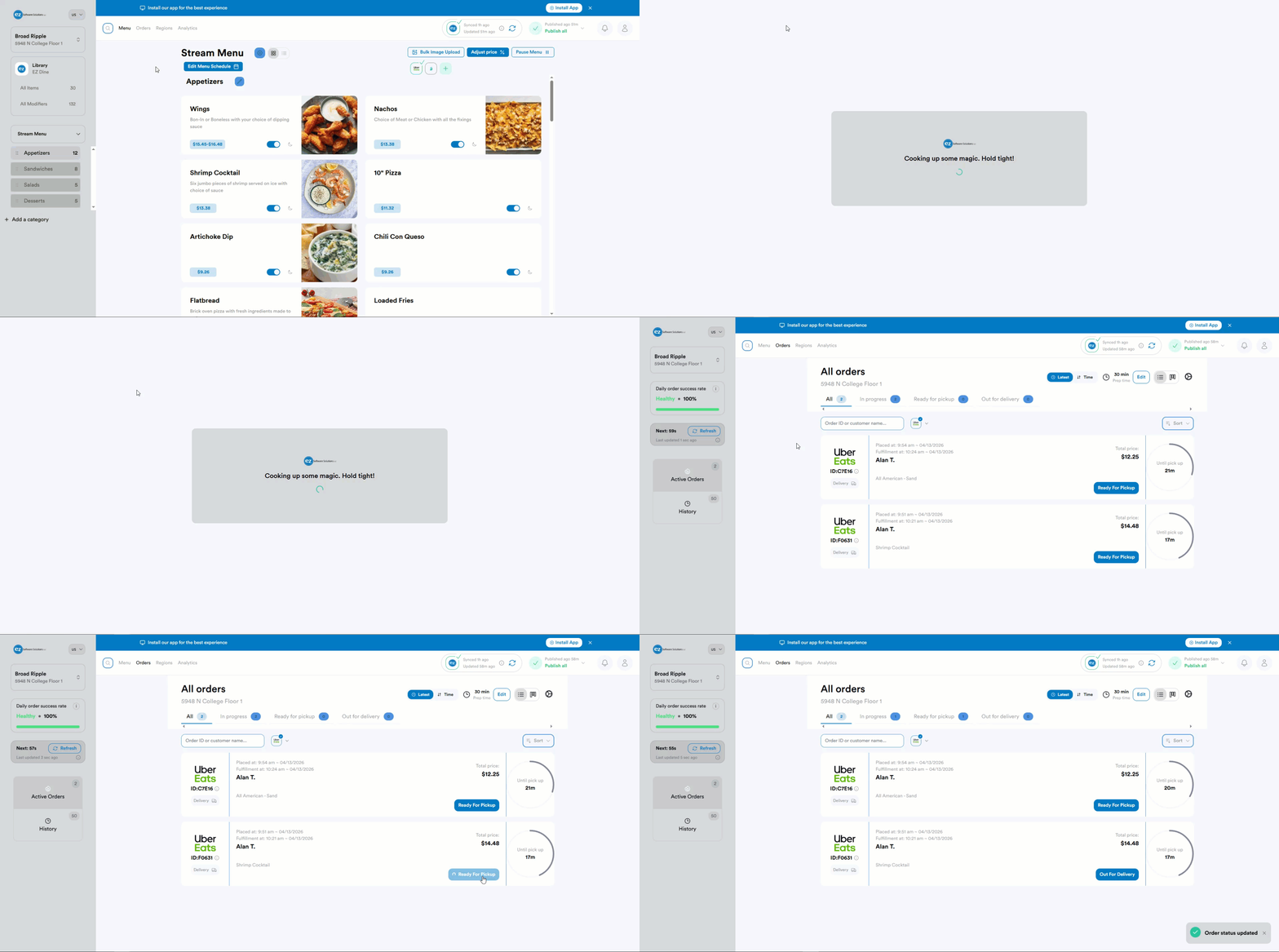
Stream Orders
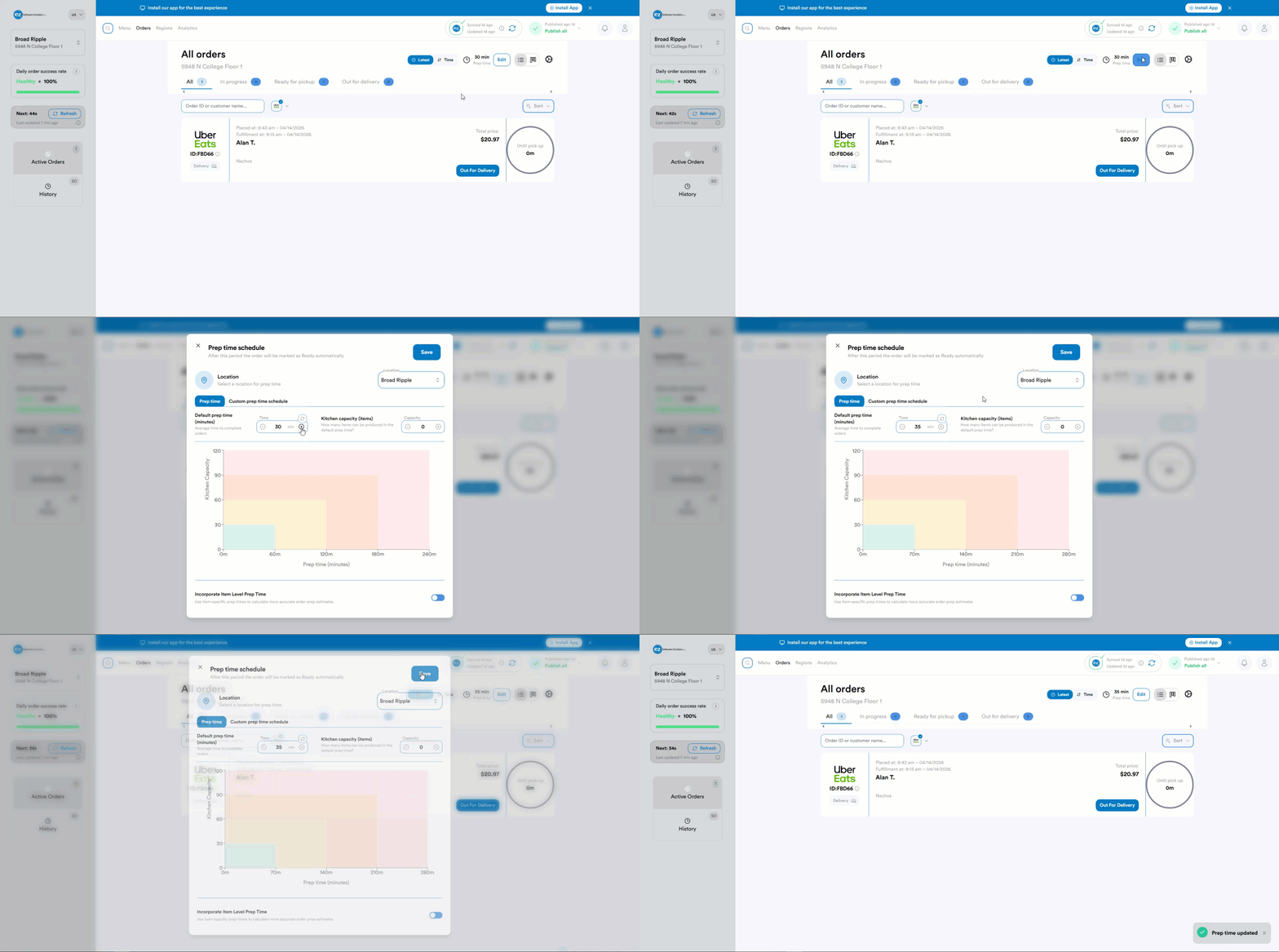
Kitchen Prep Time
Step 6: Stream DSP Reporting
Since the EZ Dine system processes third-party DSP orders; DSP orders will be considered another revenue type tracked for reporting. Refer to your location and DSP specific guidelines for reconciliation and tax remittance. DSP sales, payments, and tax amounts(when applicable) for each order are recorded. Note: The DSP manages delivery fees, platform fees, discounts, and tips directly; Only order subtotals and taxes are registered through the EZ Dine system
- The system financial sales report summarizes DSP sales, payments, and taxes
- Both online order and gross sale totals account for third party DSP revenue
- Misc payment types and sales total collected sections will display the DSP payment and tax amounts. Note: DSP tax is excluded from the overall net collected total
- Inside the audit reports section; Third party DSP order details report provides specific analytics from each provider. You can filter by individual providers or view all at once. This report captures provider names, transaction IDs, order name, sales totals, and tax data
Additional Resources and Help!
Still have questions? Please contact us any time at support@ezsoftpos.com.
NOTE: If emailing, please include your business name in the subject line of the email
and provide your preferred contact information for the best response time.
Visit our help center Help Center for more guides and tutorials