
TABLE OF CONTENTS
- Step 1: Synced Online Order
- Step 2: Online Payments
- Step 3: Reporting
- Step 4: Stream DSP Online Orders
- Additional Resources and Help!
For details on implementing online ordering for your company. Please reference the Studio article here

Studio Online Ordering Setup
Step 1: Synced Online Order
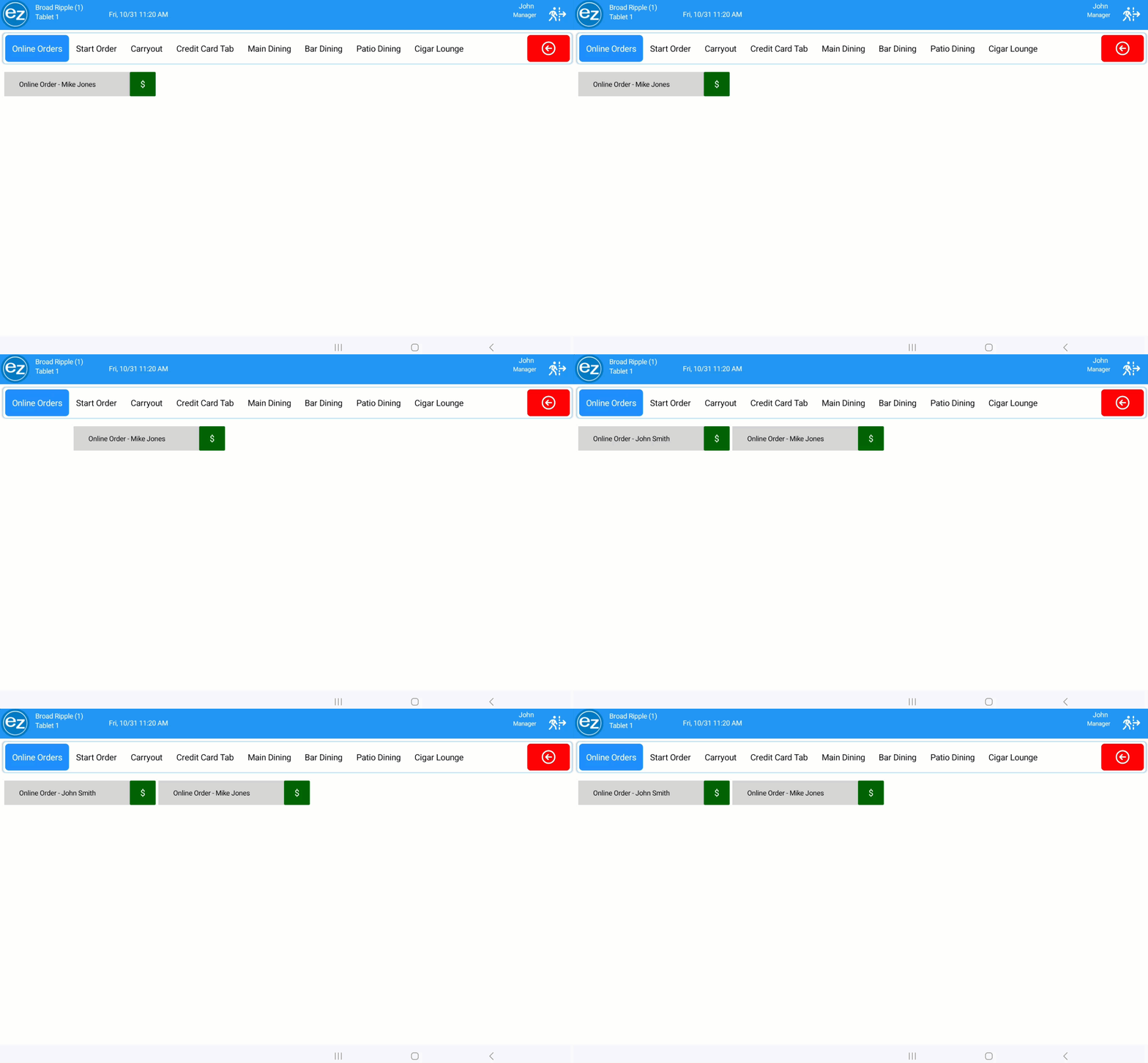
- When online ordering is turned on for your company there will be a new ordering tab section called Online Orders
- The online orders tab section will become by default the first ordering tab displayed inside the orders page. All online orders will be listed inside this new ordering section
- All new online orders will be synced automatically to each tablet within seconds of the order being placed
- Once the online order is synced the kitchen ticket will print automatically to all printers the items are assigned to
- The kitchen ticket will list the online order customer name, date, and time
- Online orders will be shown in grey tab color since these orders are not assigned to a specific employee
- The order will list Online Order - "customer name" that placed the order
- Each order will have the green dollar icon indicating those items have already been sent and can be finalized
- Orders will be sorted based on the time they were placed with earliest orders listed first
Step 2: Online Payments
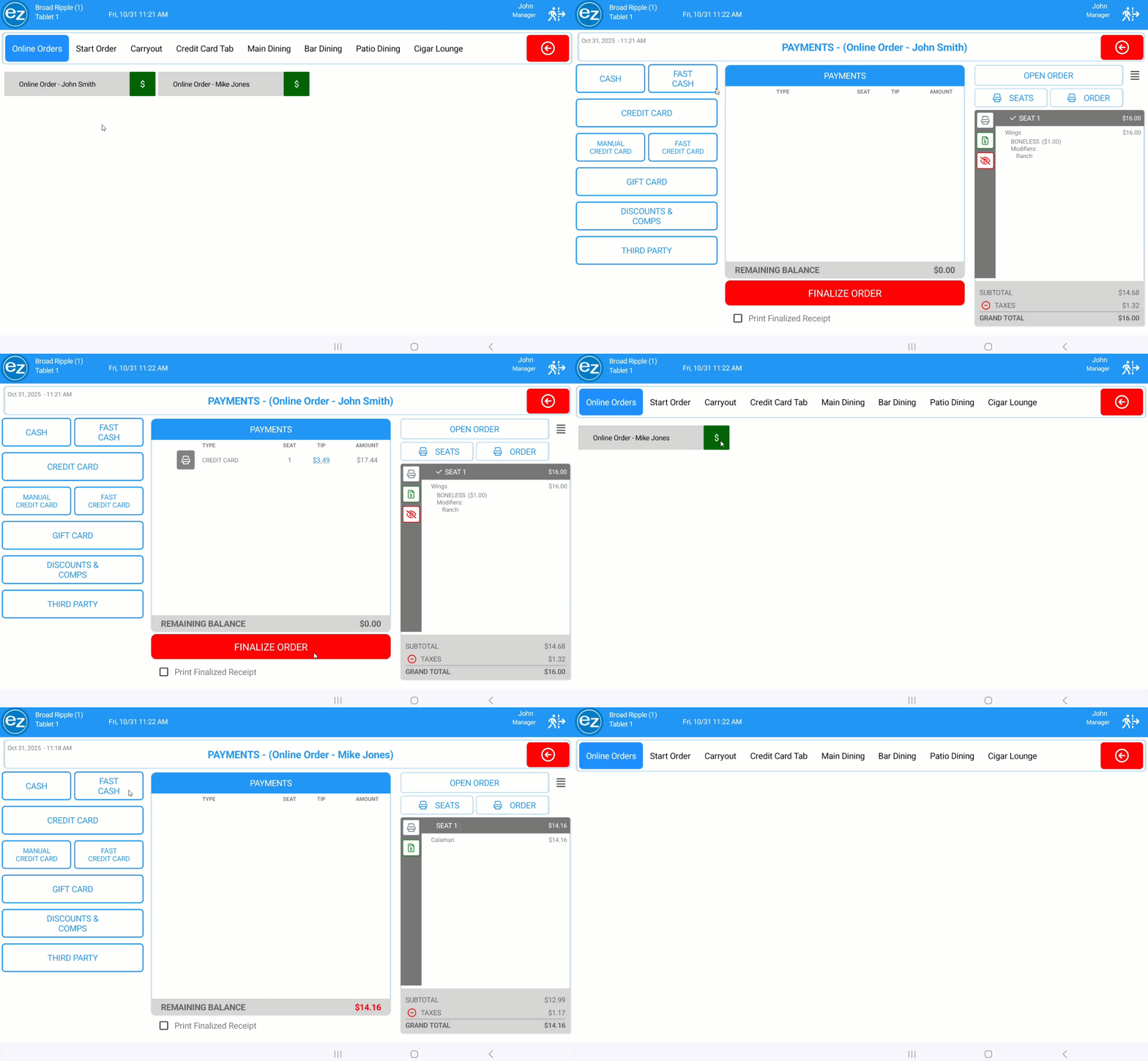
- Online orders paid by credit card will sync the payment amount and tip on the order
- All items will be listed on seat one with the green checkmark icon displayed indicating the payment has been applied
- You can print the customer or finalized receipts as needed
- When using the pay at store option the order will sync without a payment
- On the payment page you can apply any payment method the same as the normal in-store process
- For online credit card payments you will be unable to void the credit card payment and order once its been synced. Online credit card payments are tied to a separate merchant account then in-store. The online payment amount will need to voided or refunded separately
Step 3: Reporting
- Finalized online orders will be listed inside the transaction history without an employee name since these orders are not assigned to any specific employee
- For assigning online orders to an employee the orders will need to be transferred. The online orders will then be listed on their end-shift report and order name inside transaction history
- Online credit card total amount and tips will be listed inside the sales total & collected section on the end-day report
- The Studio system financial report will also list the online credit card total amount, tips, and gross sales
Step 4: Stream DSP Online Orders
For details on using the Stream DSP integration. Please reference the EZ Dine Stream integration article here: Stream DSP Integration
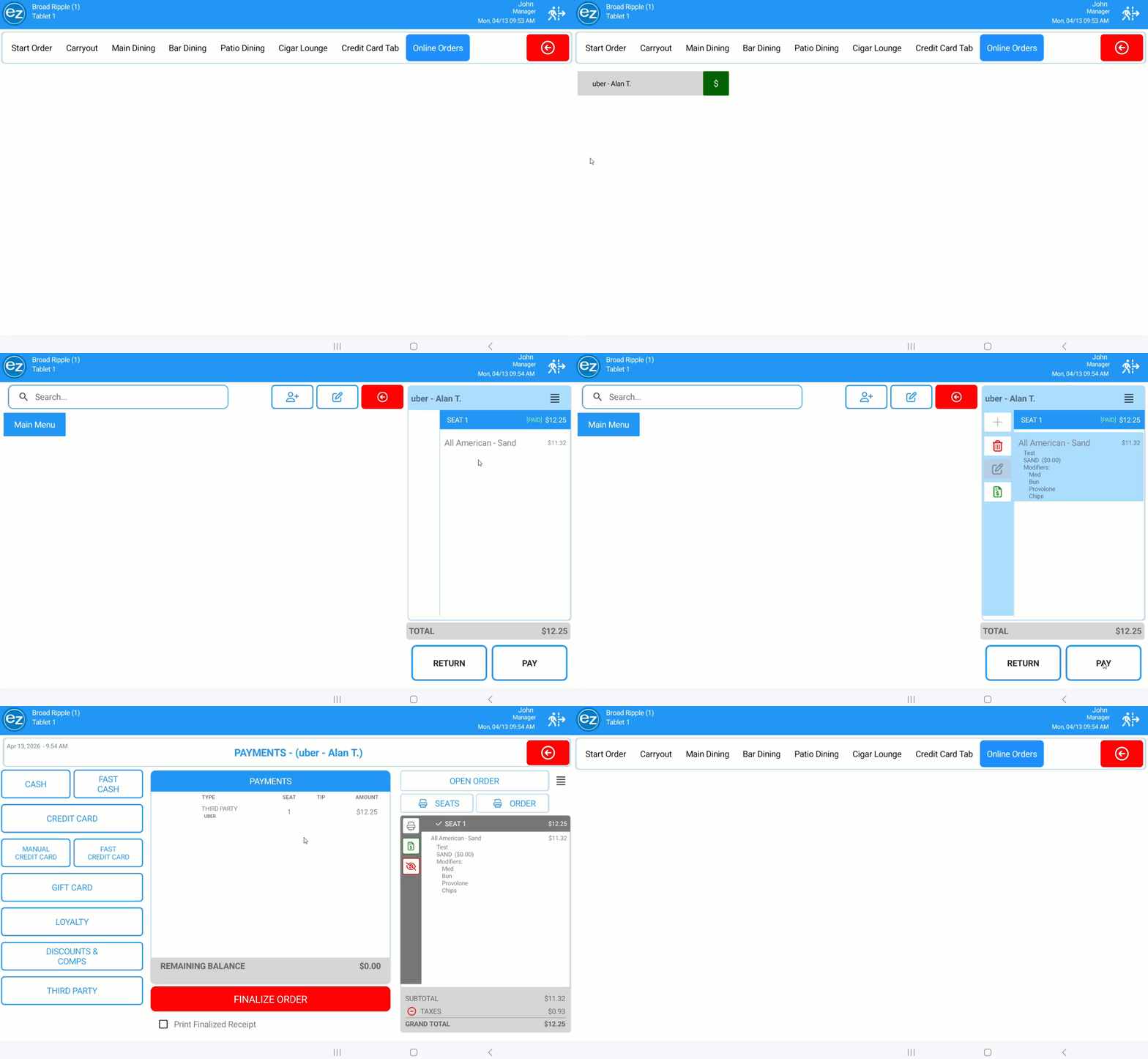
- Stream DSP orders will automatically sync inside the existing online orders ordering tab section
- The DSP provider and customer name will be listed as the order identifier
- Kitchen tickets and the KDS screen will print and display the order information once the order has processed successfully
- The order subtotal and taxes will be the only pricing calculations submitted. Platform fees, discounts, tips, or anything that does not impact revenue will not be listed
- For handling order cancellations you can use the void order option to remove the order. All other order edits will be prevented to avoid pricing recalculations
- Each order will sync a third party payment method along with the DSP name listed below the payment type
- Finalize the order and the date/time, DSP provider, transaction id, sales total, and tax will be tracked for reporting
Additional Resources and Help!
Still have questions? Please contact us any time at support@ezsoftpos.com.
NOTE: If emailing, please include your business name in the subject line of the email
and provide your preferred contact information for the best response time.
Visit our help center Help Center for more guides and tutorials