
TABLE OF CONTENTS
- Step 1: Adding/Linking Customers
- Step 2: Earning Points
- Step 3: Redeeming Rewards
- Additional Resources and Help!
For details on configuring the loyalty program. Please reference the EZ Dine Studio article here: Loyalty Rewards Program

New loyalty members can be added directly through the EZ Dine App with a valid ten digit phone number
Step 1: Adding/Linking Customers
- The payment page will display a new loyalty payment tab below the gift card payment selection. The loyalty tab will initialize the loyalty customer account phone number input
- Credit card payments will list the loyalty program details at the bottom of each credit card receipt. There will be an additional option for customers to provide a phone number and signup for the rewards program
- Tap the Loyalty payment tab. The customer loyalty phone number entry form will be shown inside the loyalty rewards window
- Enter the phone number and press done. The EZ Dine App will confirm if a valid ten digit phone number was entered. If the number is not found, tap YES when prompted to register a new member
- The loyalty account will now be attached and listed on the seat order ticket below the items
- Existing customers will display their registered phone number and current points balance inside the loyalty rewards window automatically
- For removing the linked loyalty account select the red X cancel icon displayed next to the loyalty number. This will detach the loyalty account
- To close the window and return to the normal payment screen, tap the X inside the loyalty rewards header
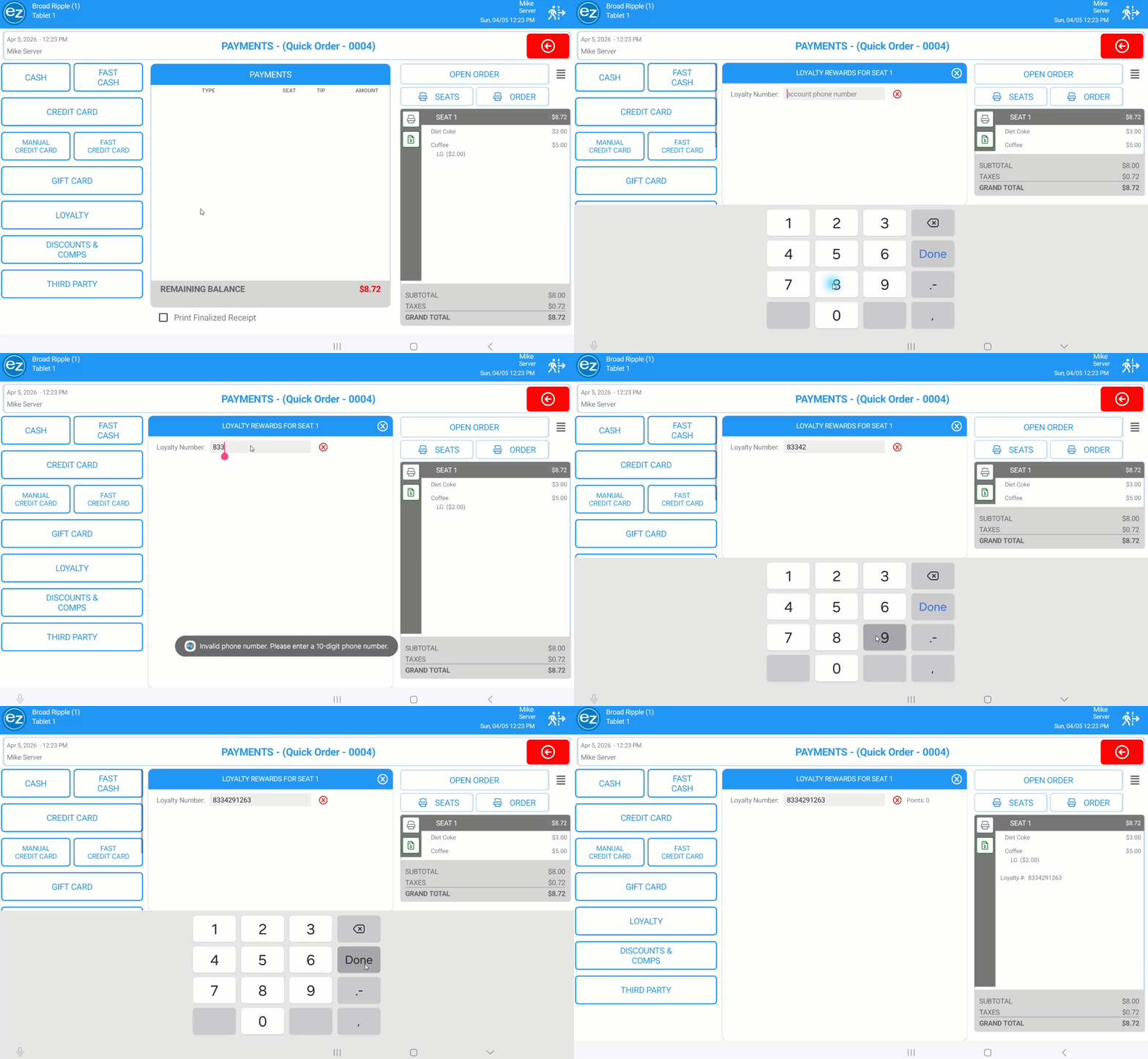
Adding New Customer
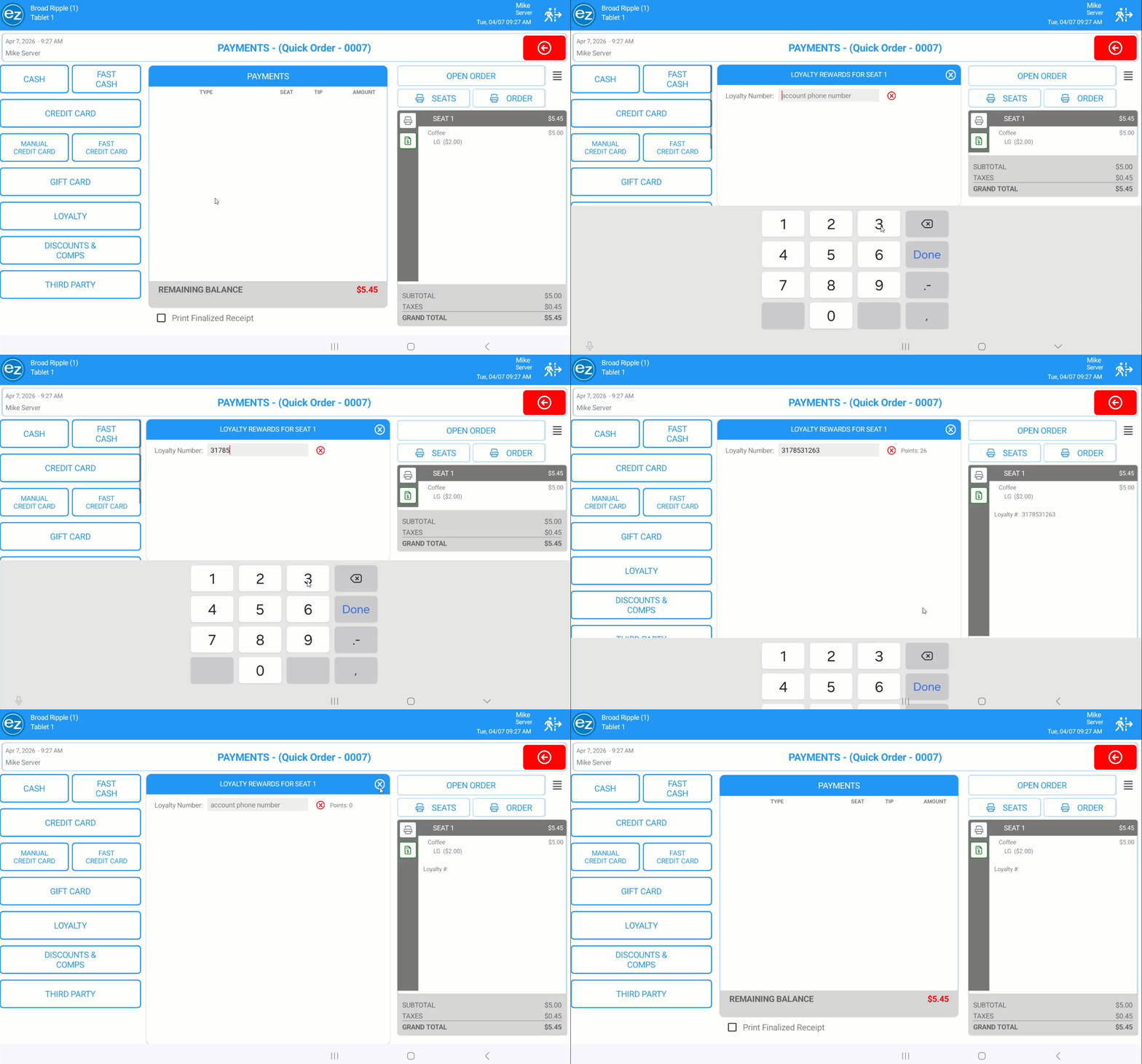
Existing Customer
Step 2: Earning Points
- Points will be earned based on the pre-tax total rounded down to the nearest whole number
- Depending on the loyalty program settings every dollar spent will equal points earned
- The loyalty customer will need to be linked prior to the transaction being finalized in order to accrue points
- Loyalty customers can be linked to the entire order or by individual seats. The order level will default to seat one automatically
- Select the loyalty payment tab. Enter the customer phone number and press done. Existing points will be displayed to the right of the loyalty number
- The loyalty account will be attached to seat one and listed underneath the items on the seat
- For multiple seats press the seat number and loyalty payment. The loyalty rewards payment window will update to the corresponding seat number. Each seat will display the loyalty number on the order ticket below the items
- Switching between the loyalty rewards and payment windows can be done when selecting the payment types. The loyalty payment tab will display the loyalty rewards window. Pressing X to cancel or choosing another payment type will close out of the loyalty rewards window and return back to the normal payment window
- Loyalty numbers can only be assigned to either the order or seats individually. If a loyalty account is already attached to seat. When selecting the loyalty payment tab you will see a duplicate loyalty error check message
- Once the loyalty account is linked select a payment method and finalize the transaction. The loyalty customer summary will print on the bottom of the finalized receipt detailing the loyalty number and current points balance
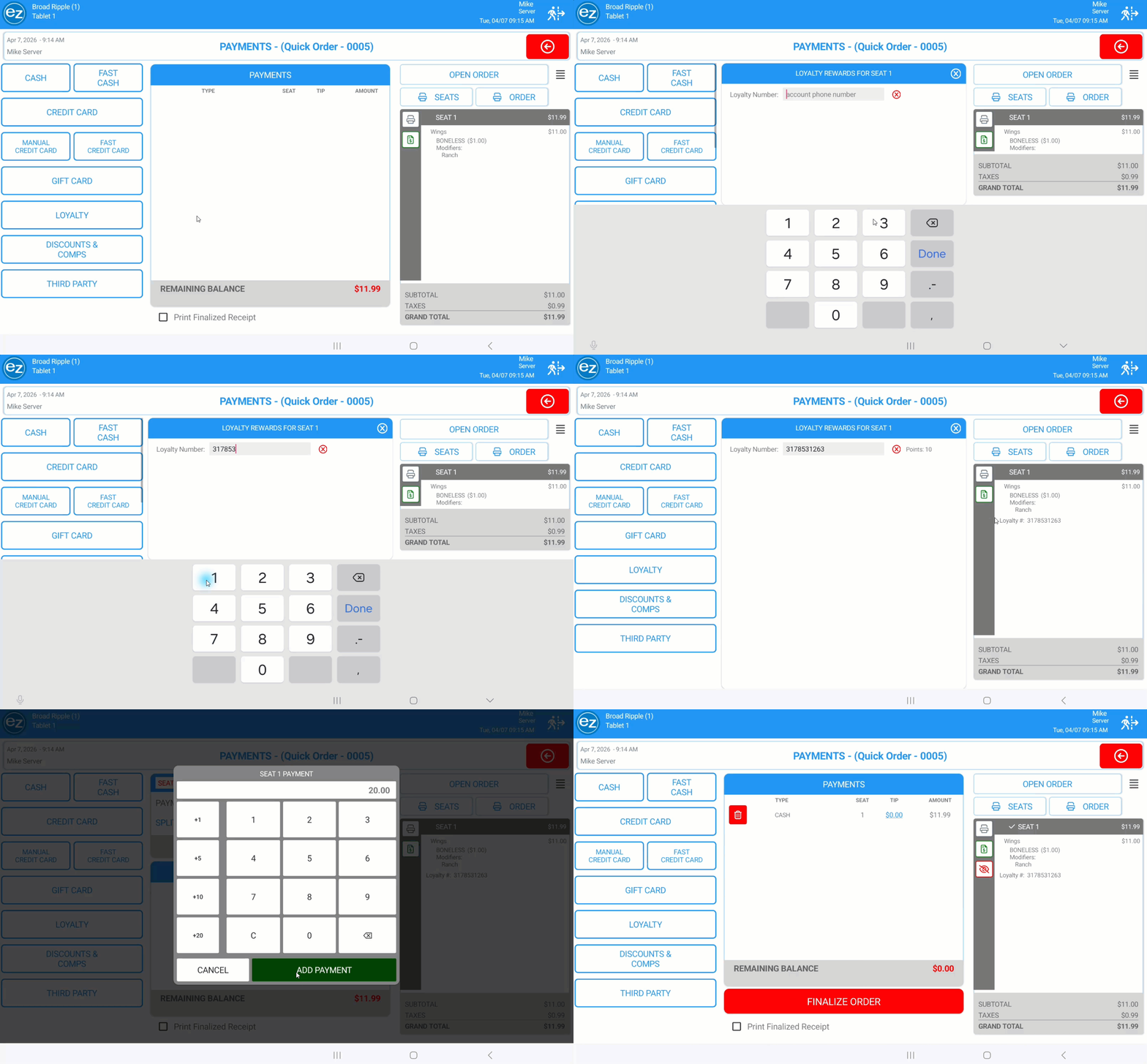
Loyalty By Order
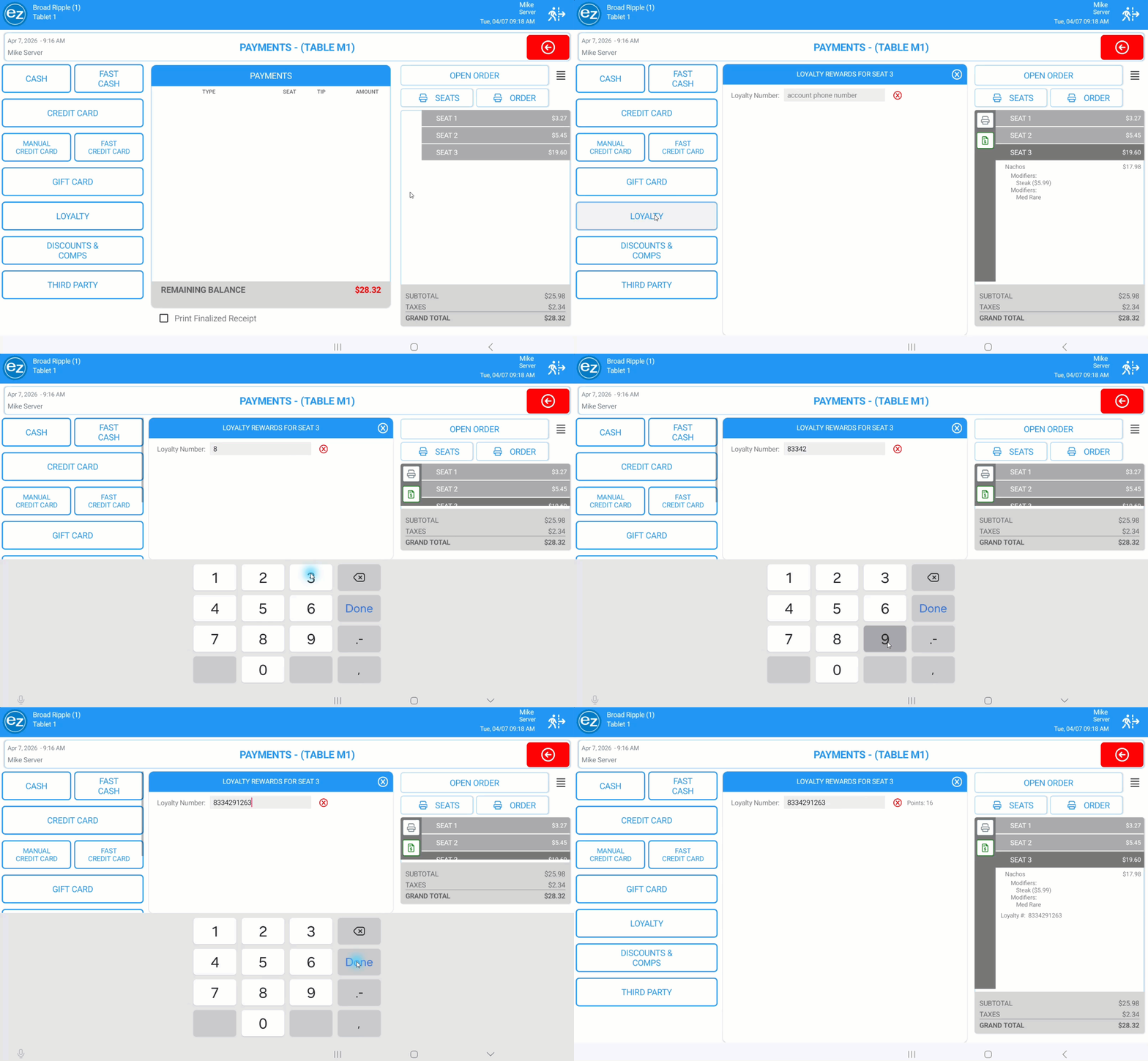
Loyalty By Seats
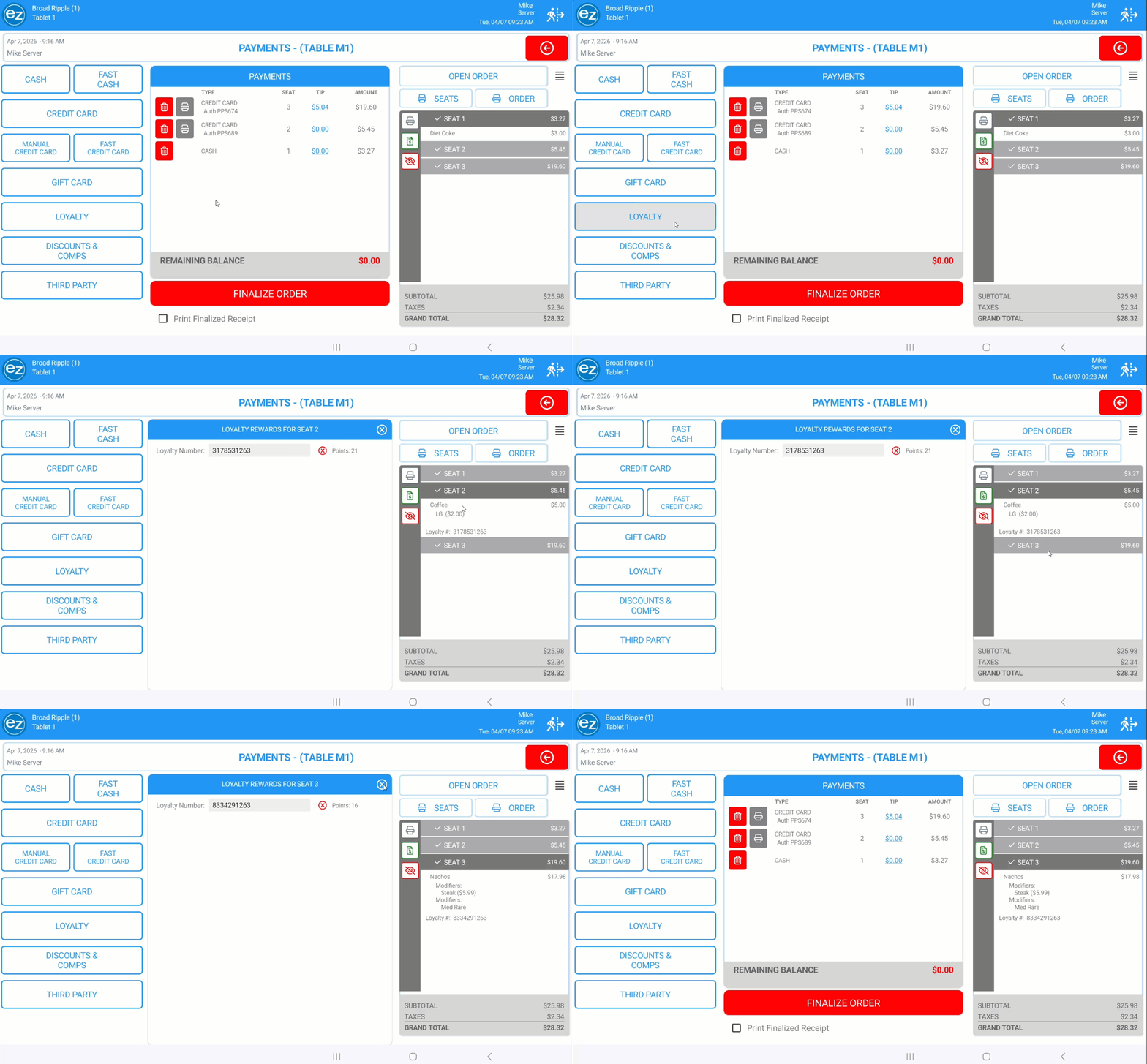
Loyalty Reward & Payments
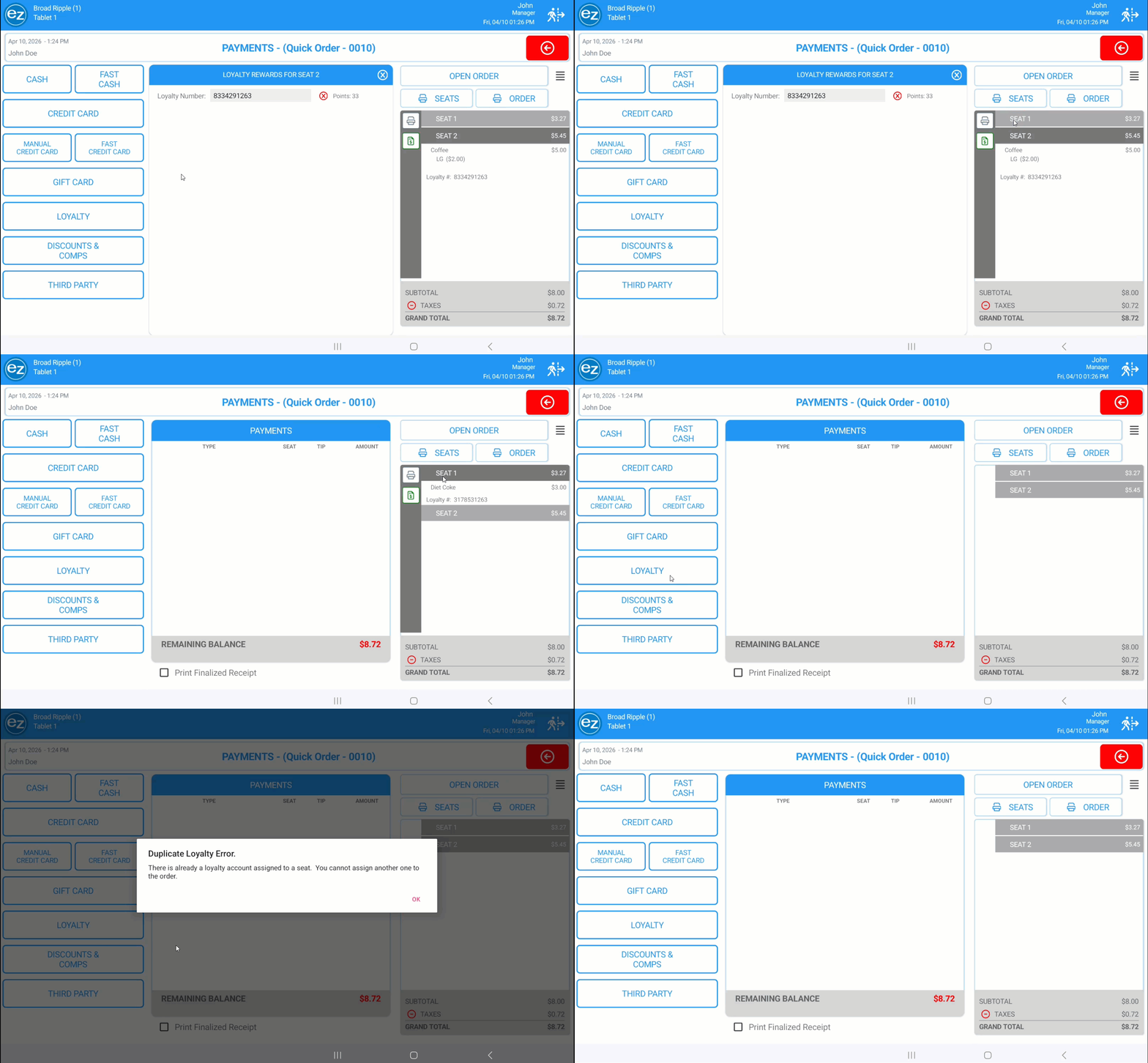
Duplicate Loyalty Error
Step 3: Redeeming Rewards
- Link the loyalty customer account and the list of available reward discounts will be shown
- You will have the option to apply the reward discount or continue adding more points. Select another payment method to bypass redeeming the reward
- When the discount reward is used. The loyalty discount type and name of the reward will be displayed inside the payment window
- The points amount required for the reward will be deducted from the loyalty account once the discount reward is redeemed
- Only one customer reward can be used per transaction
- Loyalty points will not be accrued on orders when a reward is redeemed
- The full reward discount amount will be applied even when the order total is less than the discount reward amount. Partial reward balances will not be calculated or saved
- Item discount rewards will be issued to the base price of the item only. Any modifier or addon upcharges will not be included in the discount
- If the required reward item is missing when the reward discount is selected. An item missing from order warning message will be shown
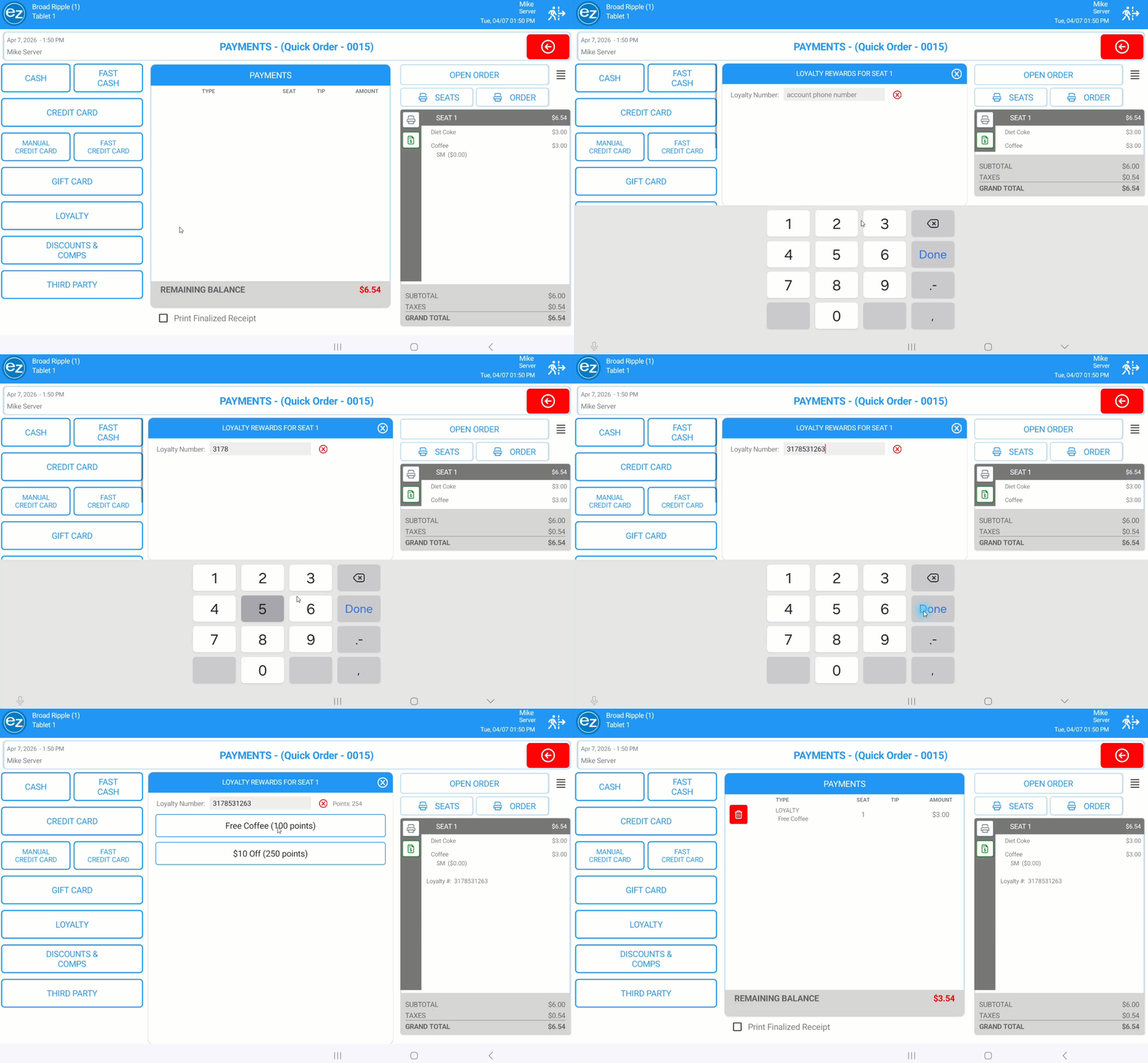
Loyalty Free Item Discount
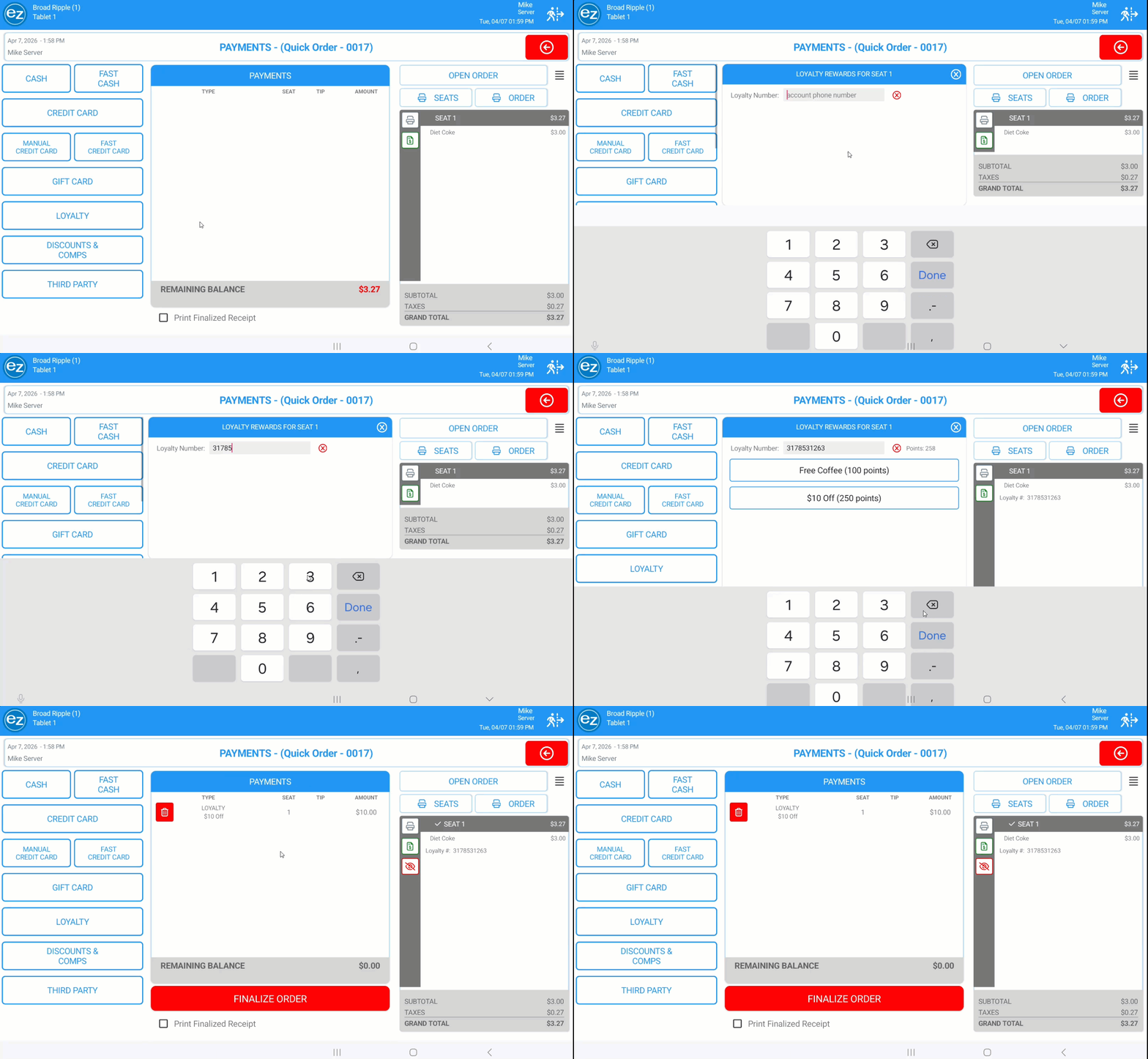
Loyalty Dollar Off Discount
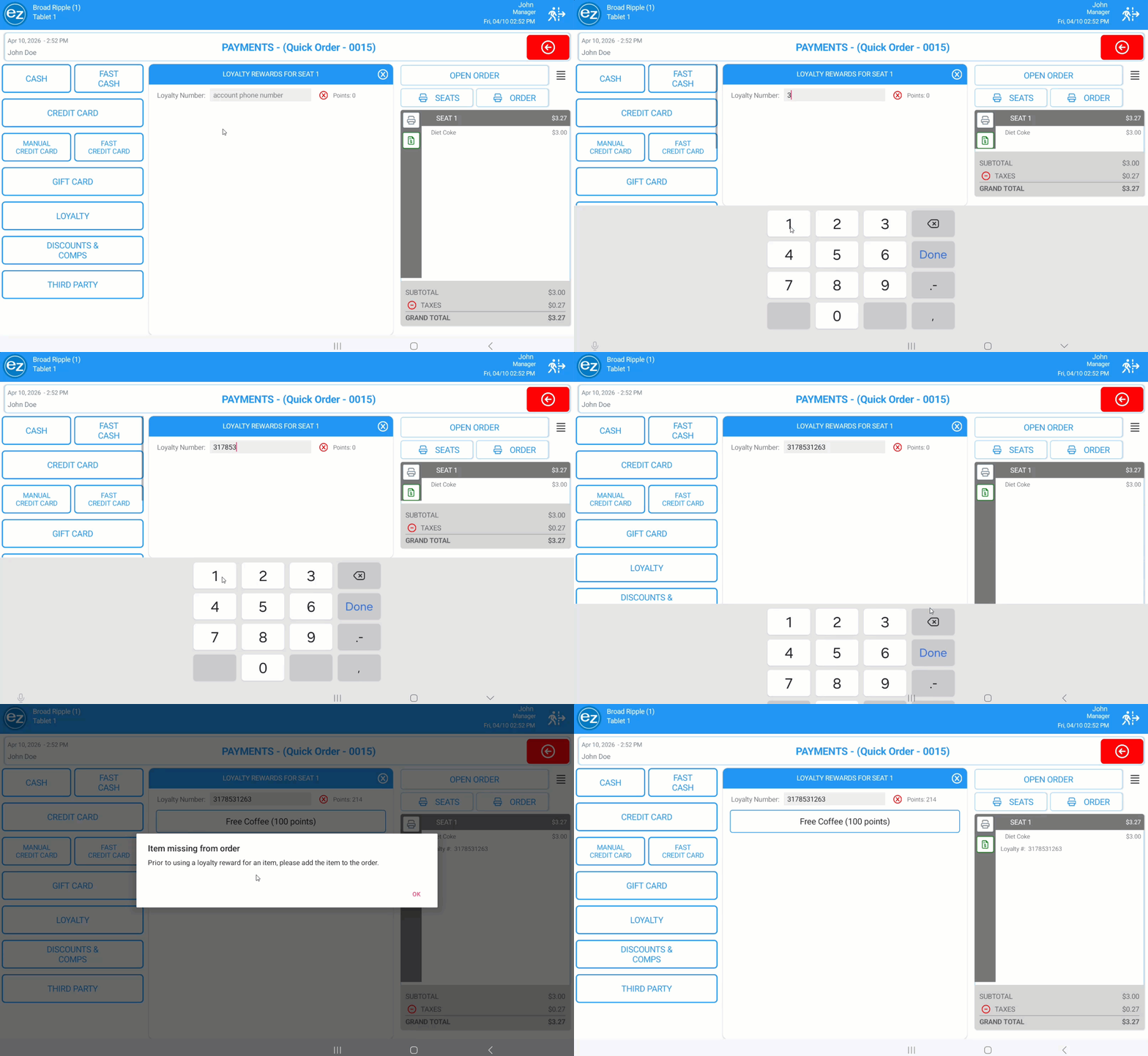
Reward Item Missing
Additional Resources and Help!
Still have questions? Please contact us any time at support@ezsoftpos.com.
NOTE: If emailing, please include your business name in the subject line of the email
and provide your preferred contact information for the best response time.
Visit our help center Help Center for more guides and tutorials