
TABLE OF CONTENTS
- Step 1: Loyalty Program Settings
- Step 2: Loyalty Reward Discounts
- Step 3: Loyalty Customer Activity
- Step 4: Loyalty Reporting
- Additional Resources and Help!
The loyalty rewards system will need to be enabled on your company by an EZ Software administrator. Once activated a new loyalty program page will be listed inside the rewards & payment section. Existing reward systems can be imported by providing a Google sheet or Excel file of the customers phone number, current points balance, and first and last name
Step 1: Loyalty Program Settings
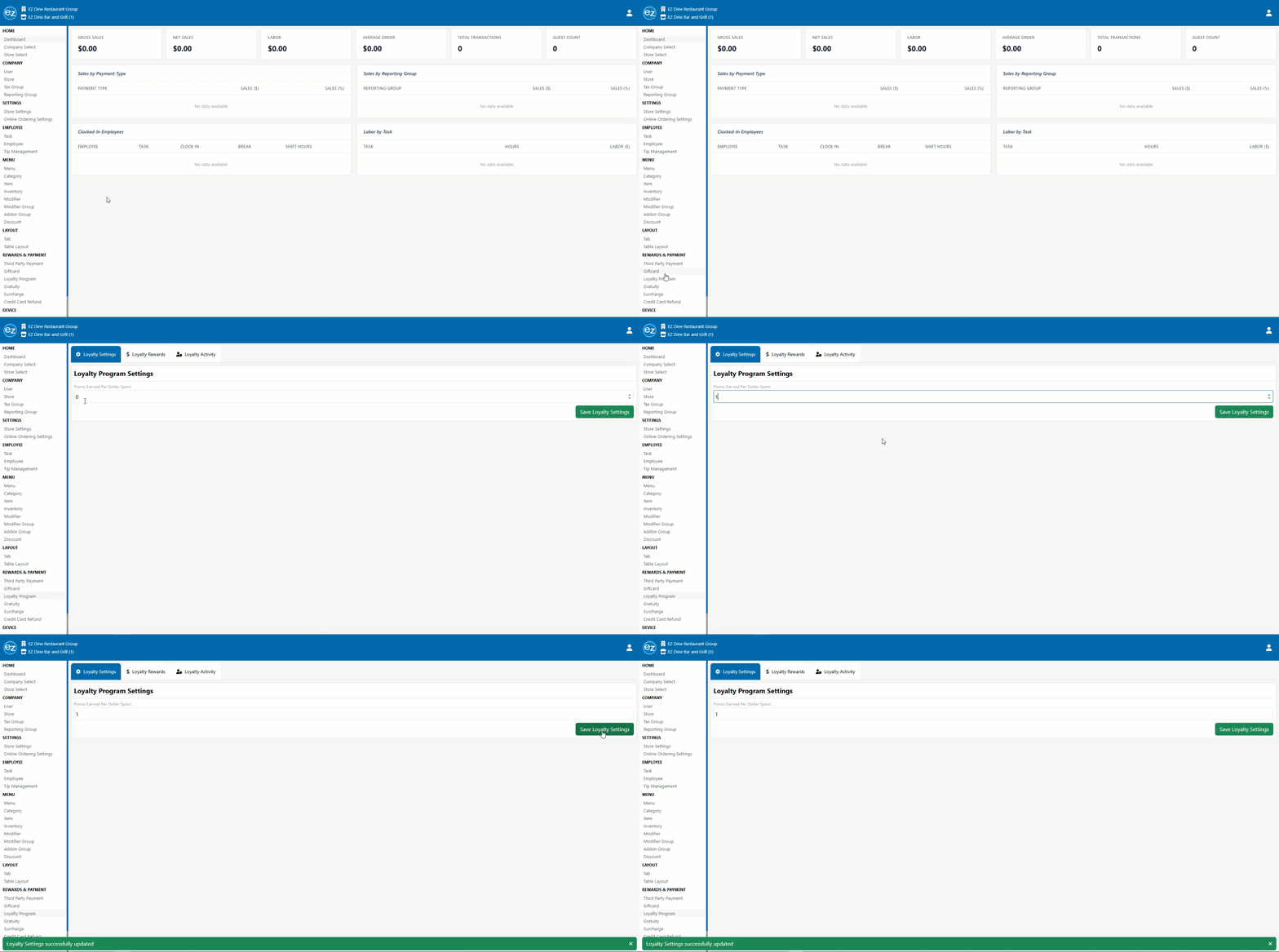
- Configure your initial loyalty point settings here to define how customers earn rewards
- Every dollar amount a customer spends will equal points earned. The points earned will unlock redeemable discount rewards tied to the loyalty members account
- Common loyalty rewards system is for every $1 dollar the customer spends equals 1 loyalty point accrued for the customer
Step 2: Loyalty Reward Discounts
- Configuring the different reward discounts that become available once a specific points threshold is reached
- You can have multiple tiered point systems tied to different reward discount types. Each reward discount becomes unlocked once the customer reaches that specific points balance threshold
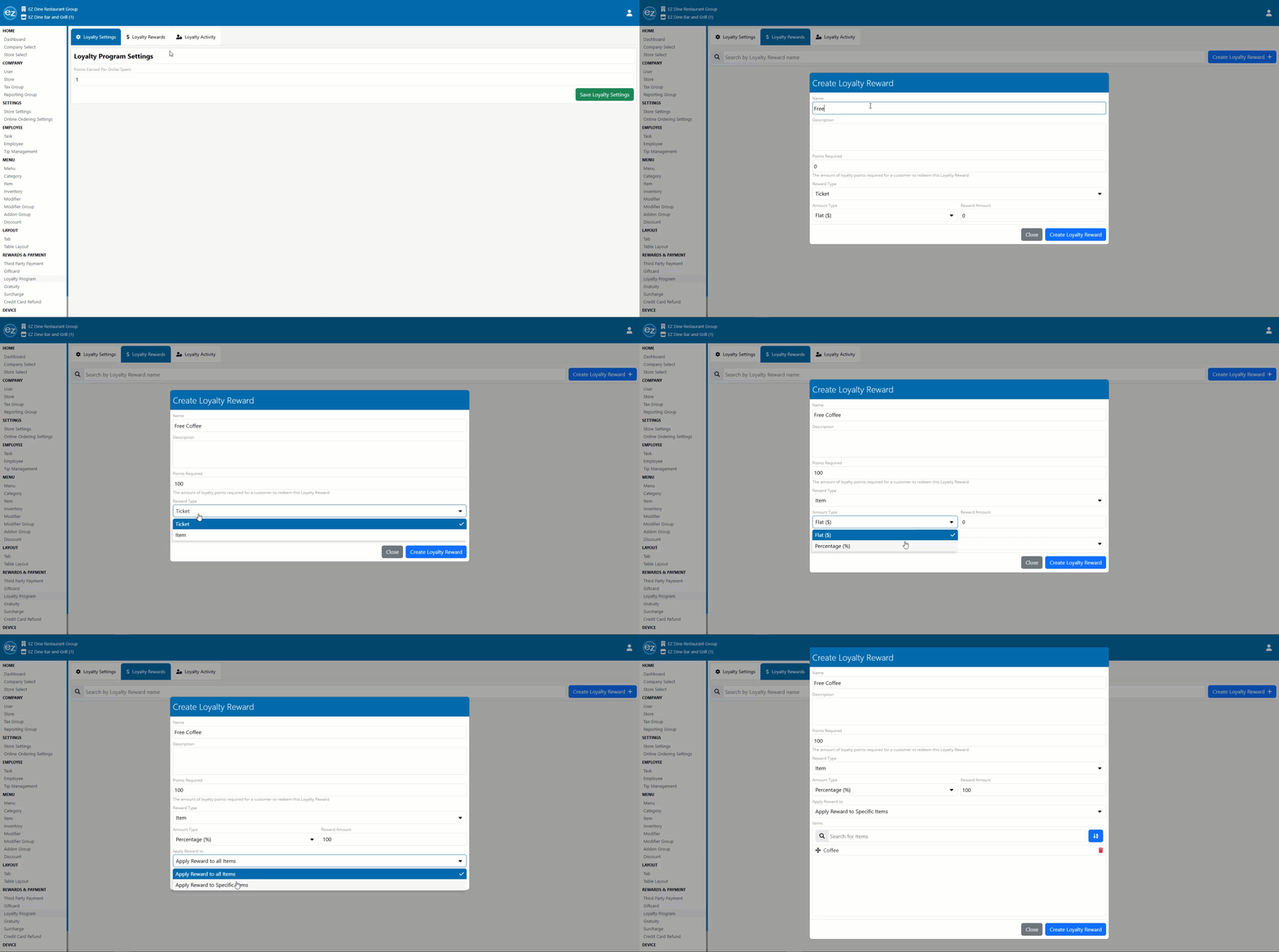
- Select the blue create loyalty reward tab. The create new loyalty reward window appears
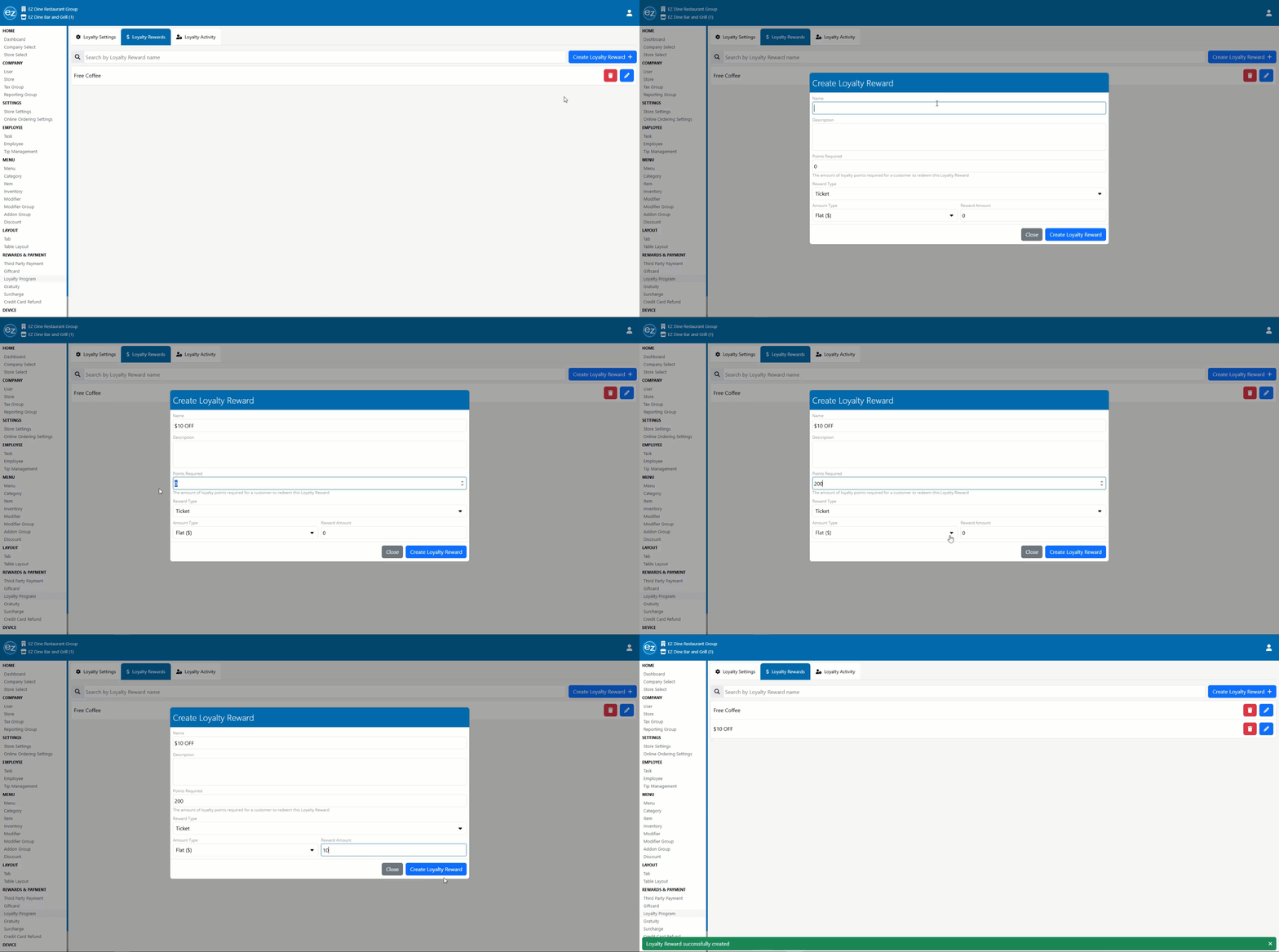
- Enter the rewards discount name and the points required that will activate the discount
- Select the reward type dropdown and choose either a ticket or item discount setup. Item discounts will have an additional option to search for the specific items the discount can be applied to. You can have multiple items tied to the discount reward
- For the amount type select between a flat dollar or percentage amount discount. Input the reward discount amount in whole numbers. Press the blue create loyalty reward tab. The new loyalty reward discount will be created
- Modify or delete rewards any time using the blue edit pencil or red trash can icons
Item Reward Discount
Ticket Reward Discount
Step 3: Loyalty Customer Activity
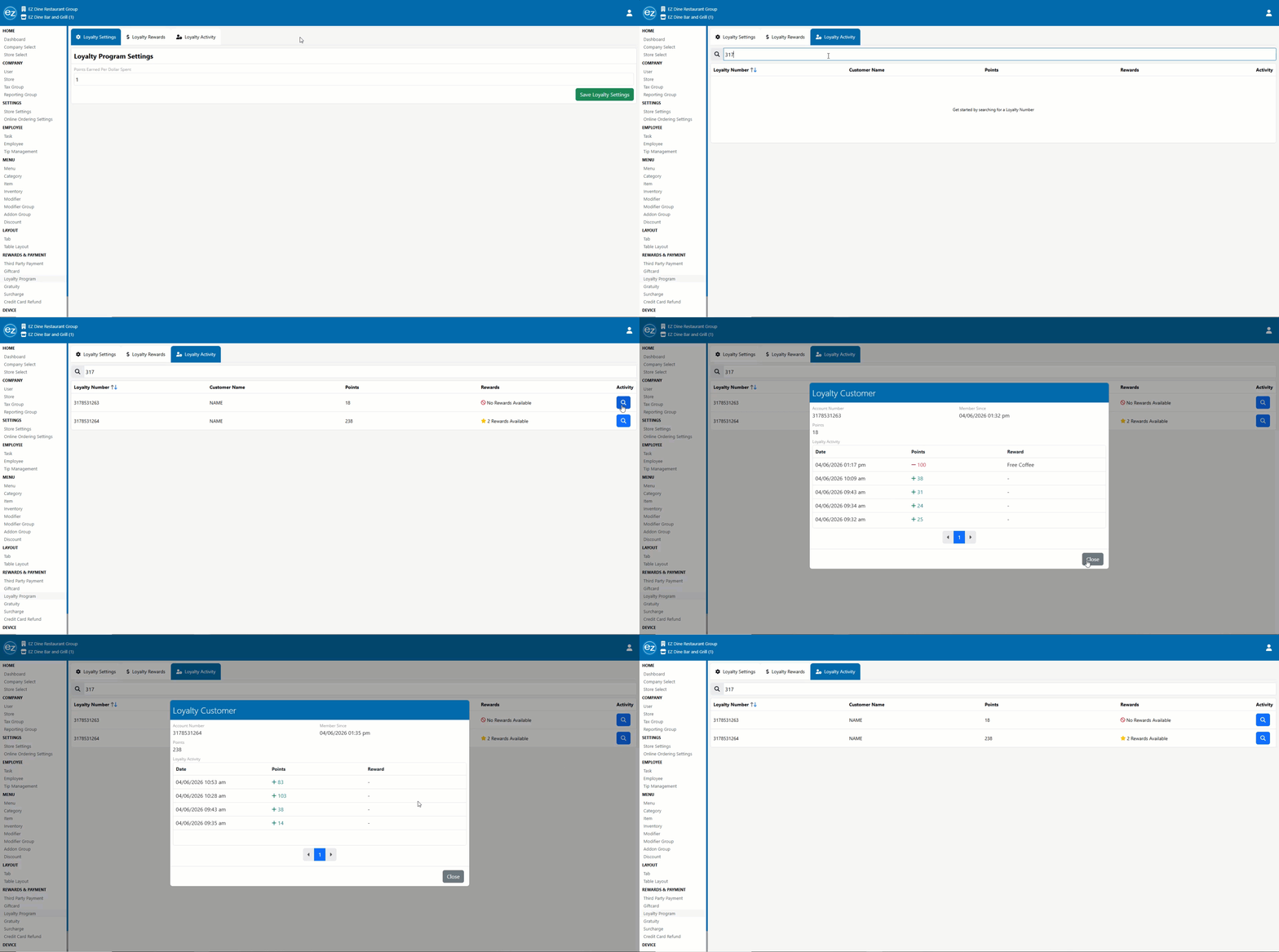
- Customer loyalty activity will allow you to view details of each loyalty members points and reward balances
- You can search by the loyalty number or customer name. Enter the first three digits of the loyalty phone number and the customer list will begin auto populating the results
- A yellow star icon identifies customers with pending rewards
- Select the blue lookup icon and the detailed customer account activity will be shown. Dates when points were earned, rewards redeemed, and the current points balance will be listed
Step 4: Loyalty Reporting
- The system financial sales report displays all loyalty rewards redemptions as loyalty discounts. These deductions appear as a unique line subtracted from your gross sales
- The rewards reporting section features specialized analytics to help you track member engagement and program performance
- Loyalty summary report provides an overview of total program activity. Including member signups, points earned/redeemed, and the total revenue generated through the loyalty program
- Loyalty members report tracks individual member history, such as join dates, current balances, last visit dates, and total lifetime spend
- Loyalty points activity report break down specific instances of points earned and redeemed. Offering a transparent view of every member discount reward redeemed
Additional Resources and Help!
Still have questions? Please contact us any time at support@ezsoftpos.com.
NOTE: If emailing, please include your business name in the subject line of the email
and provide your preferred contact information for the best response time.
Visit our help center Help Center for more guides and tutorials