
TABLE OF CONTENTS
Step 1: EZ Dine Studio User Permissions
Users authenticating devices must have the Transaction User permissions enabled on their account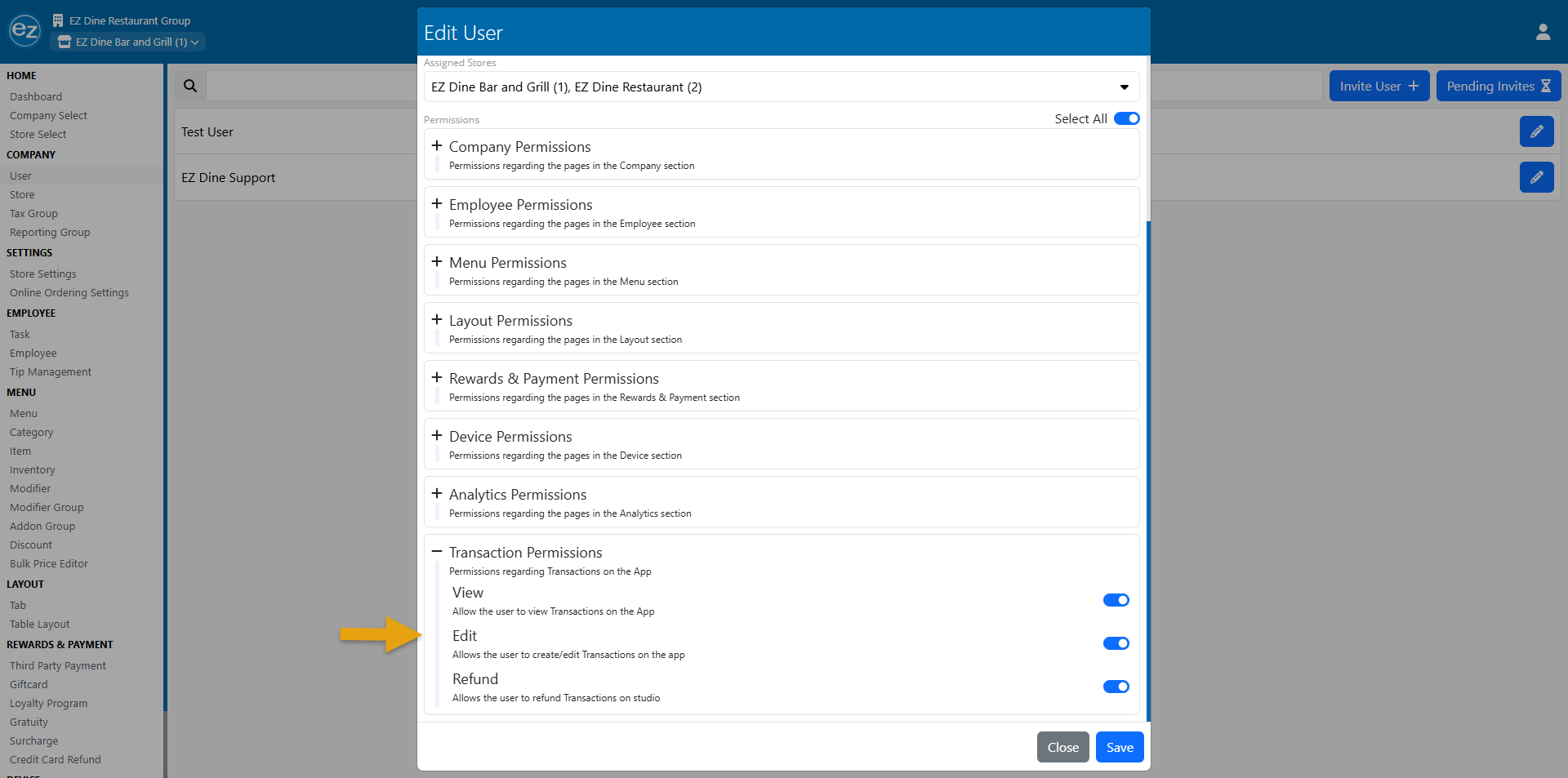
- An active Studio user account is required to register and link devices to your company's store list. For details on creating user accounts, refer to the Create Studio Users guide
Step 2: Device Authentication
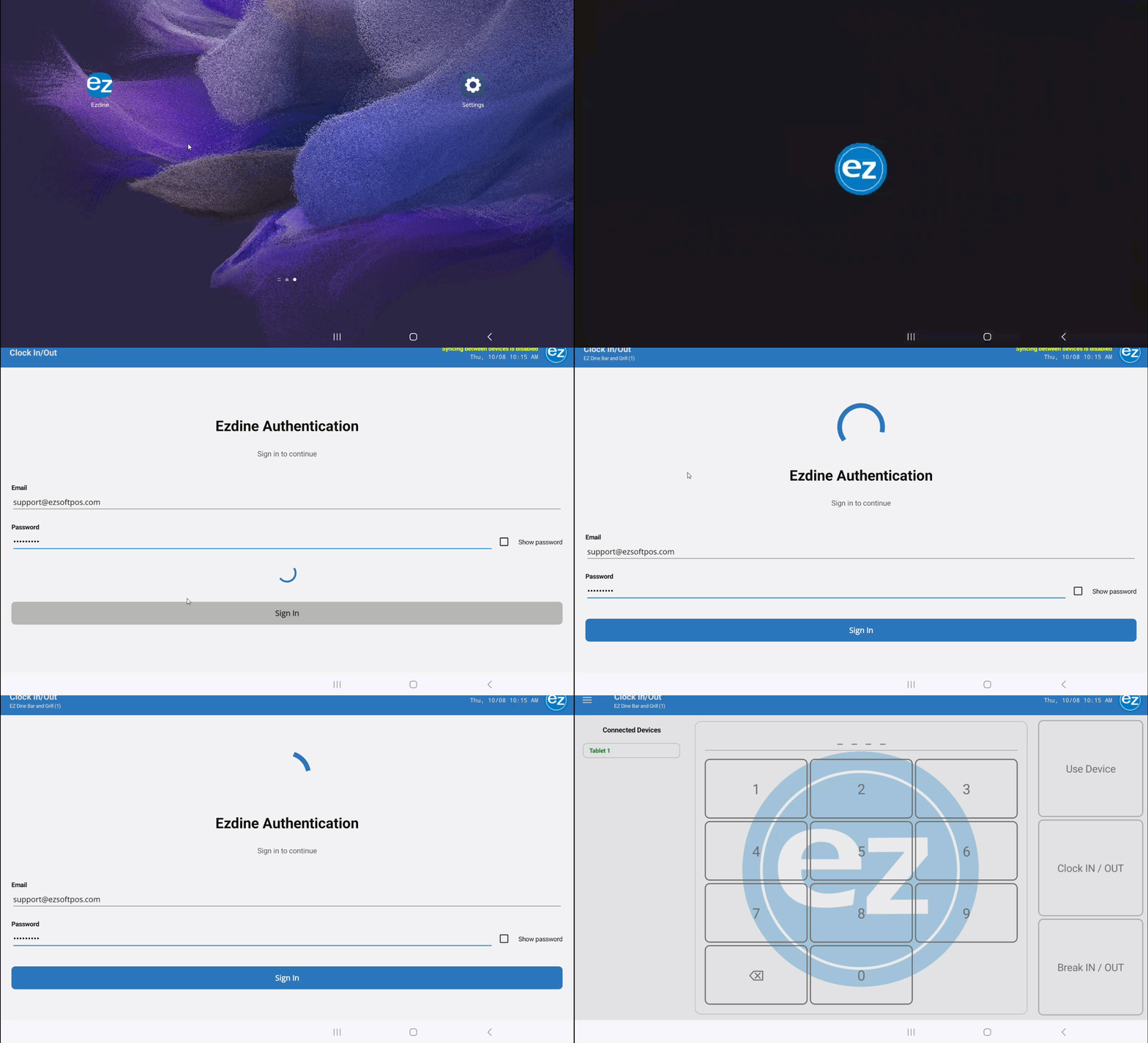
- Launch the EZ Dine app from your Android device's home screen to view the Sign-In page
- Enter your Studio user email address and password. Check Show Password option to confirm password accuracy, then tap Sign In
- Entering an invalid email or password triggers a warning error message. Note: Accounts temporarily lock for five minutes after three consecutive failed attempts
- Upon successful sign-in select the store location assigned to this device. (Single-location accounts connect to the store automatically)
- The system then downloads all store settings and opens the Clock-In/Login screen
Additional Resources and Help!
Still have questions? Please contact us any time at support@ezsoftpos.com.
NOTE: If emailing, please include your business name in the subject line of the email
and provide your preferred contact information for the best response time.
Visit our help center Help Center for more guides and tutorials