
TABLE OF CONTENTS
- Surcharge & Price Adjustment Programs Overview
- Step 1: Credit Card Surcharge
- Step 2: Cash Discounting
- Step 3: Dual Pricing
- Additional Resources and Help!
Surcharge & Price Adjustment Programs Overview
EZ Dine Studio provides three distinct program options: Credit Card Surcharging, Cash Discounting, and Dual Pricing
- Single-Program Rule: Only one program can be active at a time per store location
- Rate Provisioning: Prior to enabling any program, the required processing rates must be configured by an EZ Software administrator to match the rates in Studio
- Compliance & Signage: To remain compliant with card brand rules and legal guidelines, each active program must be disclosed clearly on customer-facing store signage and printed receipts
- Permanent Rate Locking: Once program percentages are entered and saved, they cannot be modified. Verify all percentage entries before saving
Step 1: Credit Card Surcharge
The Credit Card Surcharge program assesses an additional fee whenever a credit card transaction is processed. Review local and state regulations regarding eligible payment types and maximum allowable surcharge thresholds before implementation
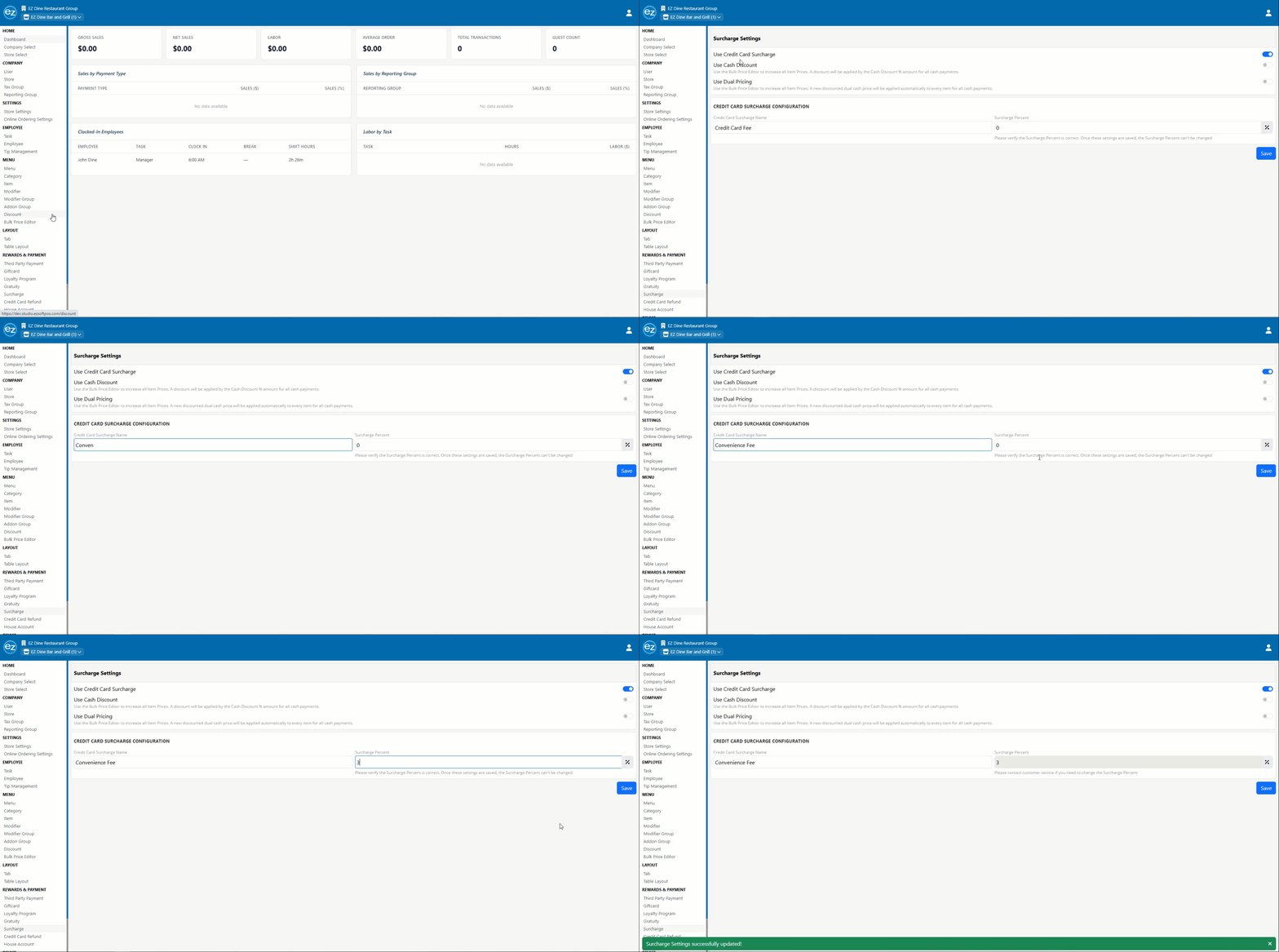
- Navigate to Surcharge Settings
- Toggle on Use Credit Card Surcharge
- In the Surcharge Name field, enter the descriptor exactly as it should appear on customer receipts
- In the Surcharge Percent field, enter the percentage fee to be applied automatically to credit card transactions
- Save the settings
- Receipt Layout: The surcharge name and calculated dollar amount print as an independent line item directly below the tax total
- Financial Sales Report: Total surcharge collected appear on the system financial sales report and are factored directly into the overall Net Collected for the accounting period
Step 2: Cash Discounting
Cash Discounting raises base menu pricing by the set discount percentage, then applies a percentage reduction when the customer pays with cash
- Menu Price Increase: Open the Menu Bulk Price Editor and increase item and modifier prices across the menu by the designated cash discount percentage
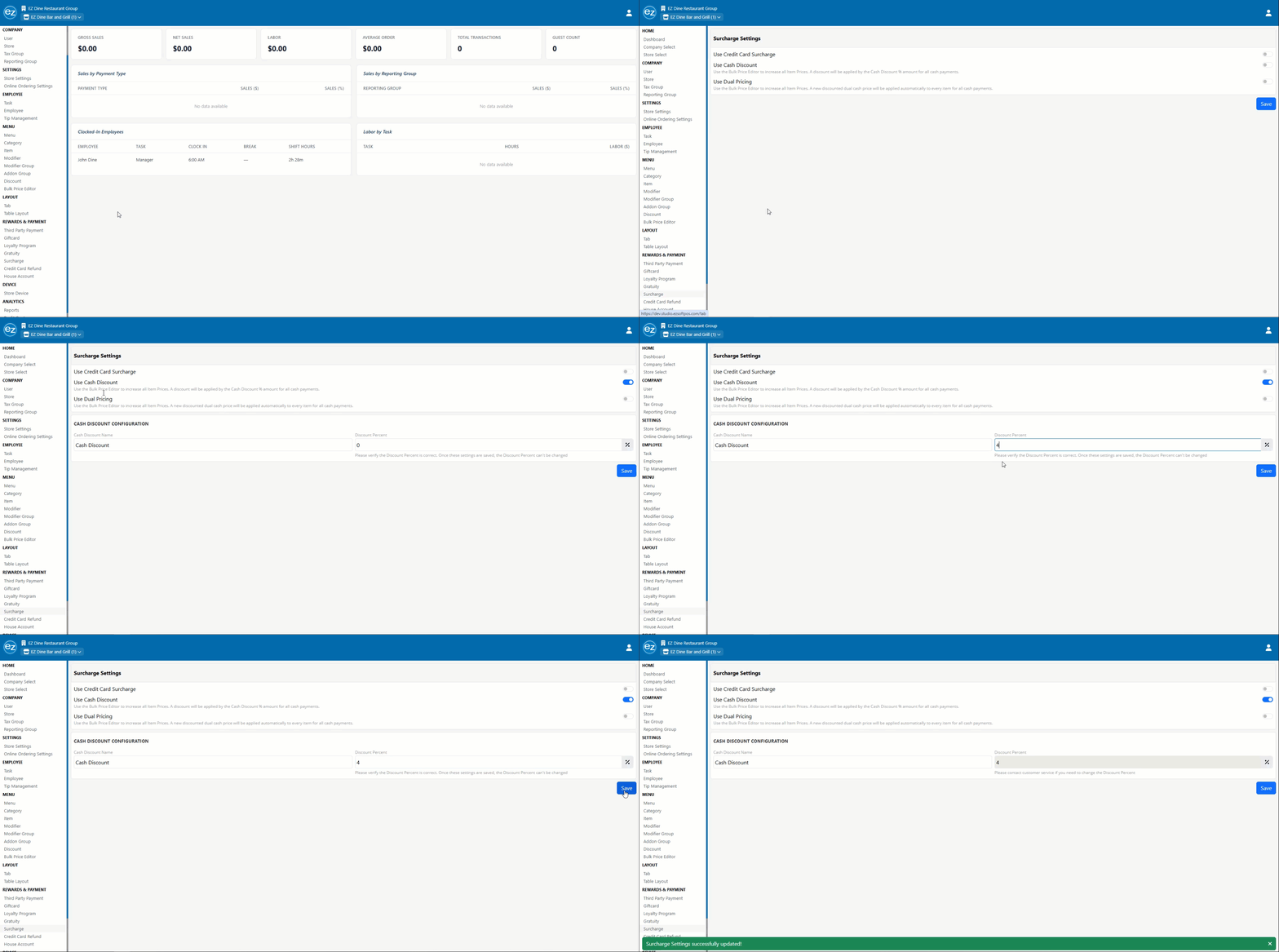
- Navigate to Surcharge Settings
- Toggle on Use Cash Discount
- Enter the Cash Discount Program Name
- Enter the Cash Discount Percent Amount matching the bulk increase applied to menu items
- Save Settings
- Receipt Layout: Receipts print both the Non-Cash Grand Total and the discounted Cash Total below the sales tax amount. The Cash Total reflects the discounted rate applied when cash is tendered
- Financial Sales Report: Total cash discounts appear as an independent line item deducted directly from Gross Sales. The total dollar difference when cash payments are tendered the aggregate cash discount amount
Step 3: Dual Pricing
Dual Pricing displays separate cash and card prices side by side on menus and receipts. The base menu price serves as the card price, while a discounted cash price is automatically calculated and locked by the system
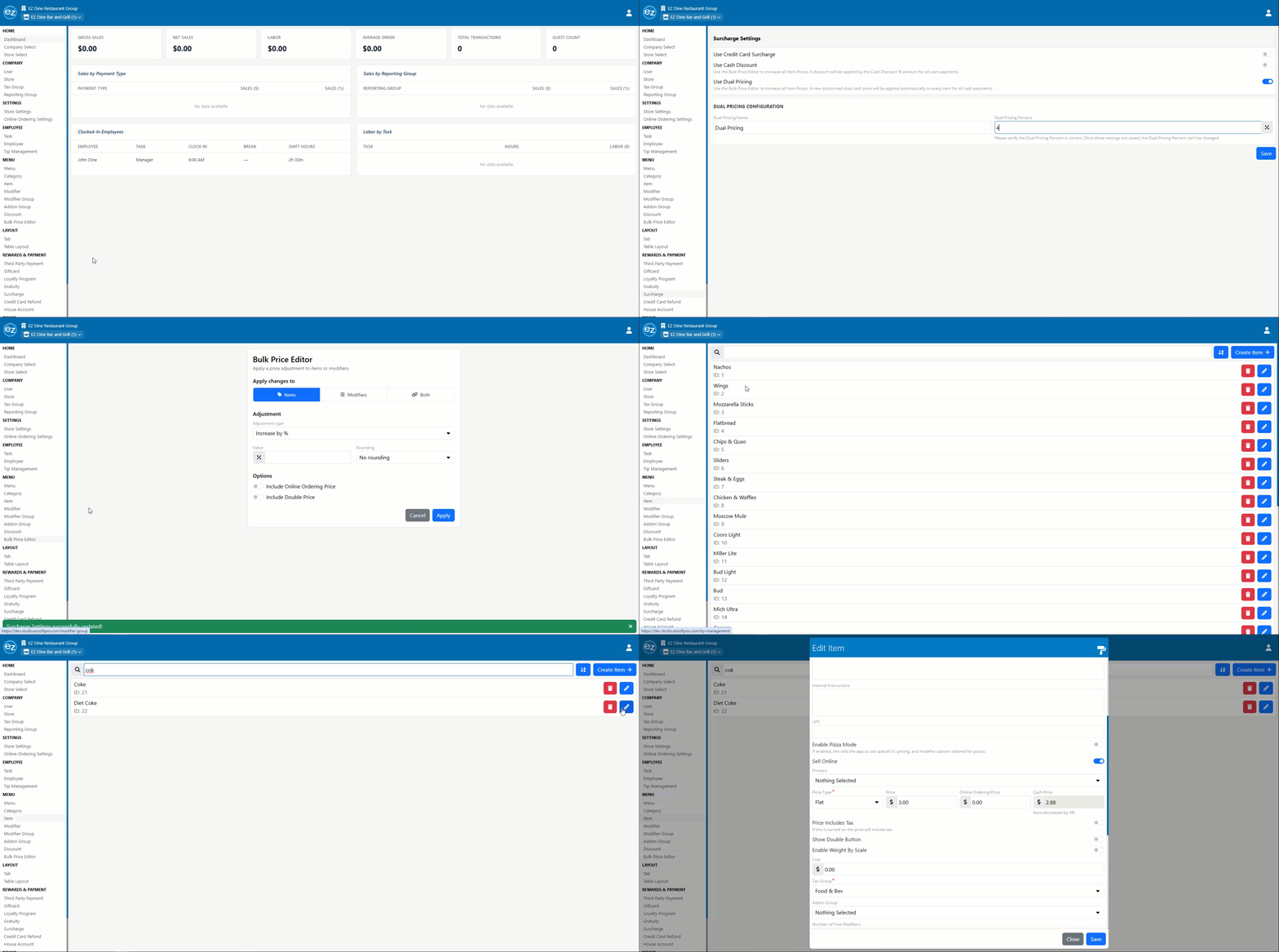
- Menu Price Increase: Open the Menu Bulk Price Editor and raise all base item prices by the target dual pricing percentage. This is adjusted price becomes the card price
- Navigate to Surcharge Settings
- Toggle on Use Dual Pricing
- Enter the Dual Pricing Program Name
- Enter the Dual Pricing Percentage. Saving this automatically applies the percentage reduction against the base price to establish the cash price
- Save the settings
- Upon saving, a read-only Cash Price field populates directly next to the Online Ordering Price on item configuration pages
- This field auto-calculates based on the current item price and dual pricing percentage. It is permanently disabled form manual editing
- Receipt Layout: Every ordered item prints with two dedicated pricing columns
- Left Column: Card Price. Right Column: Cash Price
- Subtotals and tax calculations print per pricing column
- The bottom of the receipt clearly list both the Non-Cash Total (Card) and the Cash Total
- Financial Sales Report: Dual pricing adjustments appear as an independent deduction line item from Gross Sales. The cumulative dollar difference across all cash transactions forms the total dual pricing reduction for the reporting period
Additional Resources and Help!
Still have questions? Please contact us any time at support@ezsoftpos.com.
NOTE: If emailing, please include your business name in the subject line of the email
and provide your preferred contact information for the best response time.
Visit our help center Help Center for more guides and tutorials