
TABLE OF CONTENTS
- Step 1: Dashboard
- Step 2: Sales & Labor Summary
- Step 3: Sales by Hour
- Step 4: Sales by Payment Type
- Step 5: Sales by Reporting Group
- Step 6: Clocked-In Employees
- Step 7: Labor by Task
- Additional Resources and Help!
Step 1: Dashboard
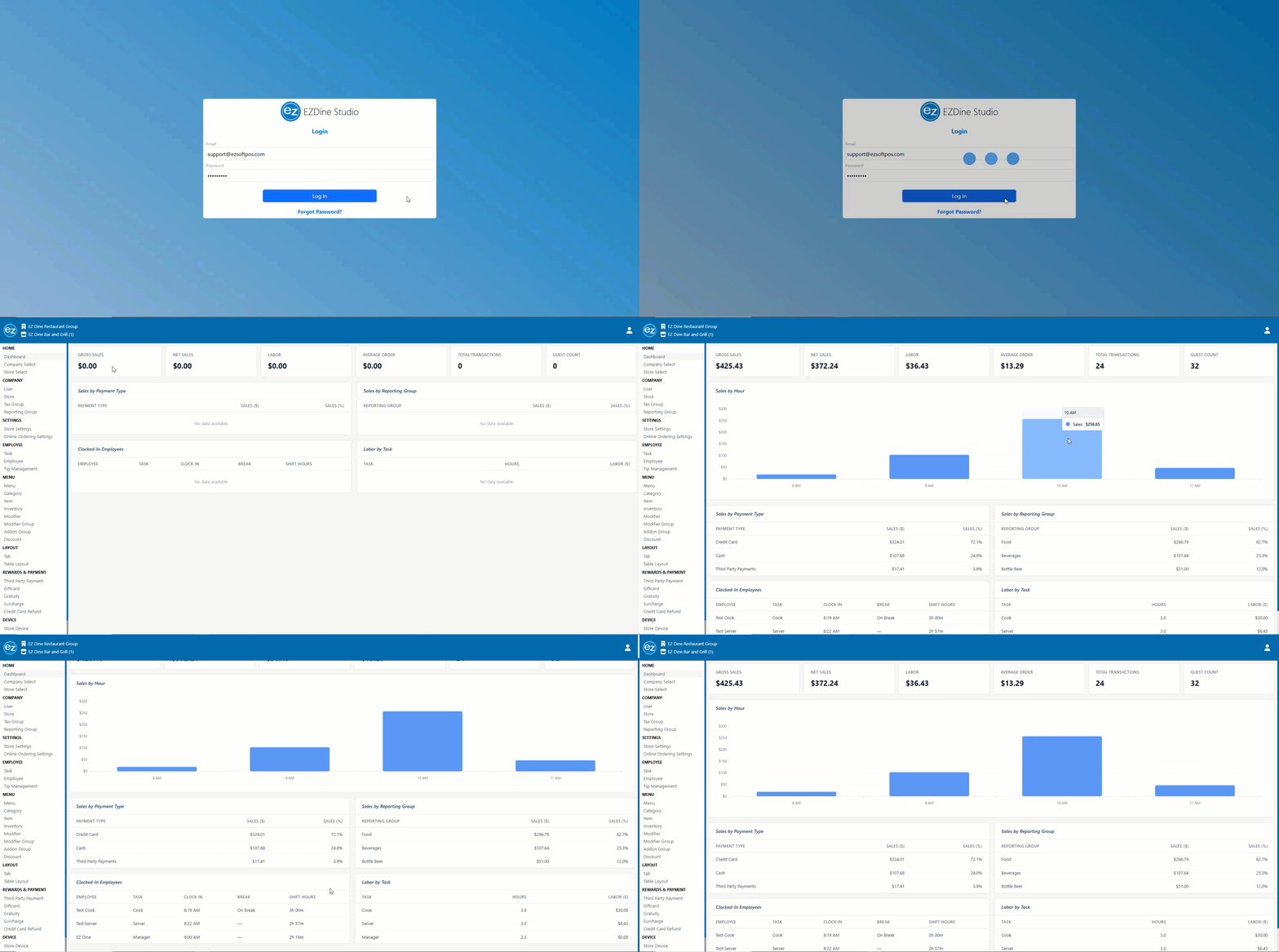
The dashboard section will be the default home page displayed on the initial login into EZ Dine Studio. Reporting data will be updated every few seconds providing a current snapshot of the stores sales and labor. Dashboard information will reset daily based on the store settings report cutoff time
- Sign into EZ Dine Studio and select the store to access. The default dashboard home page will be shown
- The dashboard page will be grouped into three primary sections. Summary of sales/labor, sales by hour time chart, and a detailed breakdown of sales and labor information
Step 2: Sales & Labor Summary
- Gross Sales: Sales total before taxes and deductions
- Net Sales: Sales total before taxes minus deductions
- Labor: Total summary of employee hours multiplied by their pay rate
- Average Order: Gross sales divided by the guest count
- Total Transactions: Number of finalized transactions
- Guest Count: Number of seats per transaction
Step 3: Sales by Hour
- Gross sales by hourly intervals represented with a bar chart
- When hovering over the hour time chart. The exact gross sales amount for the hour time will be listed
Step 4: Sales by Payment Type
Note: Payment sales do not include tips
- Payment Type: Payment method used to finalize the transaction
- Sales ($): Net collected sales amount by payment method
- Sales (%): Each payment type sales divided by the total payment sales amount
Step 5: Sales by Reporting Group
- Sales ($): Reporting group category gross sales
- Sales (%): Individual reporting group sales divided by the total gross sales amount
Step 6: Clocked-In Employees
- Employee: First and last name
- Task: Clocked in task selected
- Clock In: Shift start time
- Break: Employees currently on break
- Shift Hours: Current shift running time displayed in hours and minutes
Step 7: Labor by Task
- Task: Clocked in task selected
- Hours: Shift time worked converted to decimal hours
- Labor ($): Employee hours multiplied by their pay rate
Additional Resources and Help!
Still have questions? Please contact us any time at support@ezsoftpos.com.
NOTE: If emailing, please include your business name in the subject line of the email
and provide your preferred contact information for the best response time.
Visit our help center Help Center for more guides and tutorials