
TABLE OF CONTENTS
- Step 1: Reporting Group
- Step 2: Editing Report Groups
- Step 3: Linking Items to the Reporting Group
- Additional Resources and Help!
Reporting Groups will provide detailed categorized sales linked to every menu item. Creating any new items will require a reporting group to be assigned. Items can only have one reporting group attached at a time. Categories created for menu management are only used as an organization tool for menus and not reporting. Any menu categories that need to be tracked for reporting should be created as reporting groups
Step 1: Reporting Group
- After the company has been created a default list of reporting groups will be generated automatically. The reporting groups will be shared between stores
- The default reporting group list will be Food, Beverages, Beer, Liquor, Wine, Retail, and Misc. You will have the ability to search, edit, delete, and create new groups
- Each reporting group will have an option to enter an employee tip out percentage amount
- The tip out amount will be calculated based on the percentage entered and the items sold tagged to the specific reporting group
- Each employee end-shift report will display the tip out percentage and amounts tied to the related reporting group category sales
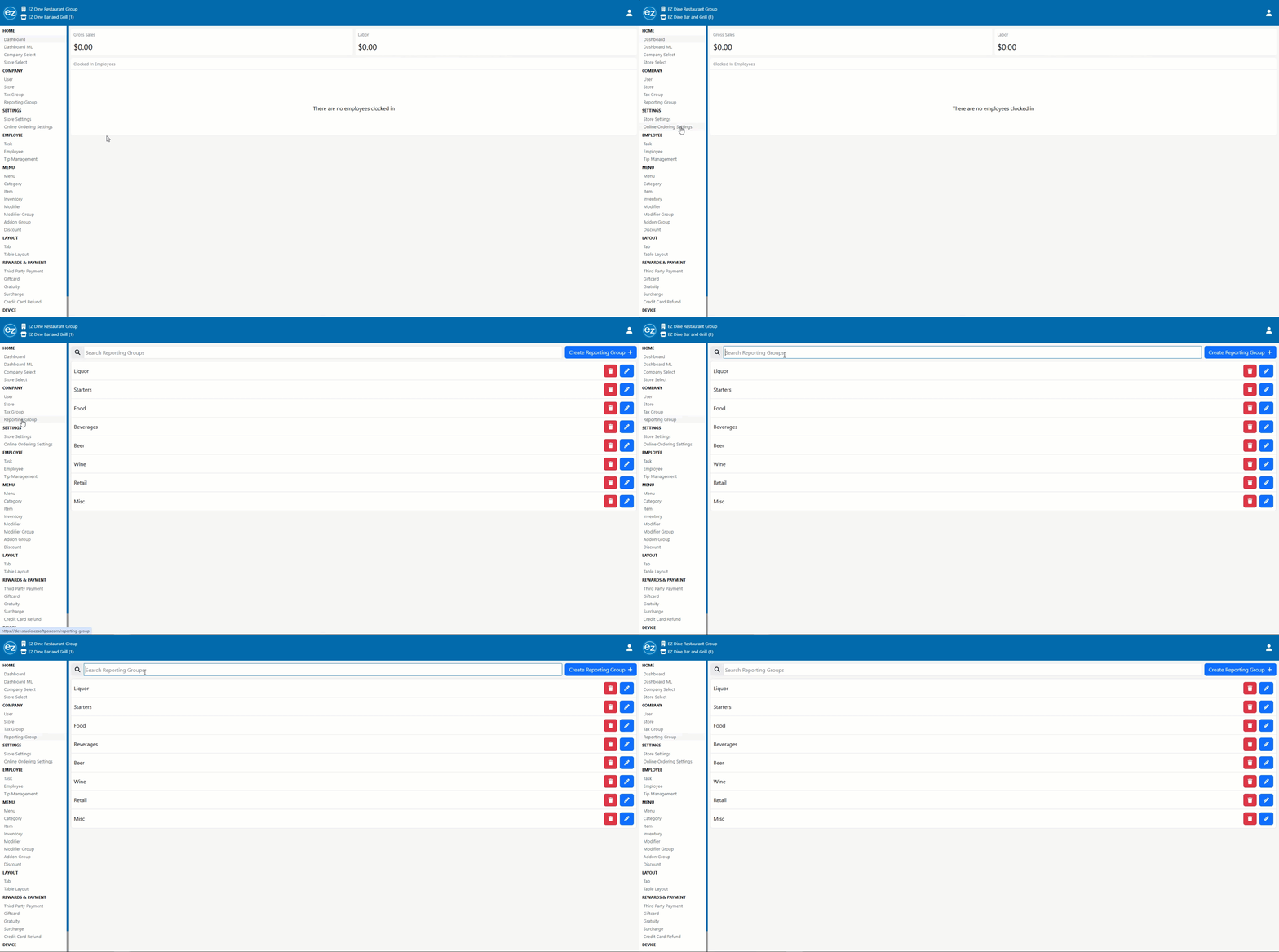
Step 2: Editing Report Groups
- Select the blue edit pencil and the edit reporting group window will be shown. You will have the option to change the reporting group name and enter a tip out percentage amount
- For creating new reporting groups select the blue creating reporting tab located in the top right hand corner. The create new reporting group window will be displayed. Input the reporting group name along with the tip out percentage which will be optional. Press save to create the new reporting group
- Deleting a reporting group will be prohibited if an item is already attached to the group. A warning message will be displayed preventing the deletion of the group. The list of items the group is currently assigned to will be shown. If there are no items linked the reporting group will be removed from the list
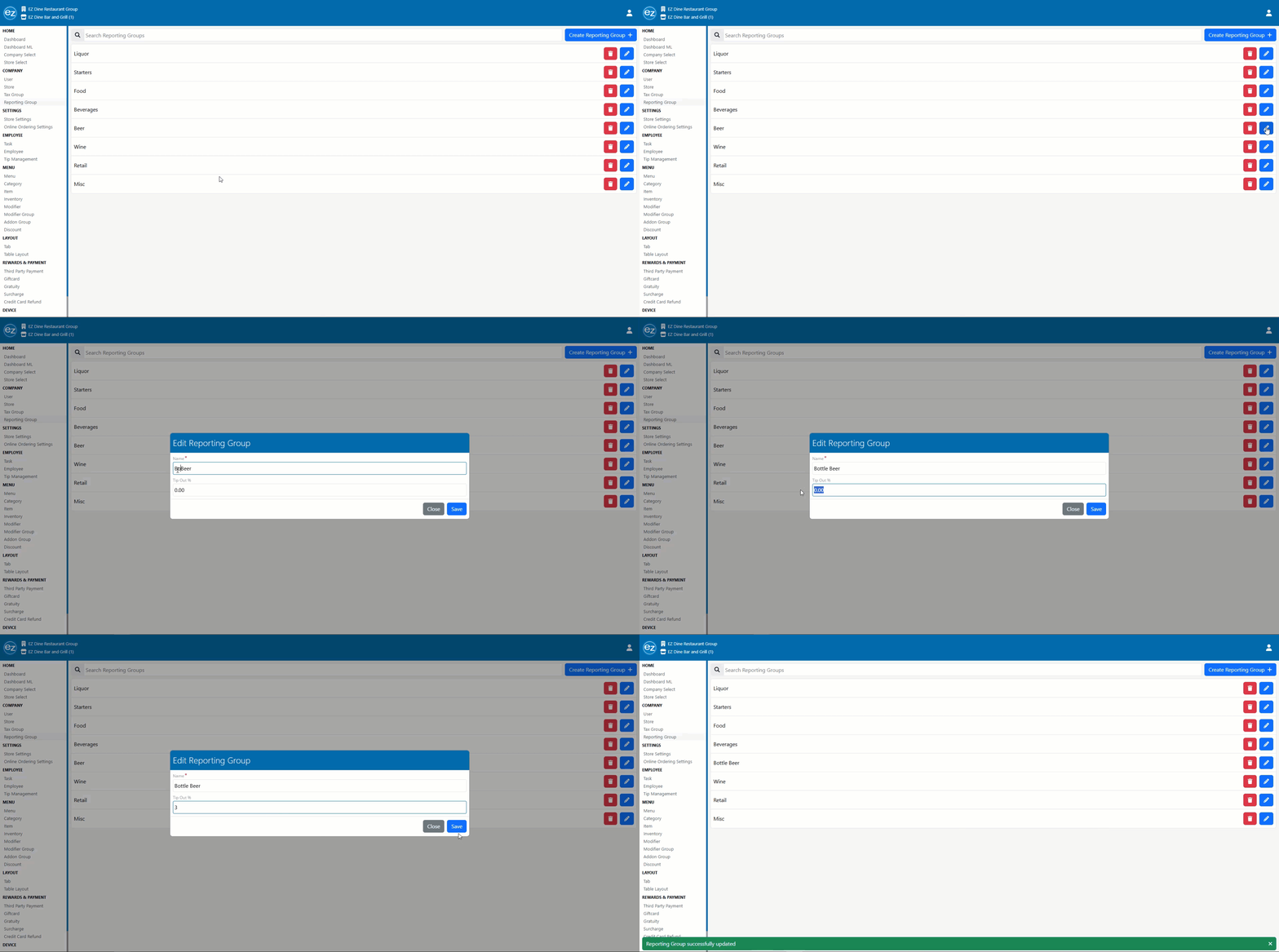
Edit Group
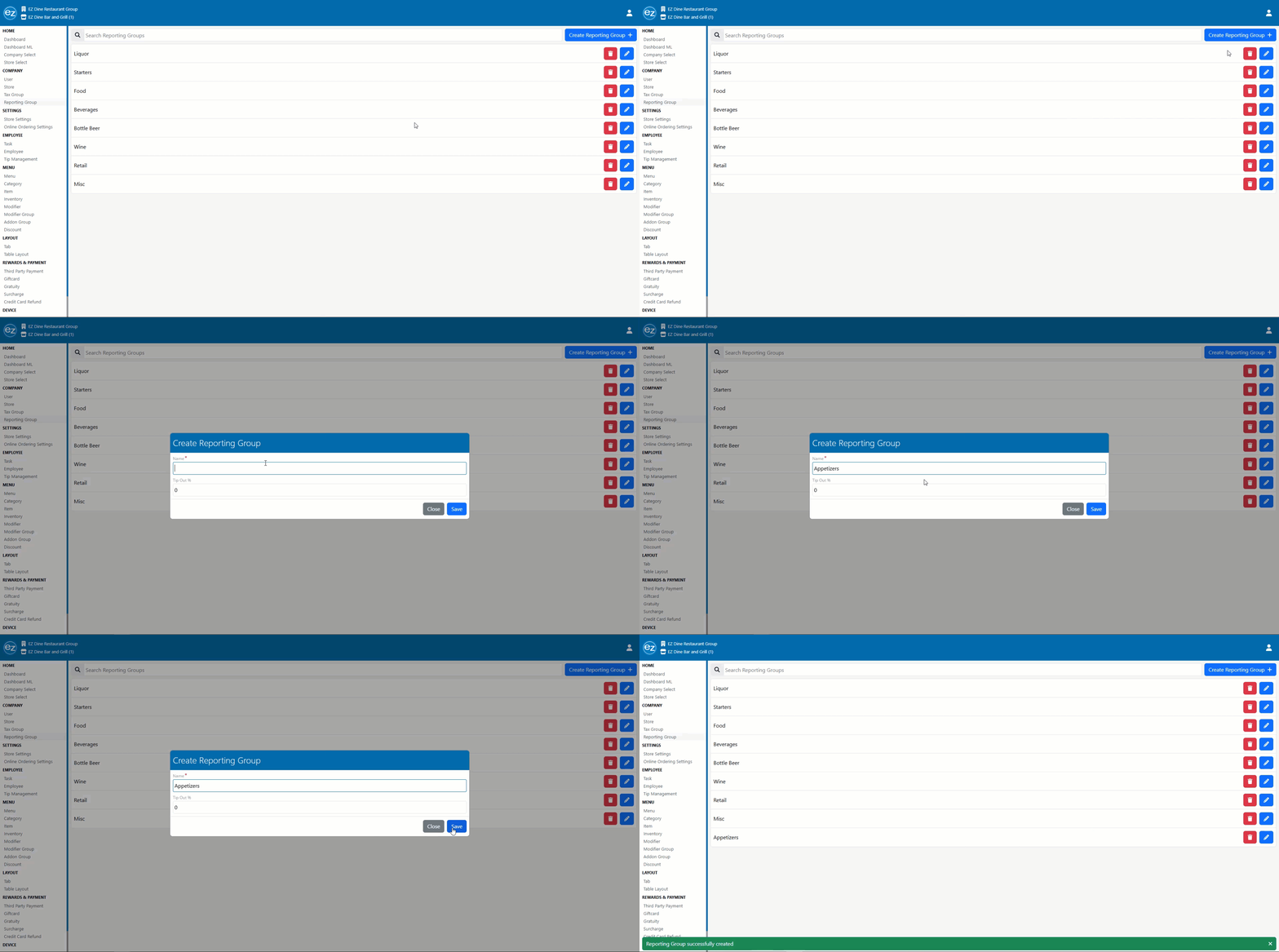
Create New Group
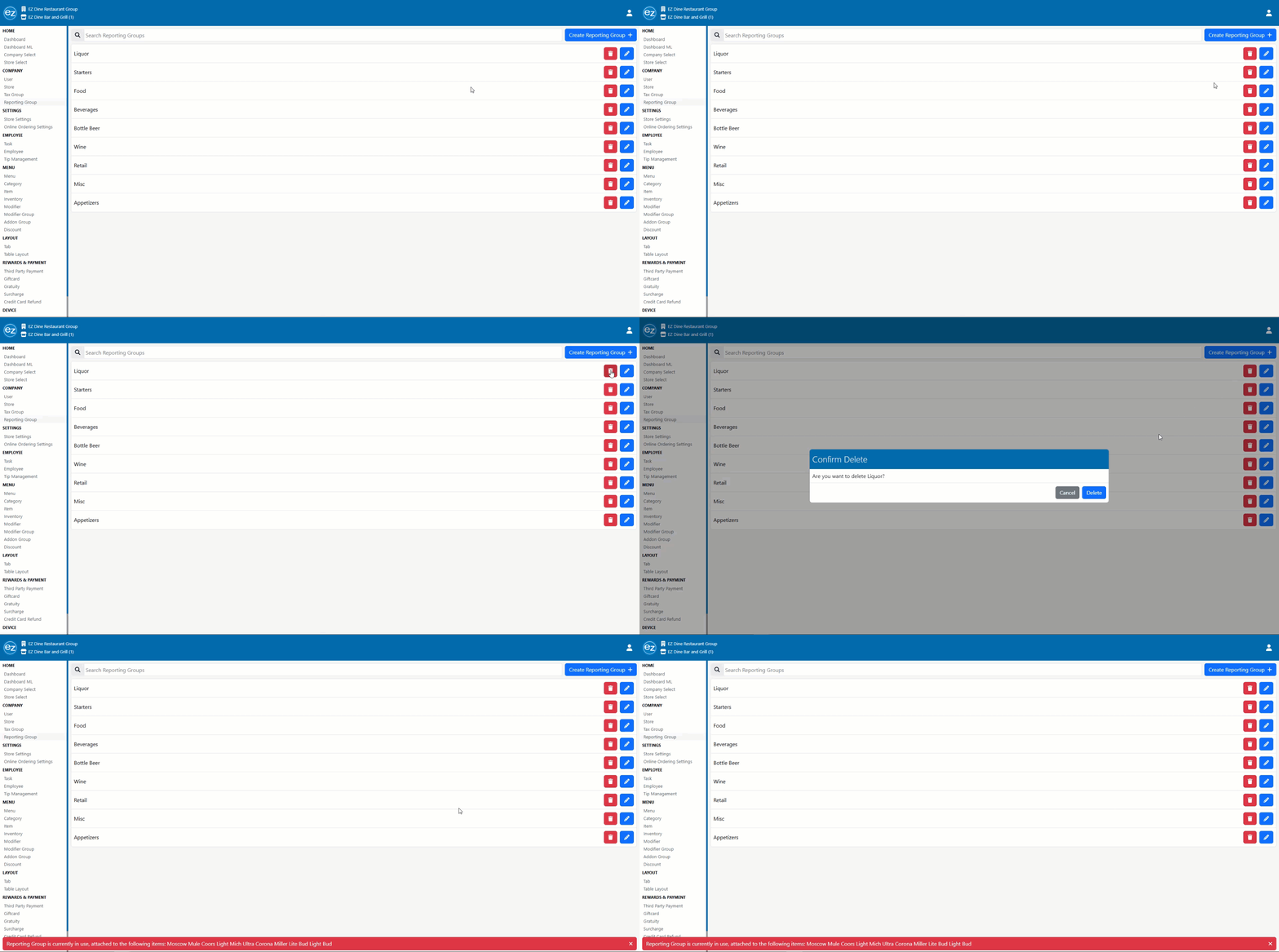
Delete Group
Step 3: Linking Items to the Reporting Group
- When a new item is created the reporting group field will have a red asterisk indicating a required parameter for saving an item
- Select the dropdown and the list of reporting groups will be displayed to choose from
- Only one reporting group can be linked to an item at a time. Selecting another reporting group will replace the current reporting group assigned to the item
- A quick option to bulk update item reporting groups can be done from the category page
- Inside the category section select the edit view. You will see a dropdown list of the created reporting groups to choose from
- Select the new reporting group and save. All items tied to the category will be updated all at once
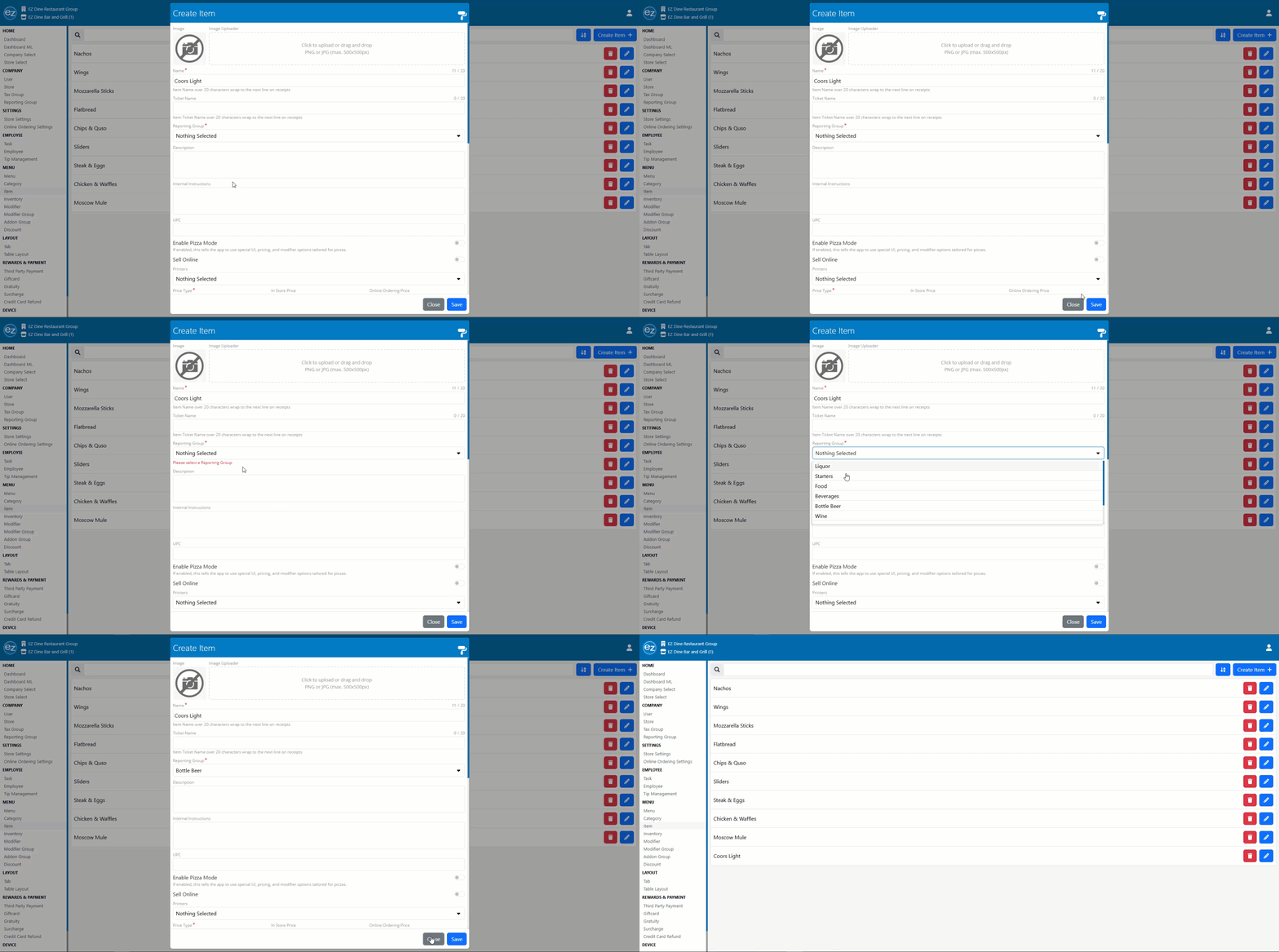
Item Group Requirement
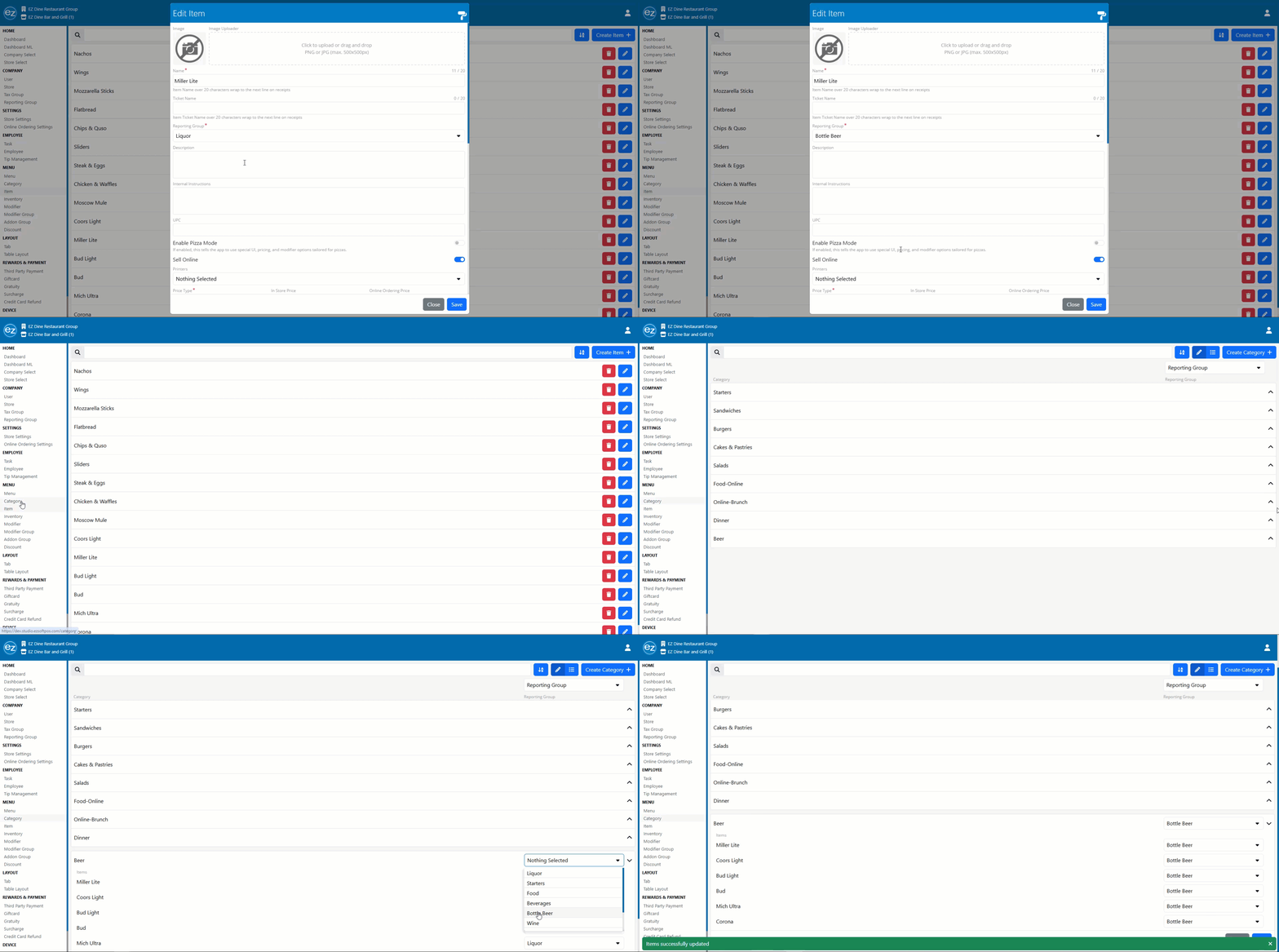
Category Group Update
Additional Resources and Help!
Still have questions? Please contact us any time at support@ezsoftpos.com.
NOTE: If emailing, please include your business name in the subject line of the email
and provide your preferred contact information for the best response time.
Visit our help center Help Center for more guides and tutorialsBack to top