
TABLE OF CONTENTS
- Step 1: Offline Mode
- Step 2: Unavailable Features in Offline Mode
- Step 3: Using Offline Mode
- Step 4: Offline Mode Data Resync
- Additional Resources and Help!
The EZ Dine App will maintain a constant check in to the Cloud services confirming operational status of the Cloud systems.
When a response is not received from the Cloud after twenty seconds. The EZ Dine App will automatically switch into offline mode.
Each device will function independently storing data locally without the need for external hardware. Only core features will be available when using offline mode. Once Cloud services are restored all offline transactions will be automatically resynced back to the Cloud
Step 1: Offline Mode
- The EZ Dine App will maintain a constant heartbeat checking the status of Cloud services
- Any instances when there is no response received from the Cloud systems after twenty seconds. The EZ Dine App will automatically switch into offline mode
- There will also be a manual option to initialize offline mode per device inside the manager section
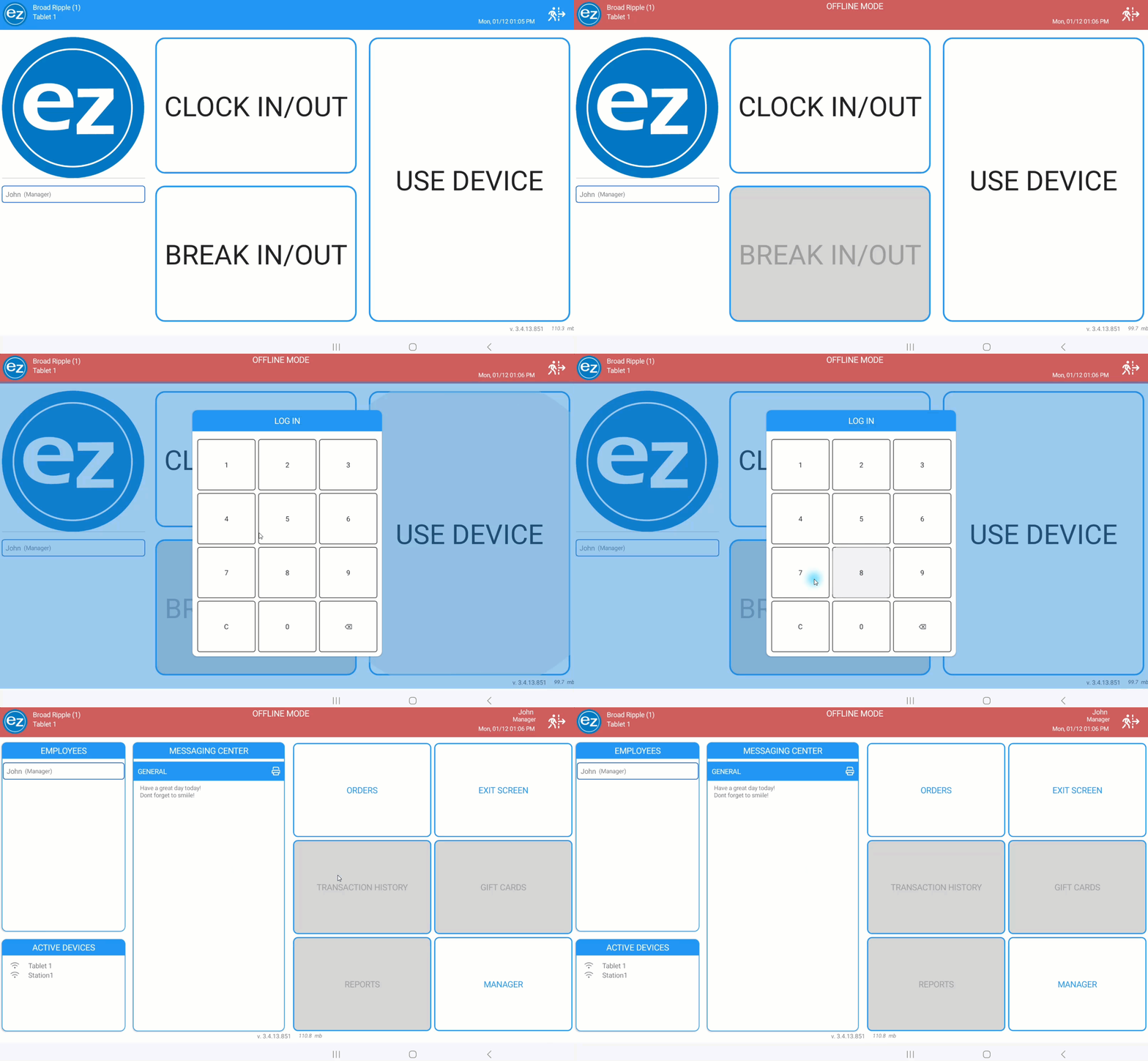
- The top header will change to a red color listing OFFLINE MODE center aligned with visibility on every page
- Any features that require Cloud services will become disabled during offline mode
- While offline its important to never uninstall the EZ Dine App or clear the local data and storage on any devices. This will result in the loss of all offline data transacted when syncing back to the Cloud
Step 2: Unavailable Features in Offline Mode
- Transaction history
- Gift cards
- Reporting
- Credit card payments
- Order syncing
- Online ordering
- KDS
- Employees clocking out
- Employee breaks
- Employee tip outs
Step 3: Using Offline Mode
- Access to menus and orders will work as normal while offline
- Employees will be able to retrieve existing open orders, place new orders, and finalize transactions
- Quick orders will generate a unique order number referenced for any offline orders created
- Kitchen and receipt printing will continue to function as long as the local area network(LAN) is online
- Any features that are visible but requires Cloud communication will display an offline disabled warning message when selected
- Clocking in during offline mode will be an available option that should be used as needed. The employee timesheet information will not be saved when the clock in is performed offline
- For any employees that clocked in while offline. You will need to create a new employee clock in/out entry when the EZ Dine App is back online. This will generate a new timesheet record were the date and time can be adjusted on Studio
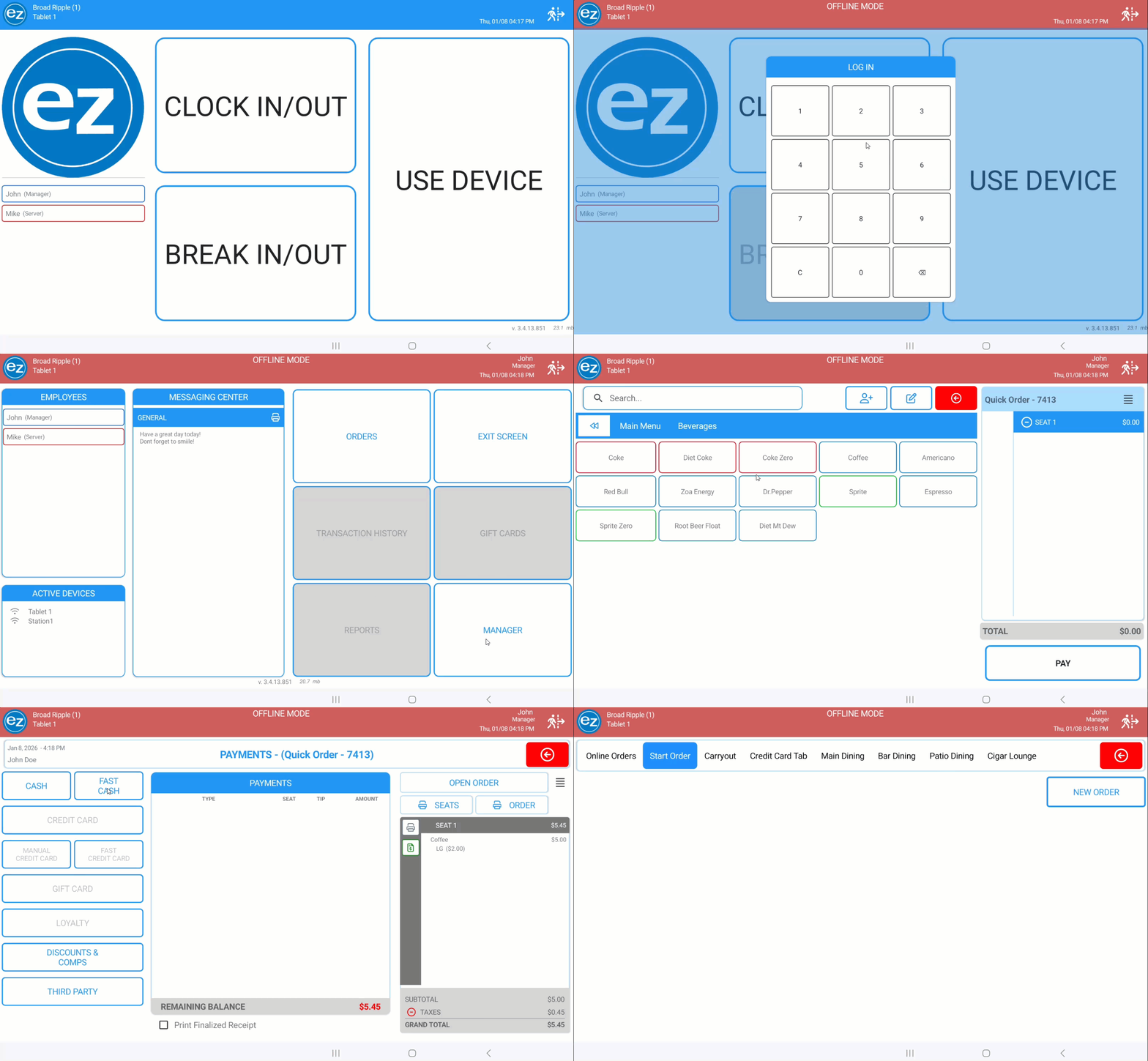
Offline Features
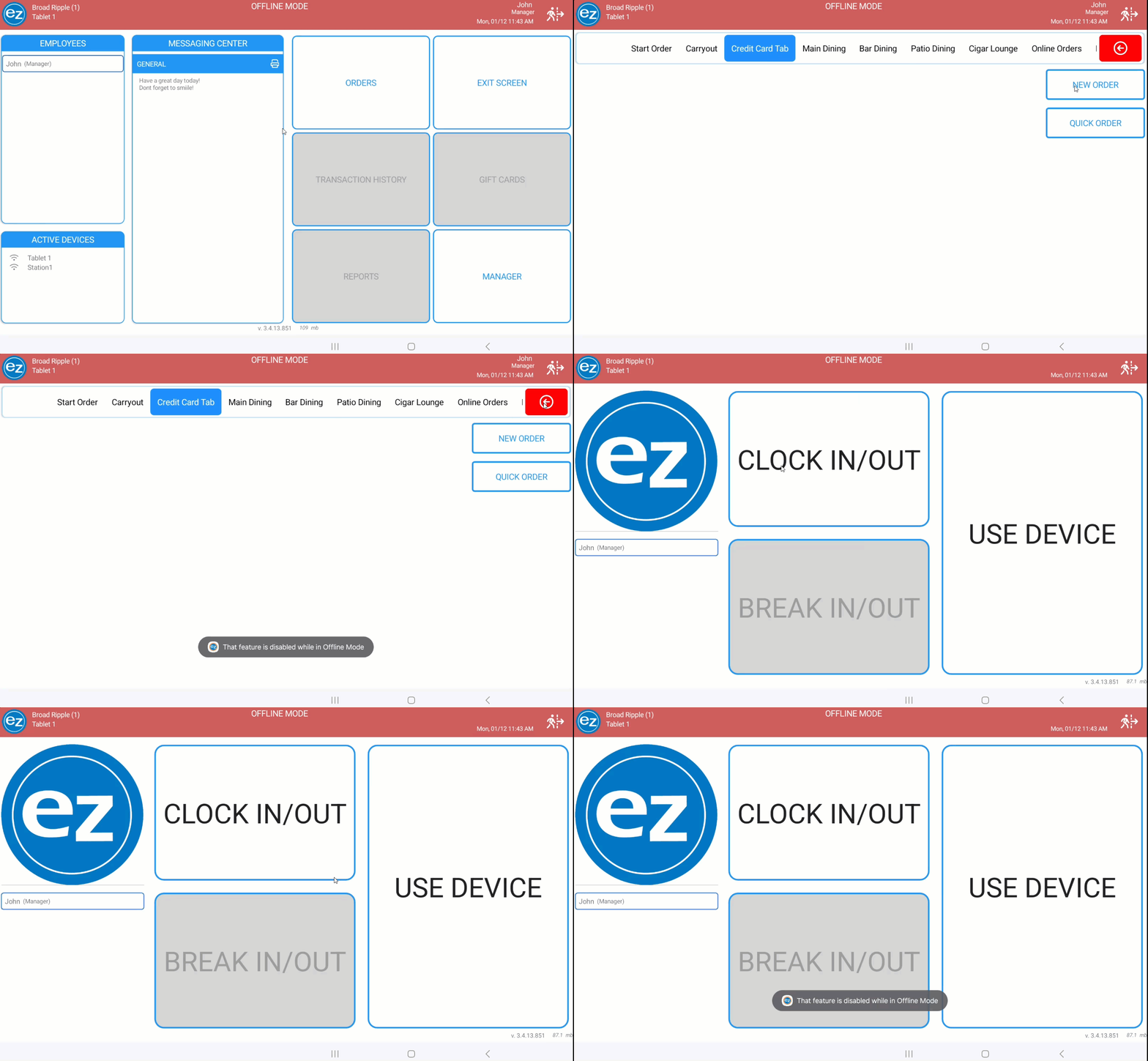
Disabled Features
Step 4: Offline Mode Data Resync
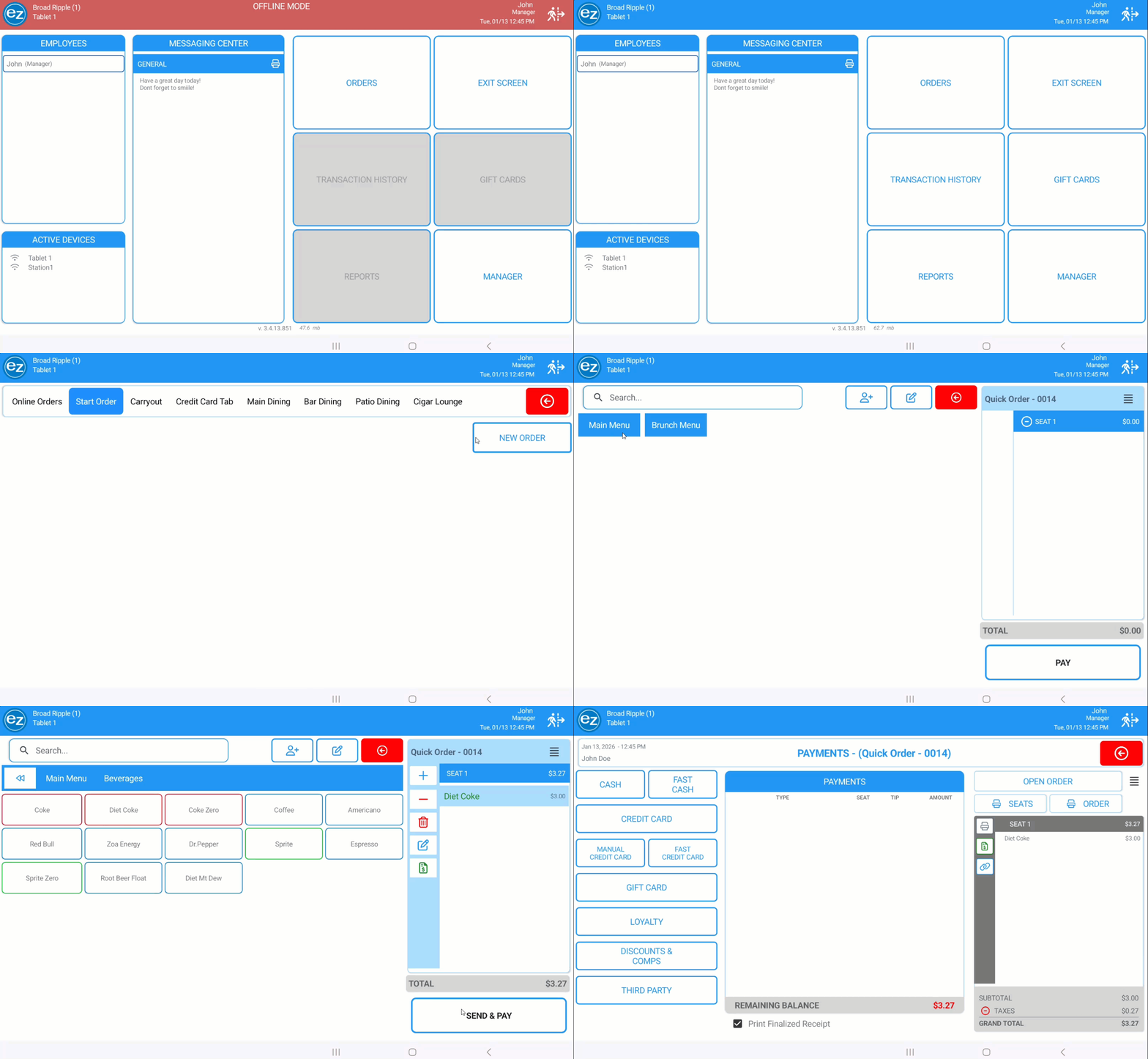
- When the EZ Dine App receives an active response back from the Cloud. The system will automatically switch back online
- All previously disabled features will become re-enabled for use
- There will be a thirty second buffer before the offline transactions will begin resyncing back to the Cloud
- Transactions will be synced automatically back to the Cloud in data sets of one hundred
- Once the resync is completed all reporting will be updated and reflect the offline transaction information
- Clocked out employees will still be listed and will require closing and restarting the EZ Dine App to refresh the active display status
Additional Resources and Help!
Still have questions? Please contact us any time at support@ezsoftpos.com.
NOTE: If emailing, please include your business name in the subject line of the email
and provide your preferred contact information for the best response time.
Visit our help center Help Center for more guides and tutorials