
TABLE OF CONTENTS
Step 1: Credit Card Refund
For accessing the credit card refund section. Studio users will need the refund transaction permission turned on. Credit card refunds will issue a return credit amount back to the customers credit card. The refunded total amount will be processed during the daily batch settlement time. Only full refunds for the entire credit card payment amount will be available for processing
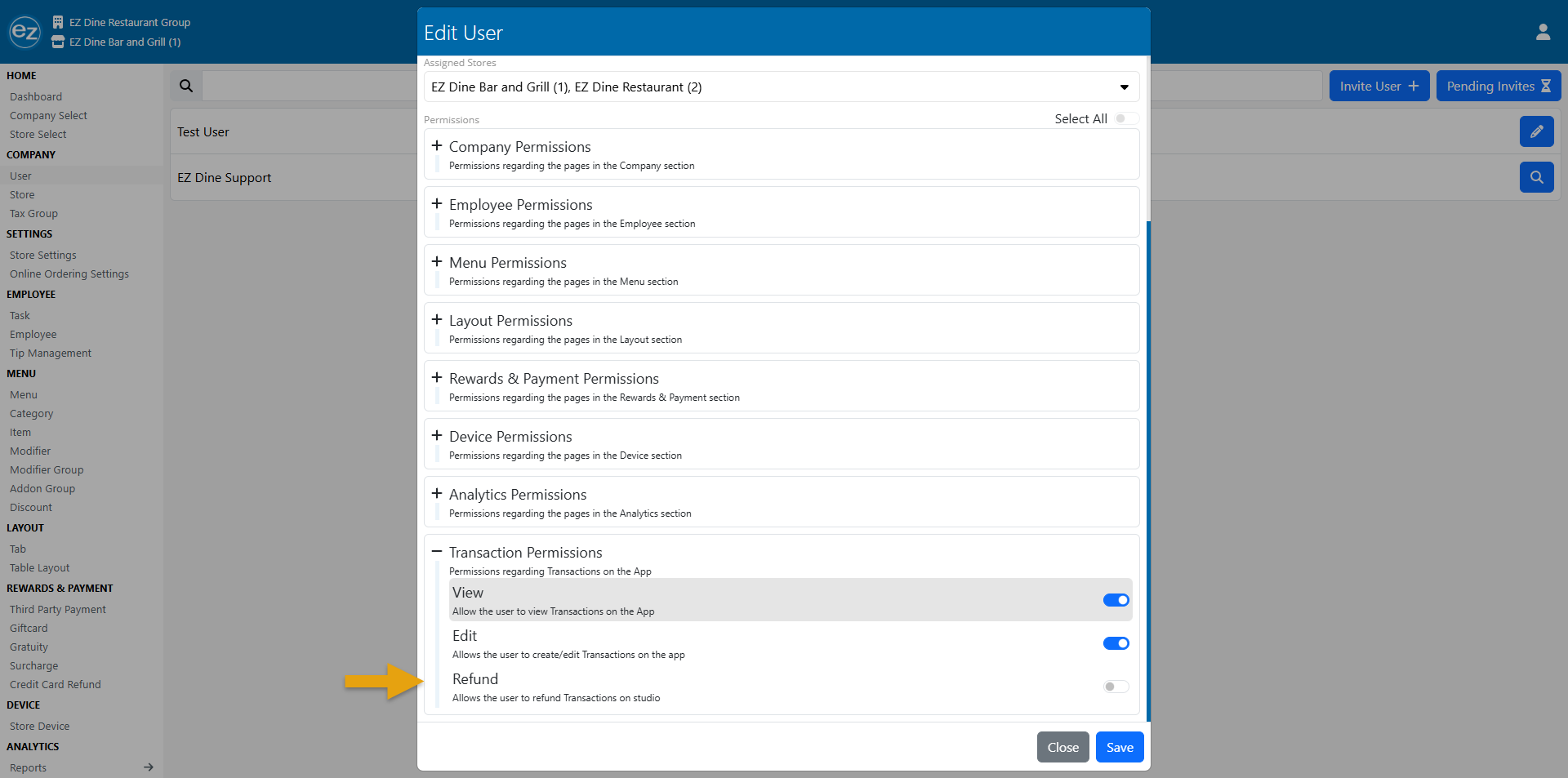
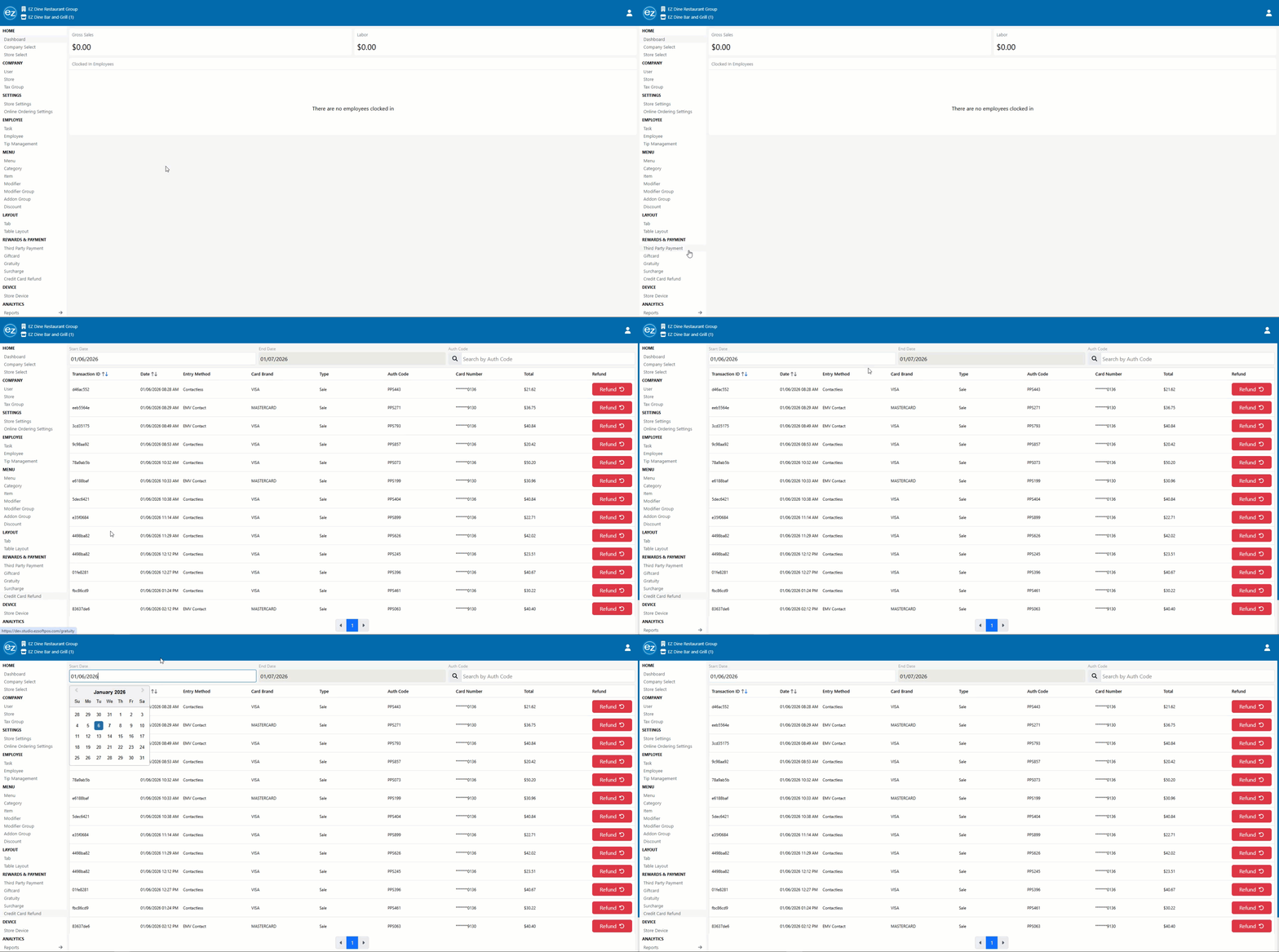
- Select the credit card refund tab from the rewards & payment section
- The previous day will be listed as the default start date. For custom dates press the start date entry field and a calendar selection option will be shown. Date range selections will be limited based on the twenty four hour day period
- Once the required date is entered. All successfully captured and batched credit card payments that have processed will be displayed
- Each credit card payment will be sorted by the transaction id, date/time, entry method, card brand, entry type, auth code, card number, and total payment amount
Step 2: Issuing Refund
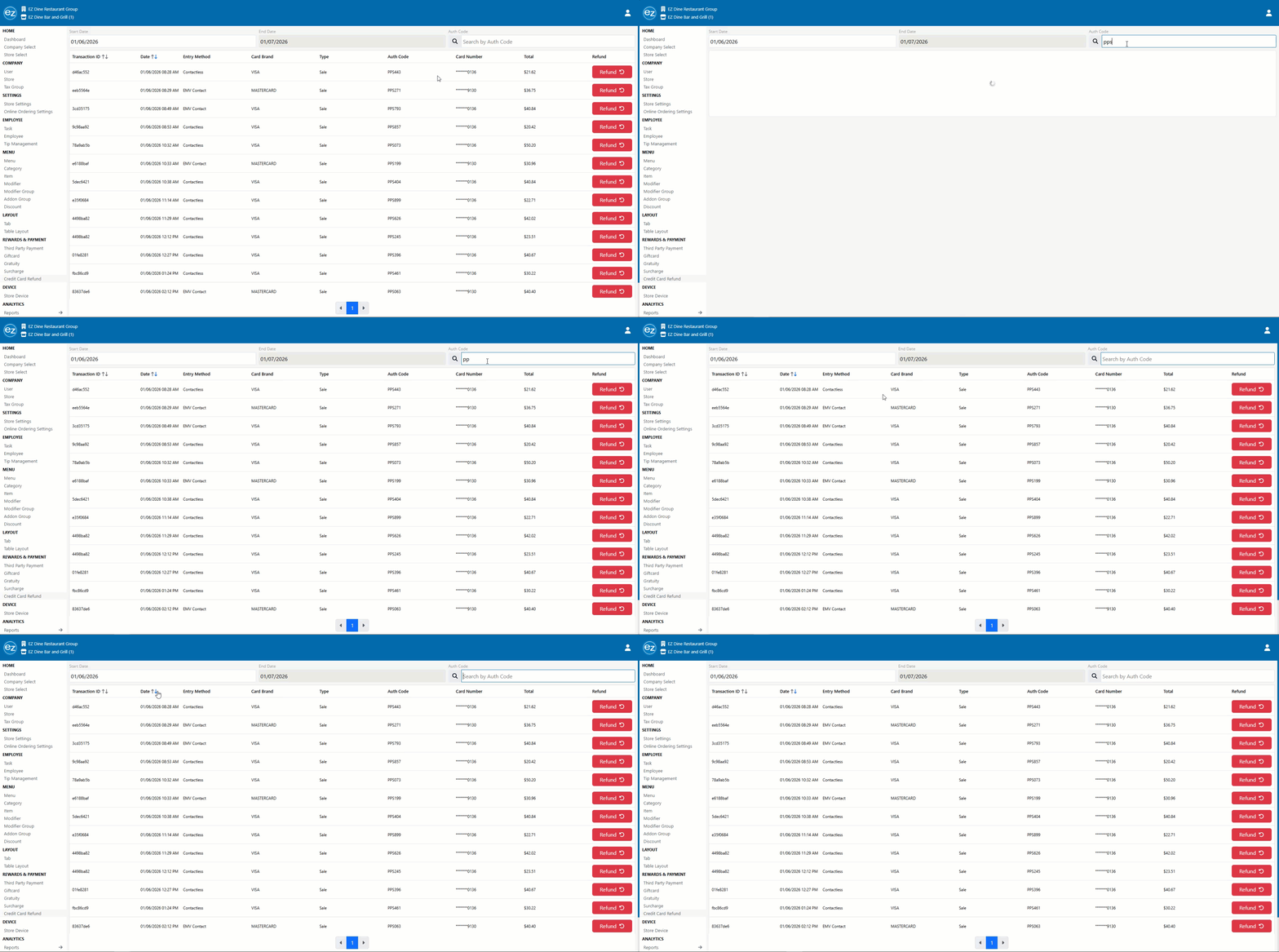
- There will be options to search and sort the credit card payments tied to the specific transactions
- Searching based on the credit card payment auth code can be done by using the top right auth search field. The auth code will be listed on every credit card payment receipt as the unique code the links the individual payment to the credit card processor
- Enter the auth code and the transaction credit card payments will begin to filter automatically. The auth code search is case-insensitive
- The transaction id and date columns can be sorted based on the chronological order of the transaction time
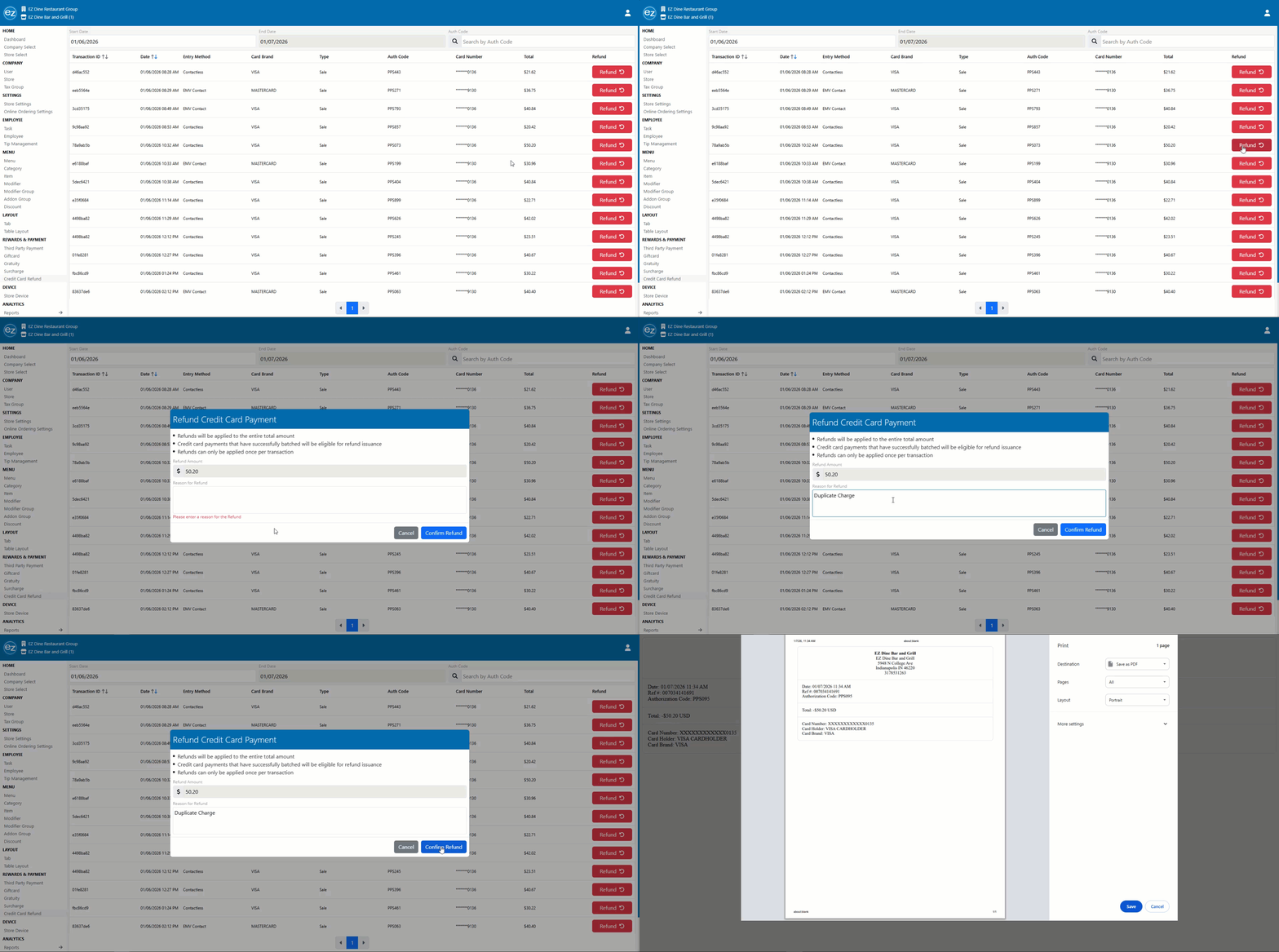
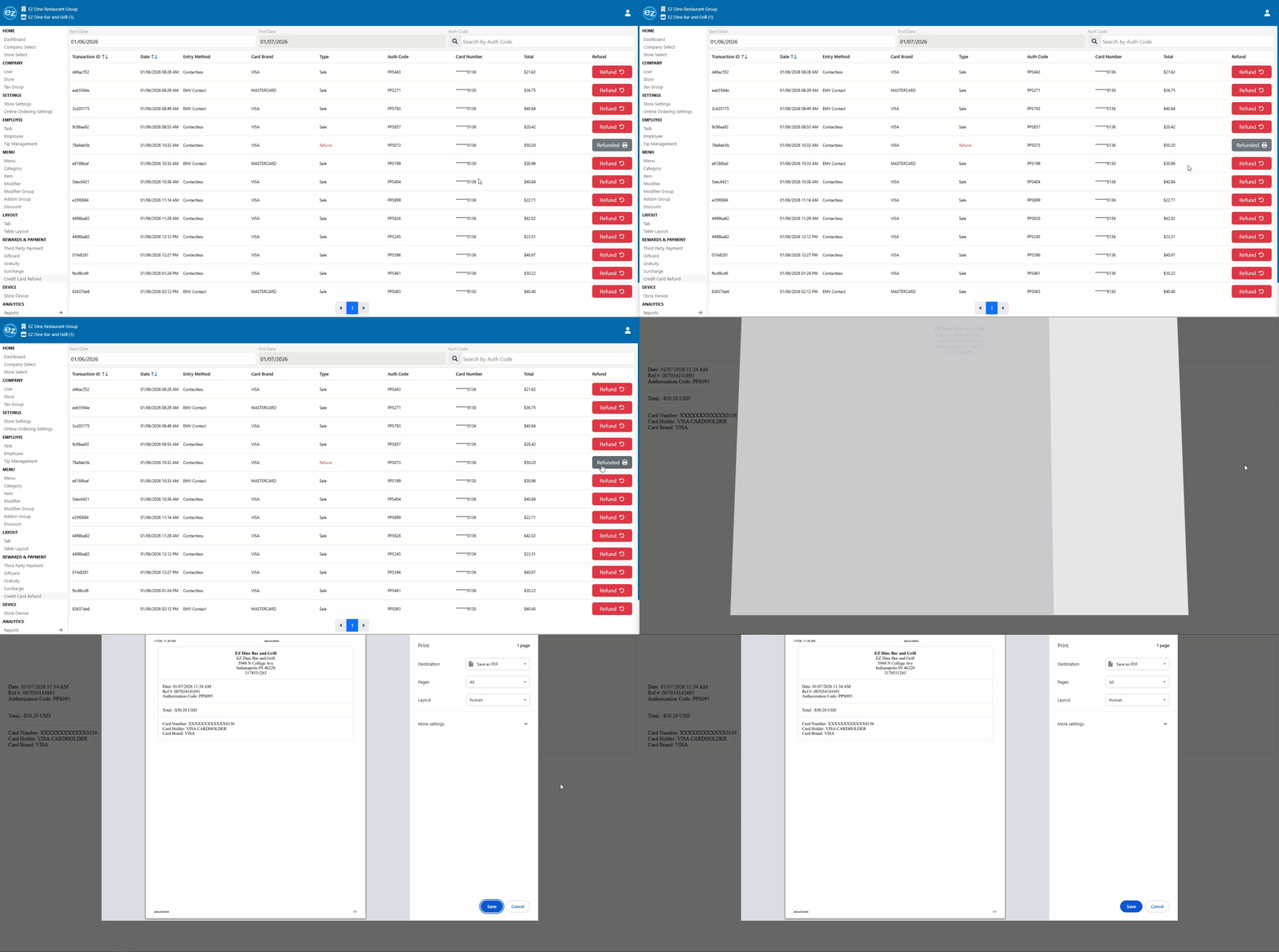
- Select the credit card payment and press the red refund tab. The refund credit card payment window will be shown
- Enter a reason for the refund and confirm. A refund reason will be required before continuing
- Once the refund has processed successfully. A confirmation refund credit card receipt will be generated automatically that can be saved
- The credit card payment type will change from sale to refund in red text. The refund button will now change from red to grey becoming disabled
- After the refund has been applied you will be prohibited from issuing another refund tied to the same credit card payment
- The refund credit card receipt can be generated as needed by selecting the refund button printer icon
- Refund amount and totals will be calculated and listed on the system financial and credit card transaction detail reports
Refund Search
Processing Refund
Refund Receipt
Additional Resources and Help!
Still have questions? Please contact us any time at support@ezsoftpos.com.
NOTE: If emailing, please include your business name in the subject line of the email
and provide your preferred contact information for the best response time.
Visit our help center Help Center for more guides and tutorials