
TABLE OF CONTENTS
Studio users will have permission level access for managing the company and store configuration. Store level employees who use the EZ Dine App will rarerly need Studio access. The main Studio user groups are the following
- Owners
- General Managers
- Accountants
Send User Registration Email
- Select users from the COMPANY section
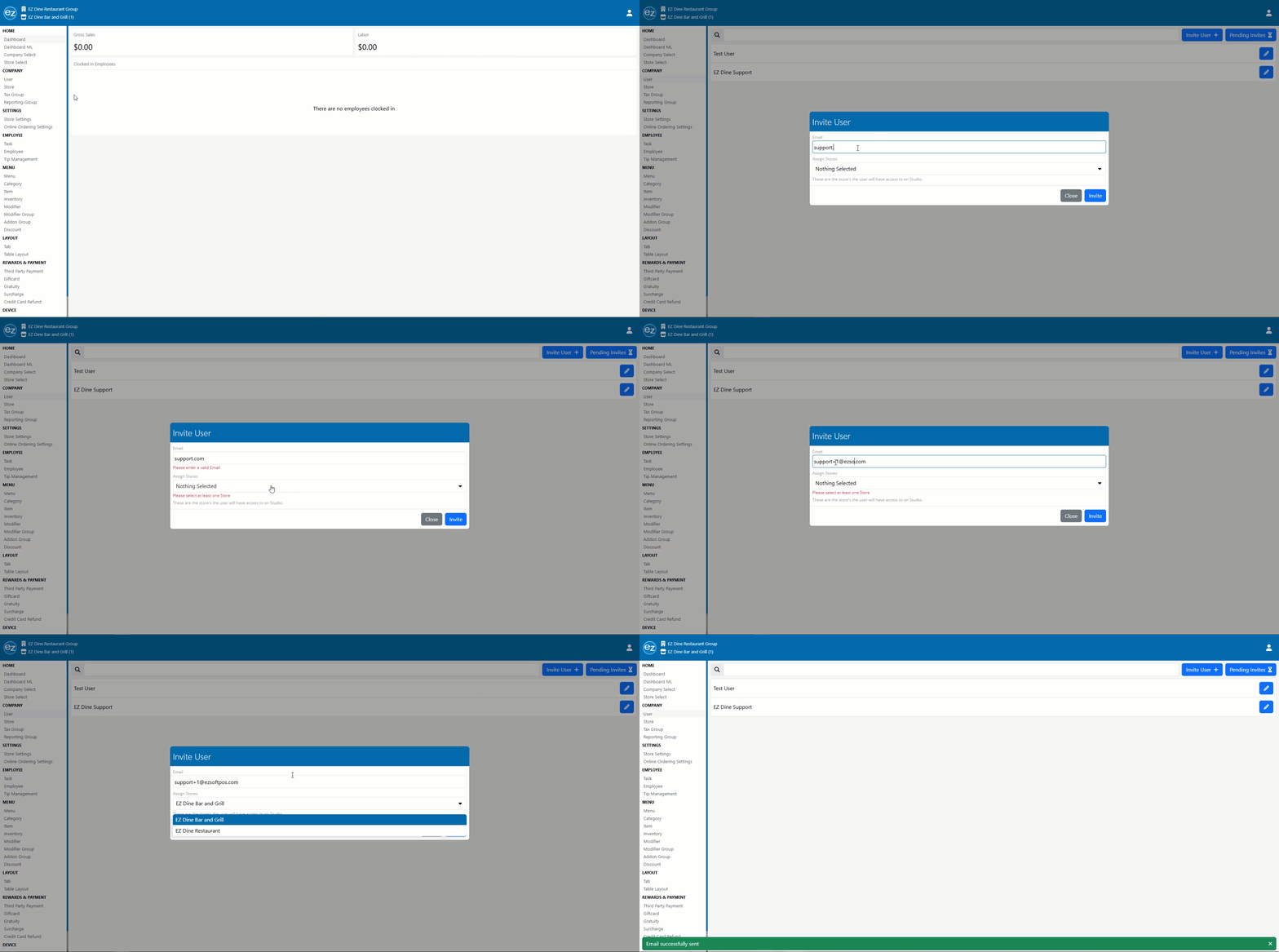
- Click the blue Invite User + tab located in the top right hand corner
- The invite user window will be shown
- Input the email address and select the store needed for access
- If an invalid email is used or store is not selected. A warning message will be displayed preventing the user invite from being sent
- Once validation is successful. The Studio user will receive a new user registration link for signup
- For details on completing the Studio user signup. Please reference the Studio user registration article here: Studio User Registration
Viewing Pending Invitations
- Any users who have not completed the registration process will be listed under pending invites
- Users will have twenty four hours to complete the signup process before the registration link will expire
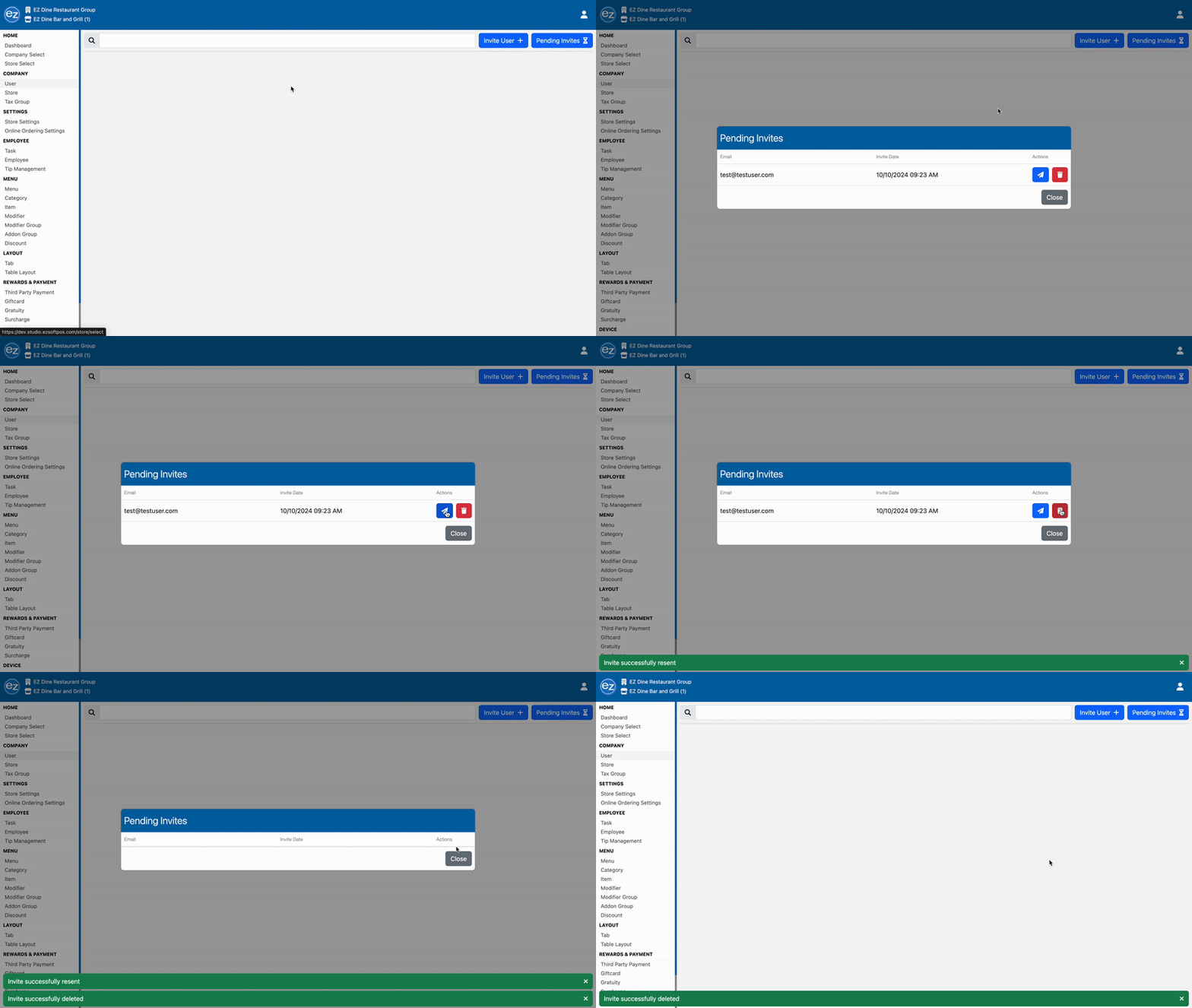
- Select the blue pending invites tab located in the top right corner
- List of pending user invites will be shown. You will be able to view the email and date the user registration email was submitted
- You can resend the user invite by selecting the blue arrow icon. This will resend the signup link and reset the twenty four registration window based on the resent time
- Selecting the red trash can icon will delete the user invite request preventing the user from completing the registration process
Managing User Permissions
- Once the user has successfully completed the required signup information. The users first and last name will be displayed inside the user section
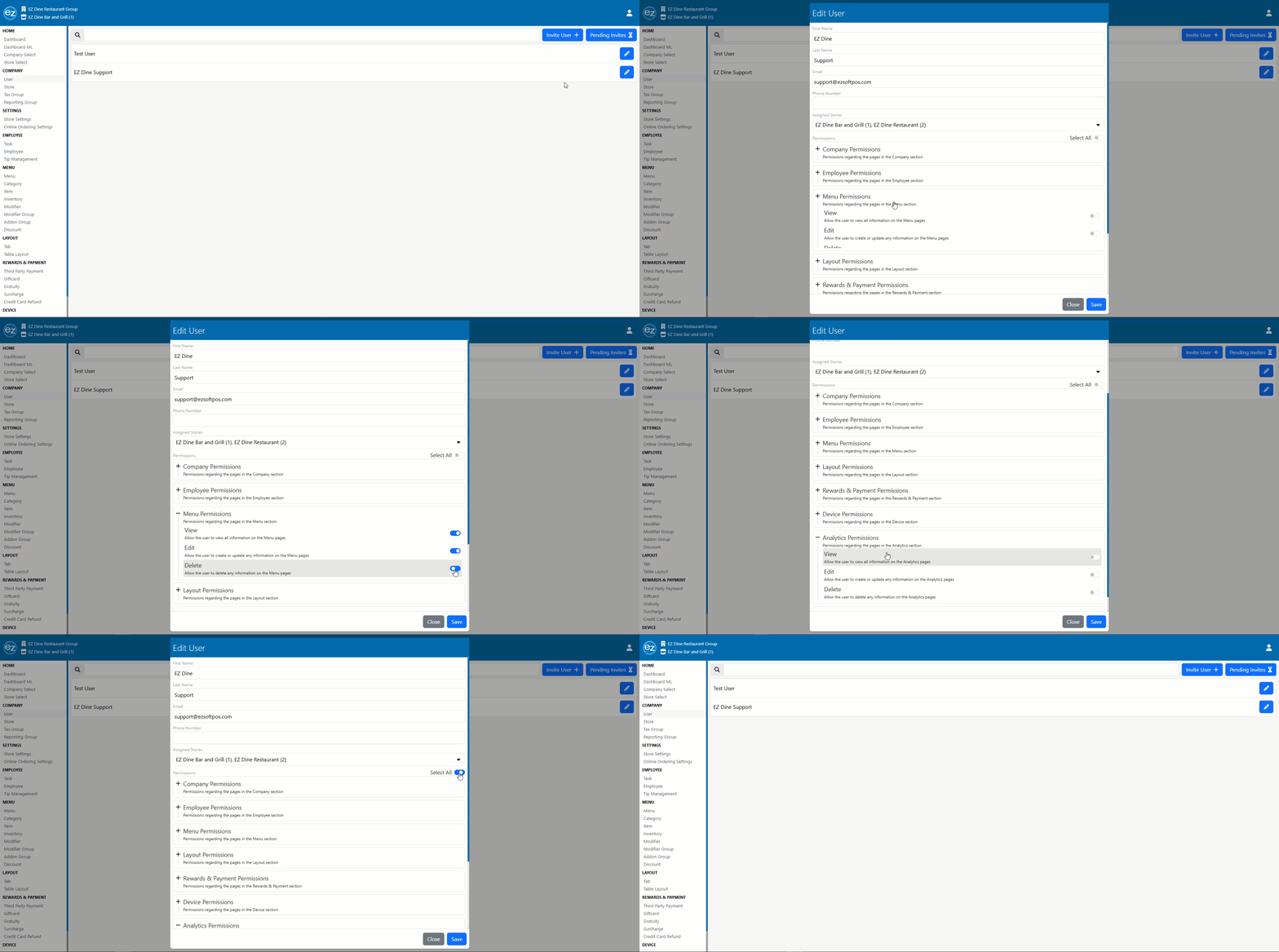
- You will be able to manage the assigned stores and permission level access for each user
- Select the blue edit pencil icon to the right of the user profile name. The edit user permission window will be shown
- Each Studio section will have three levels of permission you can choose from. The view permission will be required in order for the Studio section to become visible
- Press the Studio section group tab to expand and collapse the permission list. Toggle on/off the needed permissions from each section
- Users who will have global access you can enable the select all toggle at the top of the permission list. This will turn on all permission access levels for every section all at once
- Anytime the EZ Dine App device authentication is required. The Studio user account will need transaction view and edit permissions enabled. The transaction permissions will connect and sync the company store information to the device
Additional Resources and Help!
Still have questions? Please contact us any time at support@ezsoftpos.com.
NOTE: If emailing, please include your business name in the subject line of the email
and provide your preferred contact information for the best response time.
Visit our help center Help Center for more guides and tutorials